
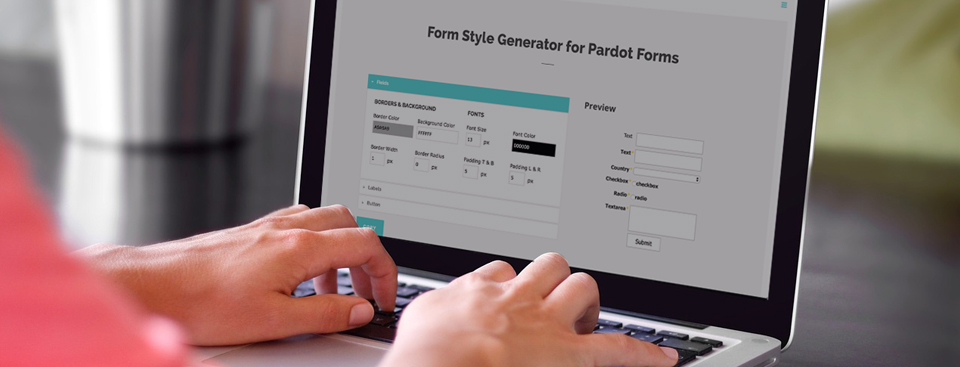
Easily style and customize your Pardot lead forms by using this Form Style Generator for Pardot Forms. With only a couple of clicks you can customize every aspect of your Pardot form including: button color, label positioning and text color, no coding required.
How it Works
1. Create a new form in Pardot
The form style generator will pull in the default styles.
2. Go to the Style Generator
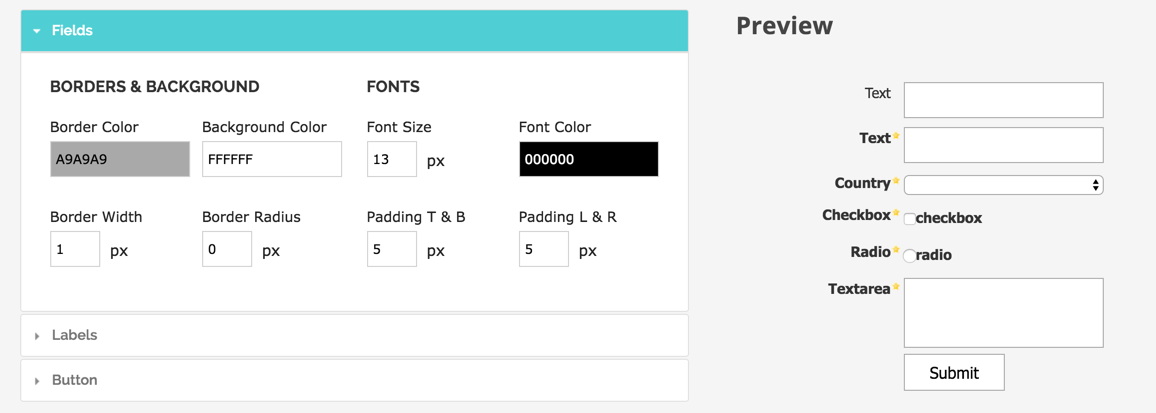
Customize the look of your form using the fields on the left side. A preview of your form will show on the right side.
3. Copy the CSS
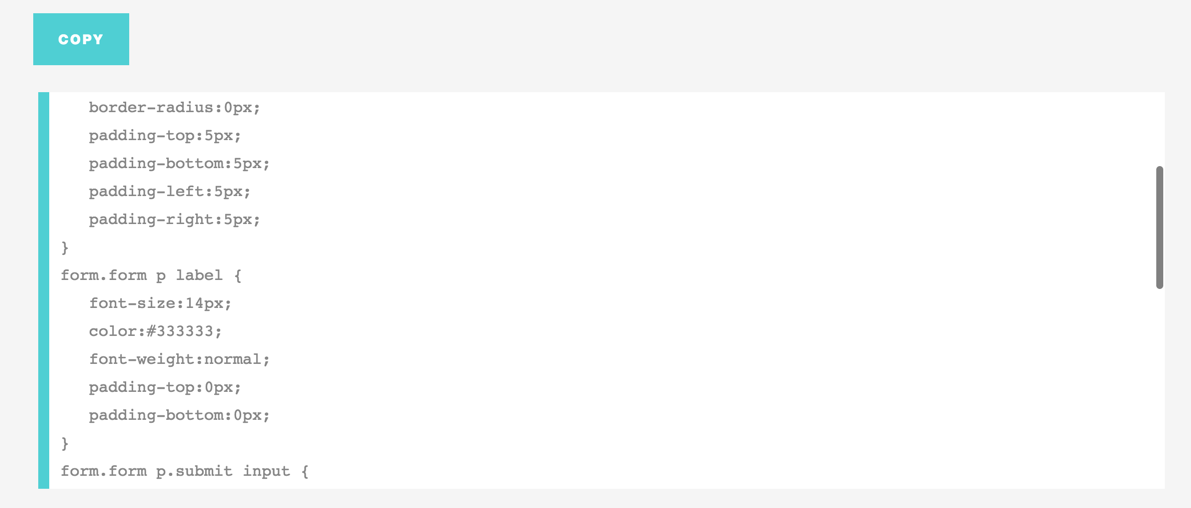
Copy the CSS that is generated and navigate to your Pardot form.
4. Paste the CSS into your Pardot form layout template
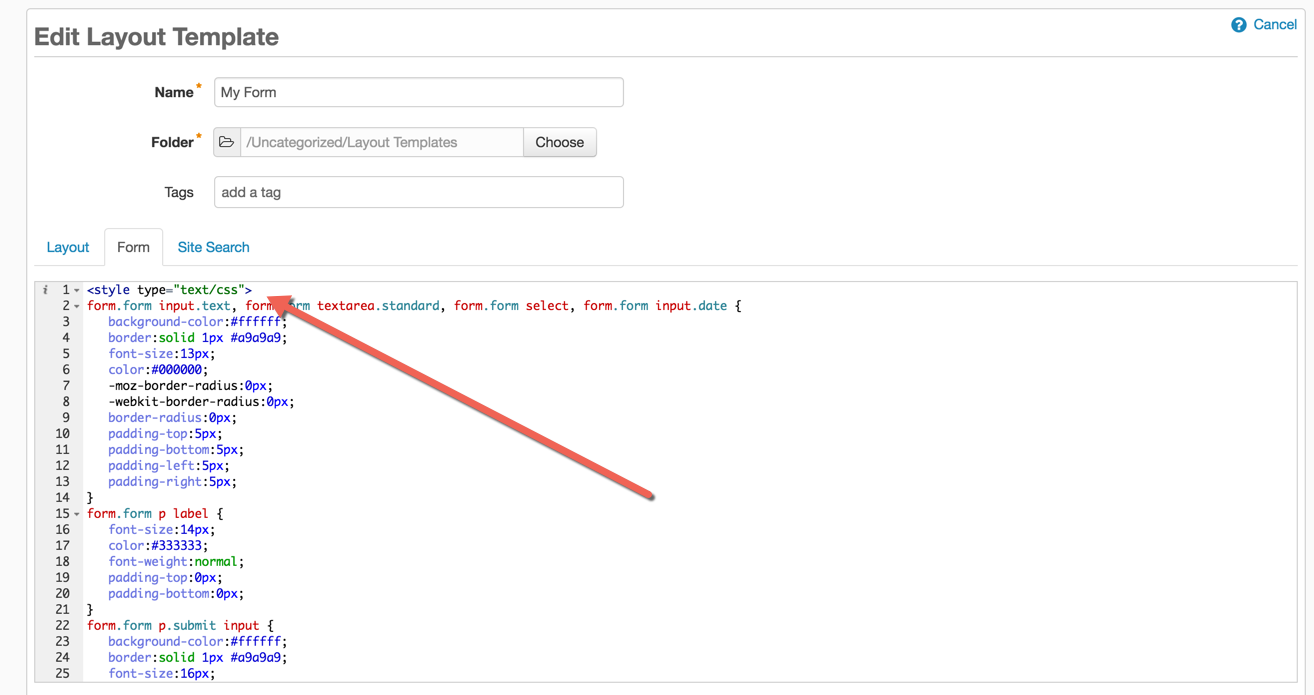
Navigate to Marketing > Forms > Layout Templates and select the layout to add the form styles to. Paste the CSS right above the existing code of the Form tab and save.
Questions?
Send them to me via email, send me a tweet @jennamolby, or leave a comment

41 Comments
Is there a downside to using the form url like a landing page instead of making a landing page and including the form? We would be linking to it from a 3rd party site.
Hi Jenna! Thanks so much for all the help you provide about styling on Pardot!! I was wondering if you had any experience with the form styling not carrying over on mobile devices. Is there something special I need to do in the code?
Hi Julian, You’re welcome! I haven’t experienced that, but you might have some existing CSS on your landing page or website that is for mobile only. Cheers, Jenna
I would like to use this form style generator, but I’m not sure where to copy and paste the code. I don’t see anywhere in the builder that provides the option to modify the form’s code. Thank you.
Hi Amber, Navigate to Marketing > Forms > Layout Templates and select the layout to add the form styles to. Paste the CSS right above the existing code of the Form tab and save. There’s also a screenshot within this post you can refer to. Hope that helps! Cheers, Jenna
Hi Jenna,
This is a tremendously helpful article. Question – do you know if it’s possible to add two Pardot forms to a Pardot landing page? Eg. one as the main CTA and one in the footer for a newsletter sign up ?
Hi Yvette, So happy you found it helpful! Yes, it’s possible to include more than one form on a Pardot landing page, however, you would have to use the standard embed code for one of them (the same way you would embed it on your website). Cheers, Jenna
This is great! One suggestion: can you add an option to set the width of the field, or at least to force all fields to be the same width? I created a form with a mix of text and drop-down fields, the drop-down fields were narrower.
Hi Julius, thanks for the recommendation! The second version of the generator is coming out soon, so expect a bunch of updates. Cheers, Jenna