
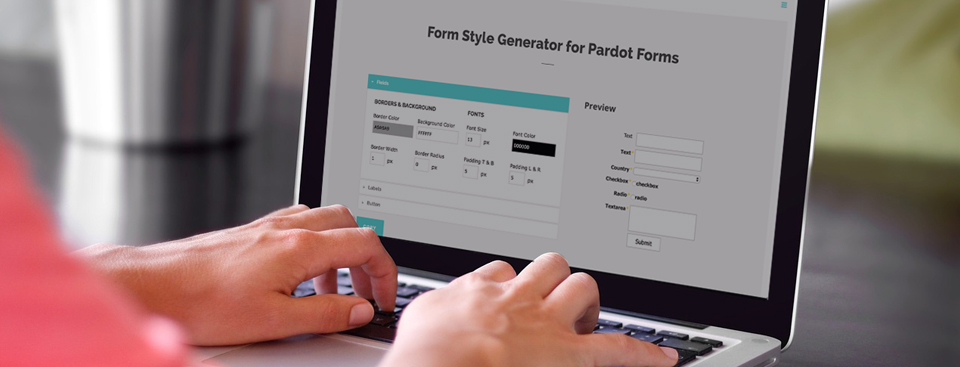
Easily style and customize your Pardot lead forms by using this Form Style Generator for Pardot Forms. With only a couple of clicks you can customize every aspect of your Pardot form including: button color, label positioning and text color, no coding required.
How it Works
1. Create a new form in Pardot
The form style generator will pull in the default styles.
2. Go to the Style Generator
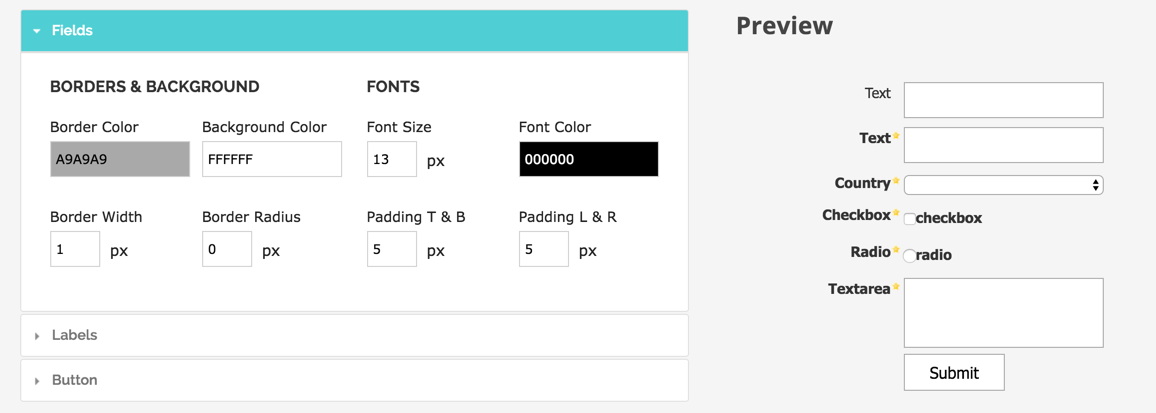
Customize the look of your form using the fields on the left side. A preview of your form will show on the right side.
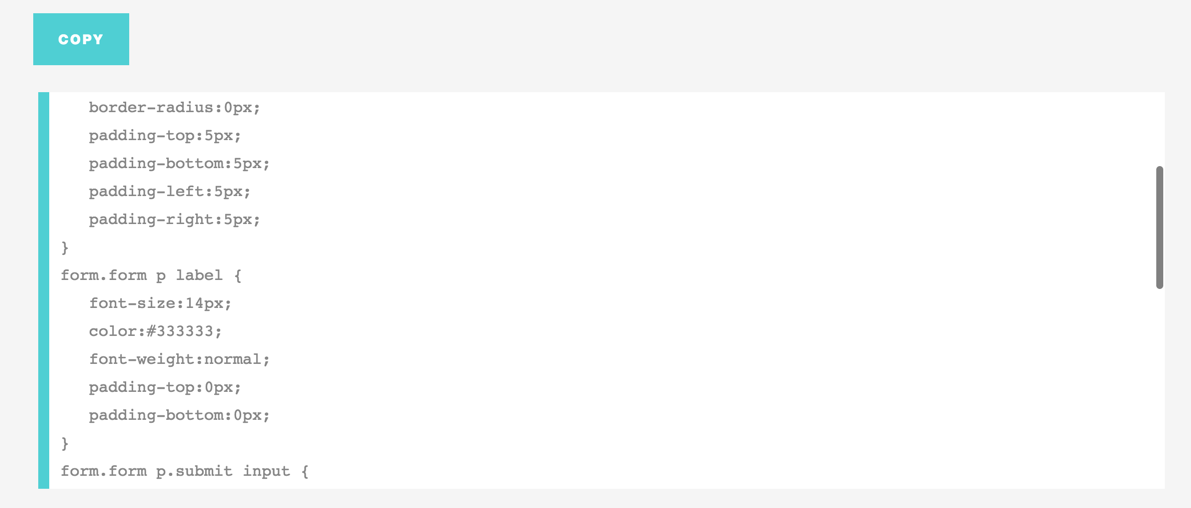
3. Copy the CSS
Copy the CSS that is generated and navigate to your Pardot form.
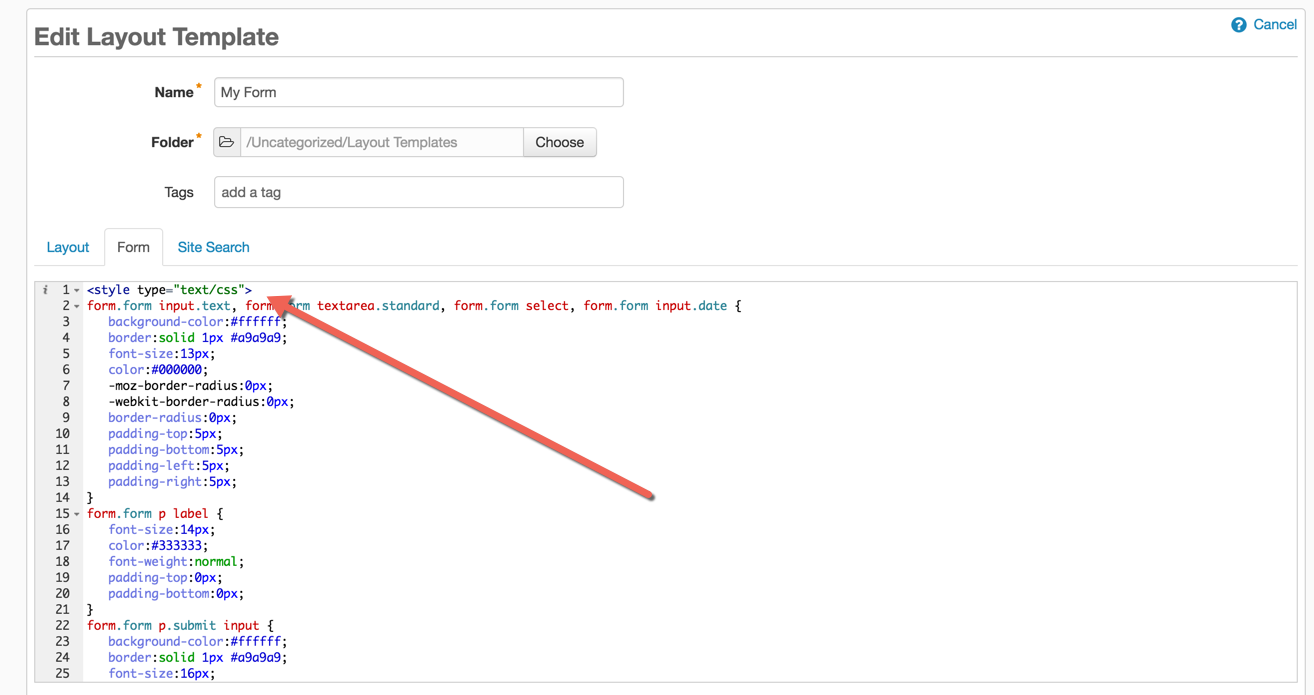
4. Paste the CSS into your Pardot form layout template
Navigate to Marketing > Forms > Layout Templates and select the layout to add the form styles to. Paste the CSS right above the existing code of the Form tab and save.
Questions?
Send them to me via email, send me a tweet @jennamolby, or leave a comment

41 Comments
For us non code savy people, you may want to mention that the code you copy from here doesn’t replace what already exists in the layout template. It goes right ABOVE the existing code. I know you mention it goes at the top, but maybe a screenshot that shows that the existing code is still there will be helpful.
Hi Andrew, Thanks for the feedback! I’ve added some explanation to the post. Cheers, Jenna
Nevermind, I placed it in the incorrect spot and then figured out where to put it after zooming in on my screen to see what you actually wrote.. Thanks again!!!
In this spot:
form.form p.submit input {
background-color:#001F5B;
hover {background:#F1F1F1;}
border:solid 2px #FFFFFF;
font-size:12px;
color:#FFFFFF;
font-weight:normal;
padding-top:7px;
padding-bottom:7px;
padding-right:50px;
padding-left:50px;
-moz-border-radius:8px;
-webkit-border-radius:8px;
border-radius:8px;
No, after the closing }
Love this! Any possible way to make the button have a roll over?
Thank you! Yes, you can add a roll over like this form.form p.submit input:hover {background:#000000;} Cheers, Jenna
Has Pardot changed this feature? I don’t see where to copy the CSS within the style generator. Thanks for the help!