


Refreshed and republished on October 4, 2020
This post was originally published on February 25, 2016 and has been revamped and updated for accuracy and comprehensiveness.Pardot offers 2 methods for embedding forms on your website; embedding using an iframe, and form handlers. While the embedded iFrame forms allow marketers to have control over updating and configuring the forms, using an iFrame isn’t always ideal for website usability. In this tutorial, I will show you how to take advantage of the Pardot iFrame forms and make it look great embedded on your website.
Why Use Embedded Pardot Forms?
Using Pardot forms over Pardot form handlers have many benefits including:
- Allowing for progressive profiling
- Built-in email validation
- The ability to use the drag and drop editor to modify form fields
- Add/remove form fields easily and have the changes show up on your website instantly
Embedding Pardot forms on your website
The problem
The embedded Pardot form (which is in an iFrame) has to have a set height. This means that when you embed the form you have to calculate the height (in pixels) and update the code Pardot provides accordingly.
Example
If you add any additional fields to the form, the height of the form will need to change. You also need to accommodate for the built-in validation messages which can cause the height of the form to change as well.
The solution
Automatically resize the iFrame using Javascript. Even if you’re not a developer, it’s pretty easy to implement since is just copy and paste.
Step 1: Add some code to your Pardot form
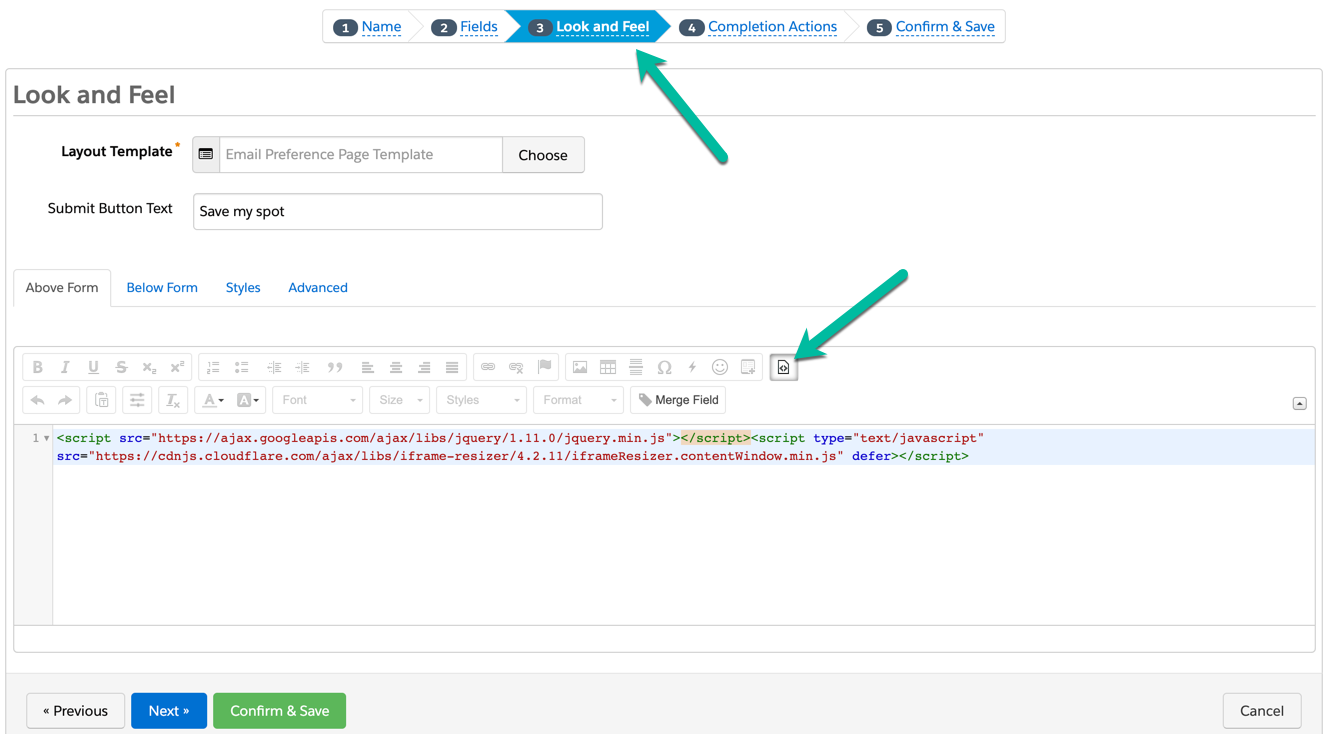
Navigate to your form in Pardot and paste this code in the look in feel section by clicking on the HTML icon.
Step 2: Download the plugin and add jQuery
Download this file and link the javascript on your website. Or link this hosted verison on your website like this and add the jQuery plugin.
Step 3: Embed the form on your website
In order to embed the Pardot form on your website, you will need to grab the form URL from Pardot. Navigate to the form overview page and copy the link provided
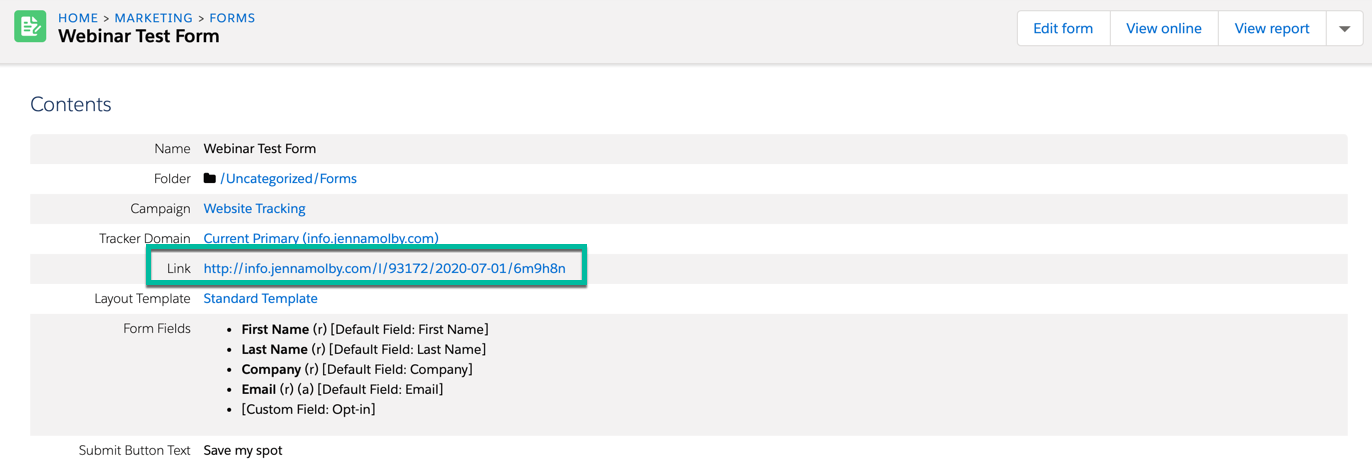
Add this piece of code where you want the form to appear on the page. Replace the URL with the URL you copied above.
Lastly, add some custom javascript to your website to initiate the iFrame resizing.
Here’s the completed website code:
Pardot iFrame Resizing
That’s it!
Your embedded Pardot form should now adjust based on the content. Have questions? Send me a tweet @jennamolby, leave a comment below, or book a Peer Chat.

48 Comments
Great Blog! Could you tell me how to implement step 2 on the website?
Hi Harshit, thank you! You would need to add the code right before the closing BODY tag on your website. Cheers, Jenna
Thanks for your quick response and I will look into that.
What happens when error messages are returned and more space is needed, or if it’s a multi-step form?
Hi, my form is looking good at PC but when I upload, its not displaying the form. Just displaying the border area of form but nothing inside. Even the form is online visible if I check the link through Pardot. Any solution for me please. Its very urgent.
Hi Imran, Looks like your page is secure (https://), but the scripts you link to are not secure (http://). Linking to secure files should fix your issue.
Jenna,
Great article and is of great help. I am wondering if you could write a follow up using a blend of this (auto resize Pardot iFrame) with this http://help.pardot.com/customer/portal/articles/2126647-passing-url-parameters-from-browser-to-iframe
It would be the perfect blend of auto resizing iFrames that also get URL parameters from the parent!
Thanks!
Hi Conrad, thanks for the great suggestion!
Thank you for posting this solution, Jenna! Worked like a charm. You should submit this to Pardot so they can include it in their knowledge base.
If you have a long form and want the page to scroll back to top after the user submits the form, I recommend including the following:
window.scrollTo(x-coord, y-coord);
on line 29 of your complete website code, right above the closing curly brace. Replace x and y coordinate placeholders with your desired coordinates; for example (0,0) will take the user back to the very top of the page.
Hi Henry, So happy it worked for you and thanks for the great tip about scrolling back to the top of the page!