

Step 1: Create a layout template
By default, the unsubscribe page uses the “Standard” layout template. You can edit the “Standard” template or create a brand new layout template. I recommend creating a brand new layout template that’s only used for the unsubscribe page.
Create a new layout template (Marketing > Landing Page > Layout Templates > New Layout Template). Name the template something descriptive, I’ve named mine “Unsubscribe Template” and paste your HTML into the template. Add the tag %%content%% where you want the unsubscribe text and button to appear.

Here’s what my HTML looks like:
%%title%%  %%Content%%
Step 2: Add CSS styles for the unsusbcribe form
Next, add some CSS to your page to style the unsubscribe form. By default, there’s a 160px margin to the left of the re-subscribe button. To get rid of this you can add this CSS to your layout template:
body form.form p.submit {
    margin-left:0;
}
You might also want to style the button and the text within the unsubscribe page. I’ve added the following styles for the button:
body form.form p.submit input {
    background:#56CFD2;
    color:#FFF;
    border:0;
    padding:10px 35px;
    font-style: normal;
    font-weight: 800;
    text-transform: uppercase;
    line-height: 1.6923em;
    letter-spacing: 2px;
    cursor:pointer;
}
body form.form p.submit input:hover {
    background: #4ebfc2;
}
And finally, you can add some CSS to modify the rest of the text on the page
body form.form {
    line-height: 1.6923em;
    font-size:14px;
    color:#868686;
}
My full HTML and CSS looks like this:
%%title%%
%%Content%%
Step 3: Edit the unsubscribe page
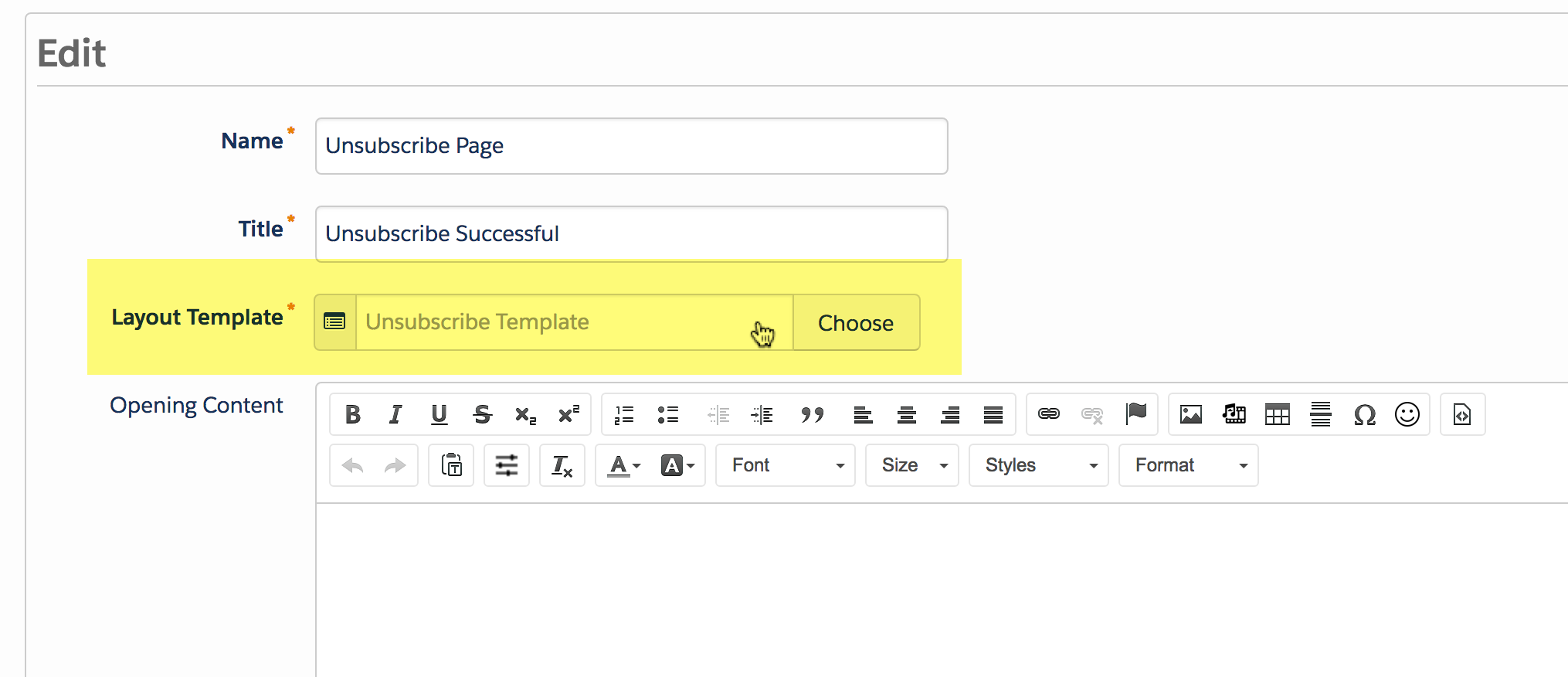
Once your page layout is ready, edit the unsubscribe page to push it live. To do this, navigate to Marketing > Emails > Unsubscribe Page, click edit and update the layout template.
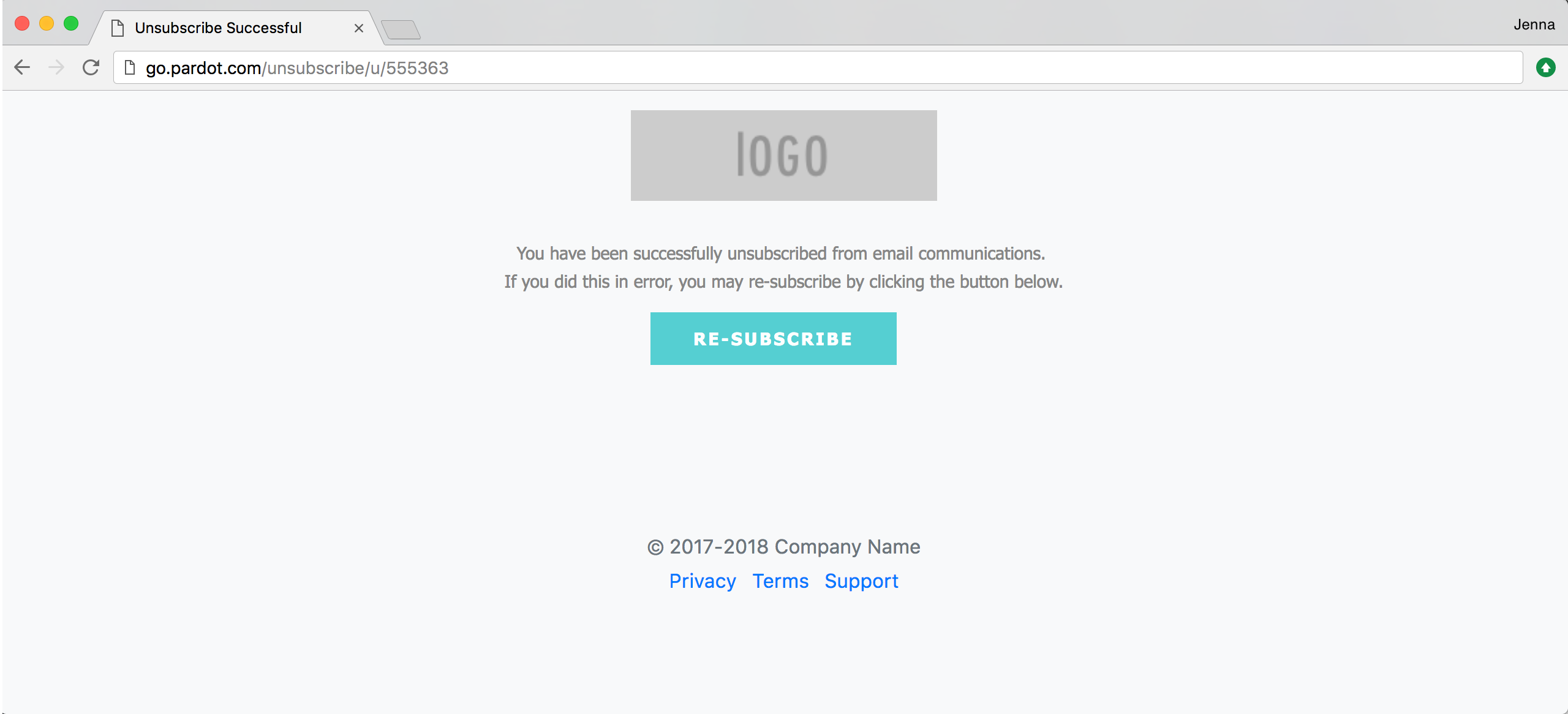
Here’s what my finished unsubscribe page looks like.
Optional: Add your own copy
Optionally, you can update the copy for the unsubscribe text. This can be updated in the layout template under the form tab.
To update the message from “You have been successfully unsubscribed from email communications. If you did this in error, you may re-subscribe by clicking the button below.” to your custom message, replace %%form-before-form-content%% with your custom text.
To update this message “You have successfully resubscribed to email communications.” to your custom message, replace %%form-thank-you-content%% with your custom text.
Questions?
Send me a tweet @jennamolby, leave a comment below, or book a Peer Chat.

31 Comments
Hi, Jenna,
Do you know how can I manage different Preferences Pages by Business units, we have created an additional subscription list and hide the “unsubscribe” option, we created an automation rule, when a Prospect is added to the additional list called “Remove me from all your subscriptions” the automation rule removes the Prospect from the other lists in the Preferences Page, but when they selected this option, the confirm page shows a message related with “Now you are subscribed to”, when the option was created to opted out from communications. Any suggestion to manage this?.
Thanks!
Hi Yadira, Are you looking to customize the text that appears when a prospect has updated their preferences? If so, please email me at [email protected] with a link to your page and I can take a look. Cheers, Jenna
Hello Jenna,
Thanks for the informations. Do you know how we can have a dynamic unsubscribe page based on the prospect’s language?
Thanks.
Hi Laura, Check out this article on how to change the text on the unsubscribe page:
https://help.salesforce.com/articleView?id=000315865&language=en_US&type=1&mode=1.
Hi Jenna, Do you have any template articles about creating a custom email preference centre? We currently have one created so that it displays the lists on one side of the page and a form to update their contact details on the right side of the page, but it looks a bit clunky! It would be great to have a responsive template that looks a bit more modern.
How do I add a text field to capture unsubscribe reason?
Hi John, There isn’t an option to add fields to the unsubscribe form. However, you can create a new form in Pardot and embed it in your unsubscribe template using the standard embed code to ask for unsubscribe reason. Cheers, Jenna
A few quirks/observations to anyone else looking to embed a pardot form on their unsubscribe layout template to collect feedback.
– create three custom prospect fields:
— One to choose a list of unsubscribe reasons
— one to capture the other reason if not in the list
— one to capture any additional comments
– find a solution to make the email field read only, or hide it all together
– find a solution to hide the form on the resubscribe success “page” – not really a page I can figure out how to edit.
– ask pardot to build this feature in natively
Hi Andrew, Thanks so much for sharing.
Hi Jenna,
Do you have any idea how can I use different labels for the re-subscribe button on the unsubscribe page? We have 3 different languages and I don’t see the way how can I change the label on the button depends on the communication preferences. And I basically have the same issue with the meta description’ content.
Hi Jenna, I have the same issue. I need to change the copy of the re-subscribe button dynamically for different languages. For other parts of the page I managed to do this with Advanced Dynamic Content. But it can’t get this to work for the button copy…is there a way?
Hi Jenna – love this! Thank you for sharing. How do you get the Re-subscribe button on the page?
Hi Lix, You’re welcome! The re-subscribe button should be there by default.
The re-subscribe button only shows for cookied visitors. Only those can actually use your unsubscribe oder preference center pages!