

I’m so excited to finally launch version 2.0 of the Pardot Form Style Generator. The original version was created back in 2016 and has been used by thousands of Pardot users. With the new version comes a new UI and some cool new features, including customized checkboxes and radio buttons, embedded Google Fonts, new submit button options and more.
What is the Pardot Form Style Generator?
The Pardot Form Style Generator is a free tool you can use to easily customize your Pardot forms with no coding required. With a couple of clicks, you can customize almost every form element, including fields, checkboxes, buttons, labels and more. When you’re done customizing your form, the generator will compile custom CSS that you can copy and paste into your Layout Template within Pardot.
What’s new?
New UI
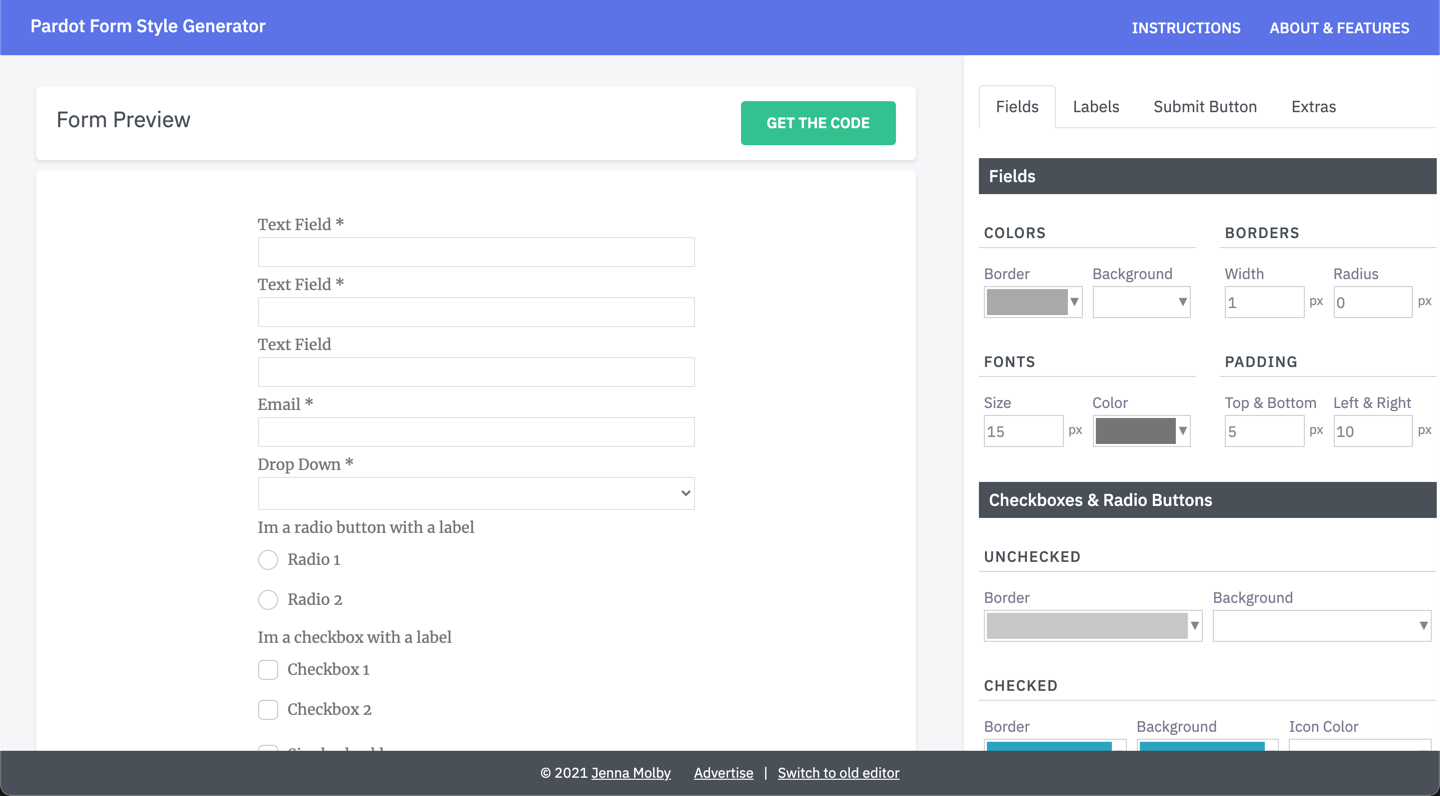
The generator has a complete new look, making it easier to customize your form.
Starts from a template
The old version started with the default Pardot form CSS. This new version starts with a template I use frequently within projects, meaning there are less tweaks needed to create a beautiful form.

Customized checkboxes & radio buttons
Change the border color, background color for radio buttons and checkboxes.

Embedded Google Fonts
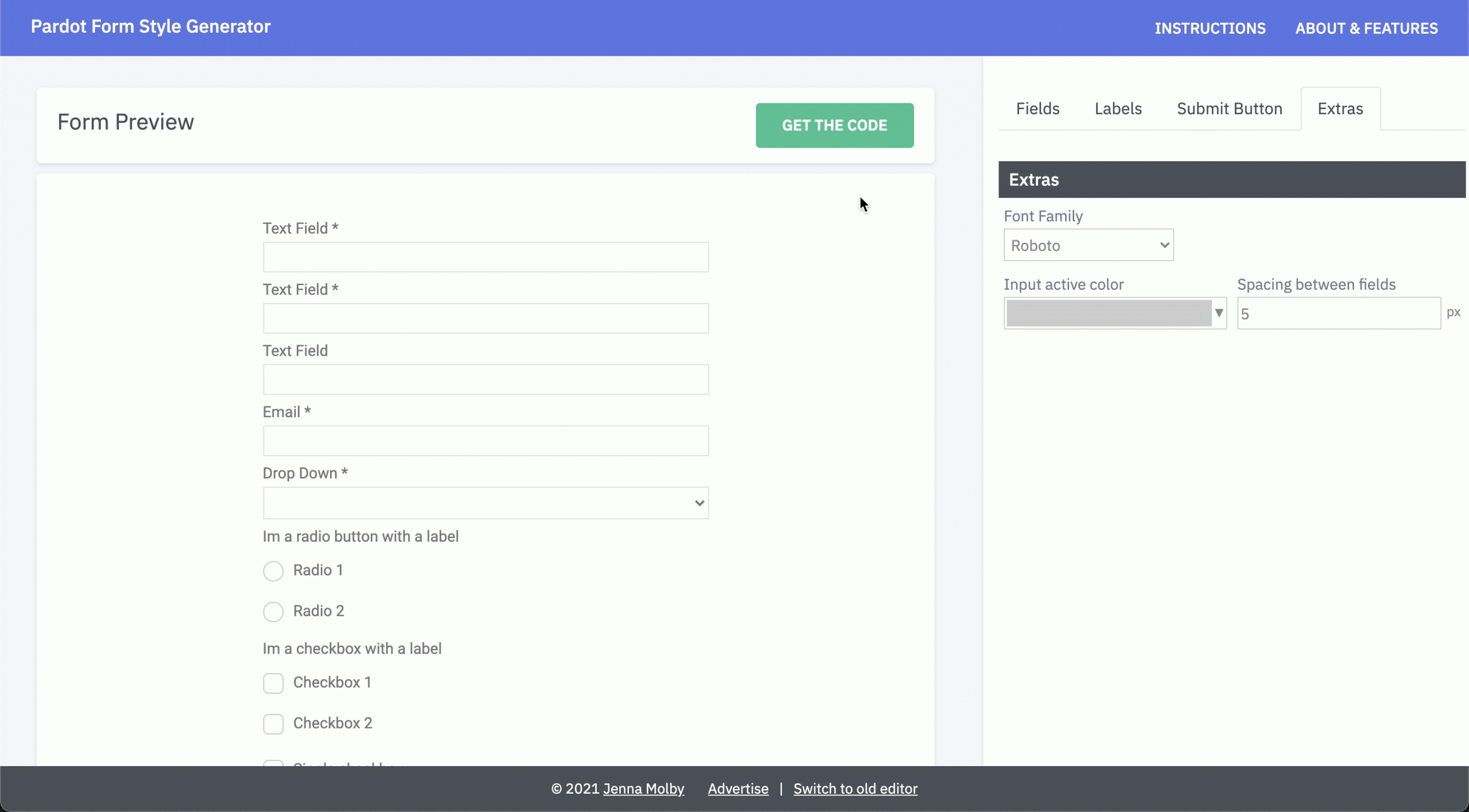
The most popular Google Fonts are loaded directly within the editor, including Roboto, Lato, Open Sans and more.
Set a border color for fields on focus
Select a border color that will be displayed when a prospect clicks into a form field.

Create a full-width submit button
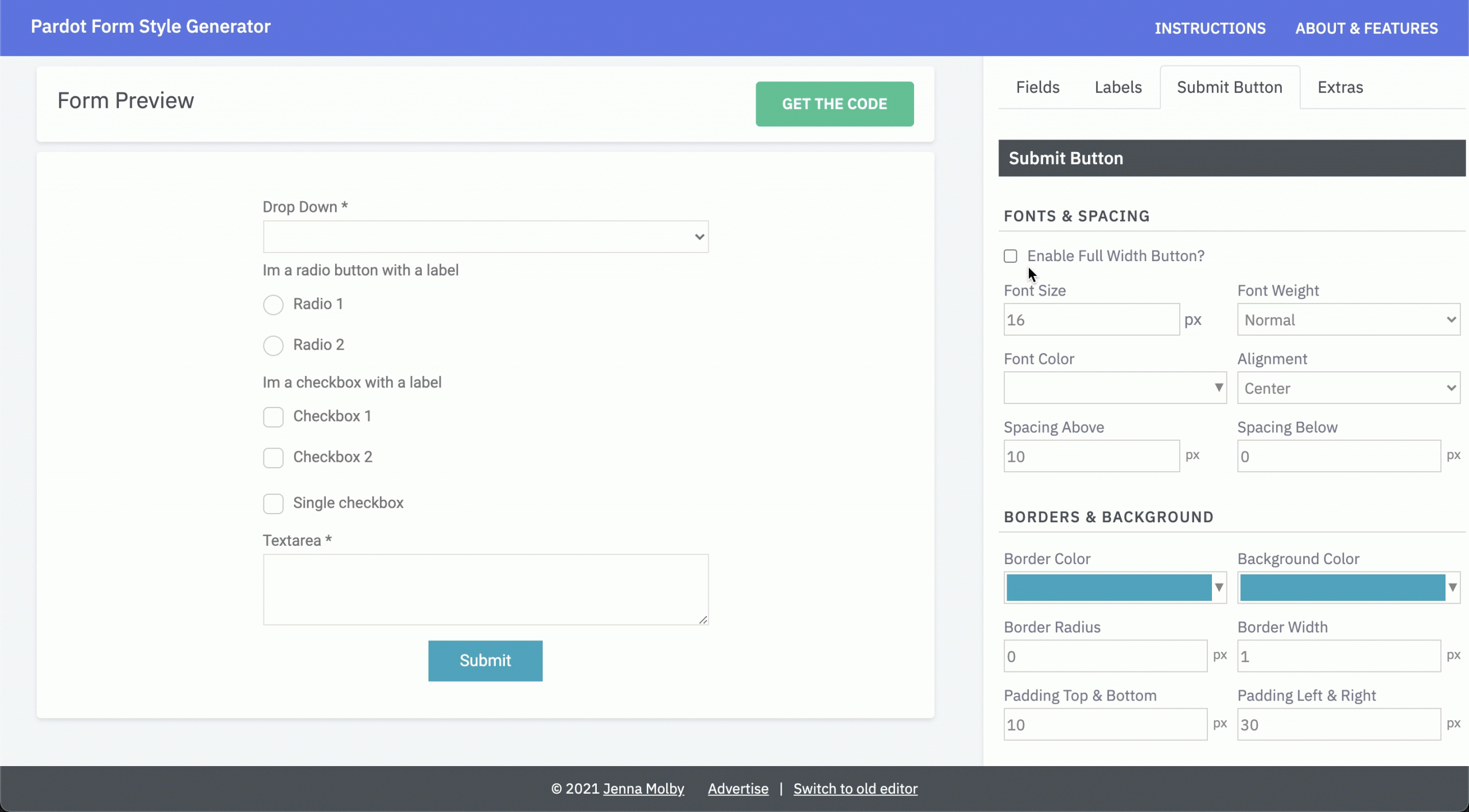
Check the box to enable a full-width submit button or select one of the alignment options from the dropdown.
Select hover colors for the submit button
Change the border colour, font color, and background color for the submit button.

Try it yourself
Check out all the new features and send me any questions via Twitter (@jennamolby), or leave a comment below.

60 Comments
Are two column builds possible with this?
For example:
First Name Last Name
Job Title Company
Thank you
Hi Ric, Yes, you can. Check out this post for more information: https://jennamolby.com/the-best-way-to-create-a-2-column-pardot-form/
Hi Jenna! Thank you so much for this form generator! Is it possible to add a background image to a pardot form?
Hi Kay, You’re welcome! Yes, you can add a background image by adding this CSS:
#pardot-form {
background-image: url(“your-image-url.png”);
}
Hi Jenna,
Firstly I just wanted to say I love this site, especially the Form Style Generator!
I just wanted to know if there was a way to remove the padding on the left-hand side of a form? When I add the form to my website, it doesn’t line up with the rest of my content due to this padding.
I have also had an issue where I have to decrease the font size, otherwise the form creates a scroll bar within itself – is this just part of the feature, or is there a way to have a larger font without the scroll bar?
Thanks!
Hi Jon, There is some padding on the form itself. You can remove it using this CSS #pardot-form {padding-right:0;padding-left:0;}. The scrollbar is showing because the form is embedded using an iFrame. You can try adjusting the height of the iFrame or follow the instructions in this post to have the iFrame responsive to the contents https://jennamolby.com/how-to-embed-a-pardot-form-on-your-website-the-right-way/
I love this tool! One question – If I want the radio and/or checkbox values to display horizontally rather than vertically, how would I do that? Thank you in advance!
Hi Brenda, Awesome! You would set this in the form settings under look and feel.
Hi there! This is so, so dang helpful! I have everything working and it looks wonderful, but I just check it on my iPhone and it looks like all styles (fields, labels, buttons, etc) are reverting back to an old style. I can’t replicate this on any breakpoint on my desktop. Any ideas?
https://resources.humu.com/l/883843/2021-08-25/7ls6h
Hi Hunter, So happy you found it helpful! To fix the mobile issue, try adding this CSS to the form as well.
#pardot-form input.text,
#pardot-form textarea.standard,
#pardot-form select,
#pardot-form input.date,
#pardot-form .submit input {
-webkit-appearance: none;
}