
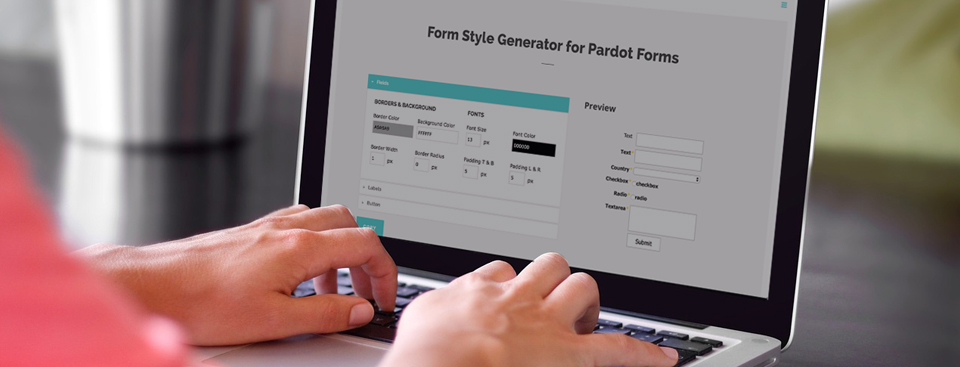
Easily style and customize your Pardot lead forms by using this Form Style Generator for Pardot Forms. With only a couple of clicks you can customize every aspect of your Pardot form including: button color, label positioning and text color, no coding required.
How it Works
1. Create a new form in Pardot
The form style generator will pull in the default styles.
2. Go to the Style Generator
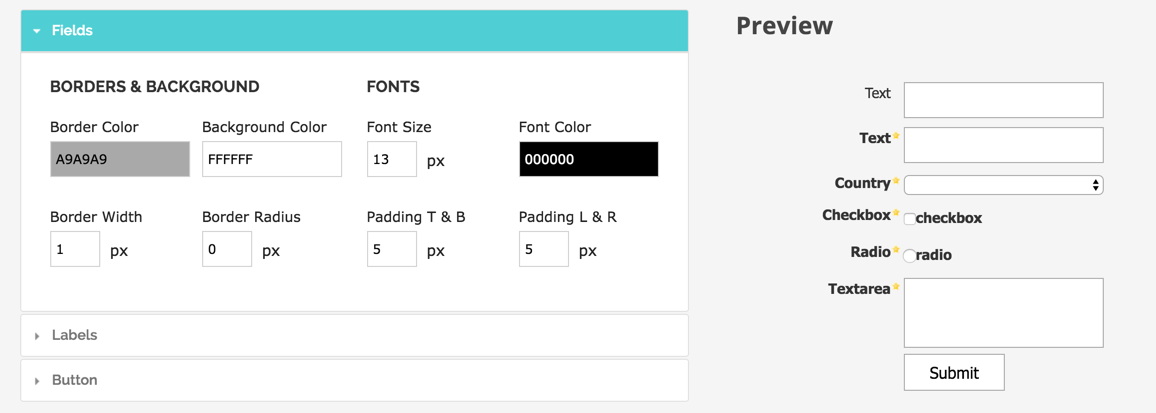
Customize the look of your form using the fields on the left side. A preview of your form will show on the right side.
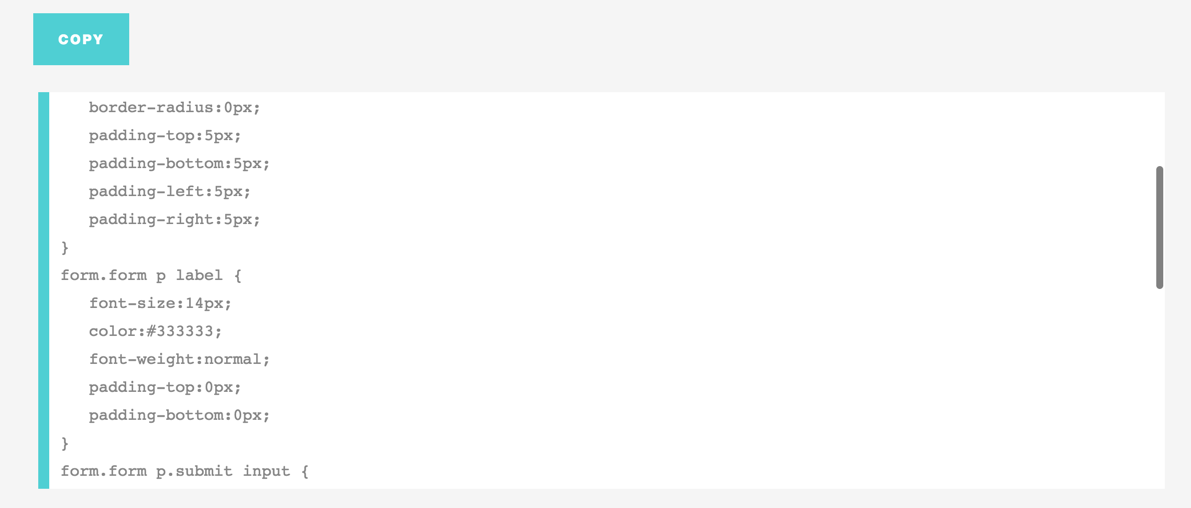
3. Copy the CSS
Copy the CSS that is generated and navigate to your Pardot form.
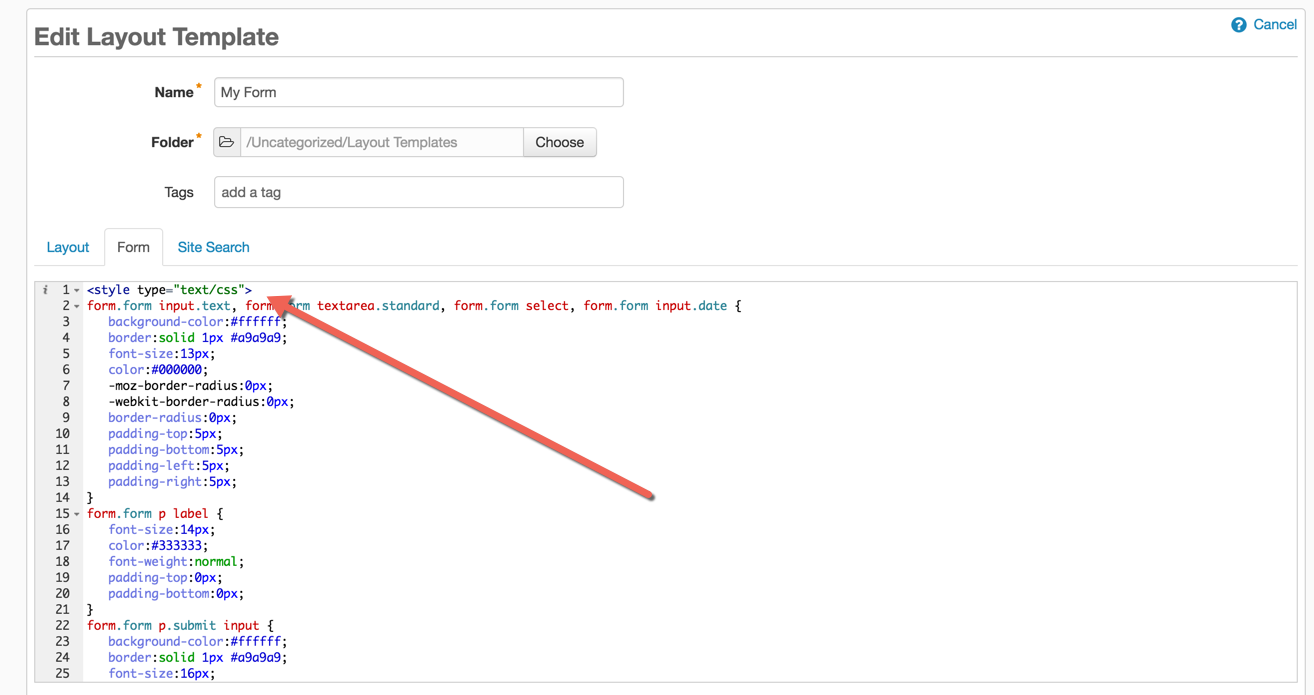
4. Paste the CSS into your Pardot form layout template
Navigate to Marketing > Forms > Layout Templates and select the layout to add the form styles to. Paste the CSS right above the existing code of the Form tab and save.
Questions?
Send them to me via email, send me a tweet @jennamolby, or leave a comment

41 Comments
Hi Jenna,
I’ve just created a form with your awesome Form Generator tool.
I’ve only one more problem, my form is not showing up in most of the emails i’ve sened as proof (i’ve tested gmail, outlook client and outlook app on tablet and smartphone).
Is there any other setup i need to do in order to make the form showing un in my communications?
Hi Pasquale, Forms won’t show up in many email clients. For more information, check out this article: https://www.campaignmonitor.com/blog/email-marketing/how-forms-perform-in-html-emai/
Hey Jenna! I will join the chorus of the thousands of people who use this tool and say THANK YOU SO MUCH. I’m having an issue, and I think it’s such a small detail that I’m missing, and I hoped that you could provide a bit of insight. After I paste the code into the layout template and check the preview, the screen says “%content%,” and that’s it. Do you have any thoughts as to what I’m doing wrong?
the best is yet to come,
antoine j. edmonson
Hi Antoine, You’re welcome 🙂 Sounds like your landing page template might not be set up correctly. Are you using the content tag with 2 %% or 1 %. It should look like this %%content%%. If you are still having issues DM me and I can take a look.
Thank you for the syle generator. I can make the forms look great however the recaptcha box is right under the last field. I need to create some space between the field and it. How is that done?
Hi Mike, Adding this CSS should do the trick
#pardot-form .g-recaptcha{
margin-top:20px;
}
Hi Jenna! The new form style generator is amazing – thank you! I did have one question. I have used the generator on two EPCs now and have found that when I check the last box on the list, it unchecks the others. The last selection seems to function as a radio button, rather than a check box, which is not the same experience as when the Standard layout template is used. Here is an example: https://advisor.pearlmeyer.com/alyssetestepc?epc_hash=yTUm3PJWpnASf-vjFFLZvfL3IMXXgMVAiUhjfdtiaFo. Any ideas? Any help is much appreciated!
Hi Alysse, You have some custom javascript on the page that is causing the issue. Here’s what it looks like:
// Uncheck the last checkbox when any other checkbox is checked
$(“.pd-checkbox input”)
.not(“:last”)
.click(function () {
$(“.pd-checkbox input”).last().prop(“checked”, false);
});
// When last checkbox is checked, uncheck all of the remaining
$(“.pd-checkbox input”)
.last()
.click(function () {
$(“.pd-checkbox input”).not(“:last”).prop(“checked”, false);
});
Hope that helps!
Incredibly helpful – you are an HTML wiz! Thank you so much for all you do for Pardot customers!
This is really useful, thank you for sharing!