


Refreshed and republished on June 23, 2020
This post was originally published on March 3, 2016 and has been revamped and updated for accuracy and comprehensiveness.Pardot form handlers allow you to use your forms to post your data to Pardot. A Form handler is a great alternative to use instead of Pardot iFrame forms. They allow you to fully customize the look of your form and submit data to more than one database. In this tutorial, you will learn how to create a form handler from scratch.
Create a new form handler in Pardot
First you need to create a new form handler in Pardot under Marketing > Forms > Form Handlers.
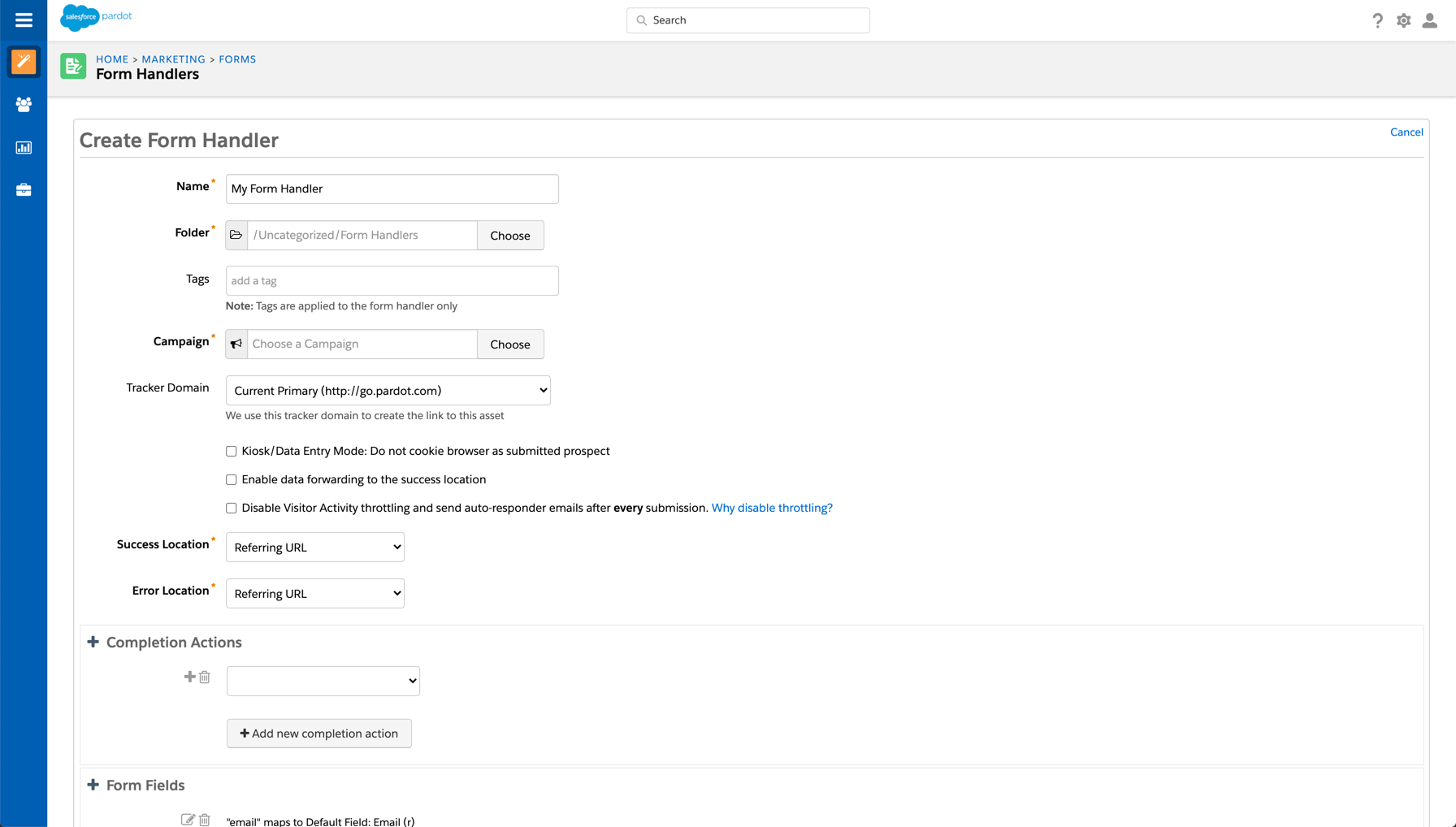
Add the all the standard Pardot required information.
- Give the form handler a name
- Select a folder and add tags
- Choose your campaign
Choose your other custom settings.
- Kiosk/Data Entry Mode: Do you want the prospect to be cookied when they fill out the form?
- Enable data forwarding to the success location: Does you data need to submit to another database other than Pardot?
- Disable Visitor Activity throttling: Do you want to disable Pardot’s spam protection and generate a distinct visitor activity and auto-responder email for all form handler submissions?
- Success & Error Location: Choose an Error page and a Thank you page URL.
- Completion Actions: Add the any actions that should happen when a prospect fills out the form.
Here are the settings I have selected for this tutorial:
Add form fields
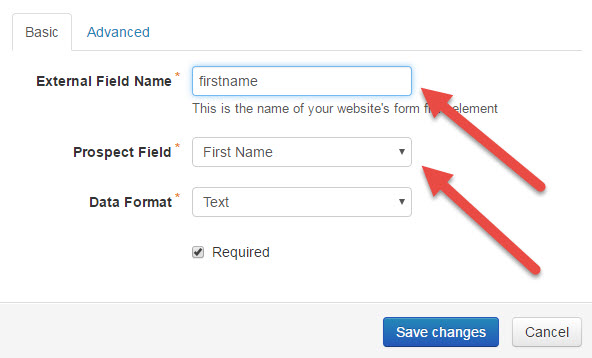
Add any fields you want to capture through your Pardot form handler.
TIP: Name the external field name the same as your prospect field name, but without the spaces, to avoid confusion in the next steps.
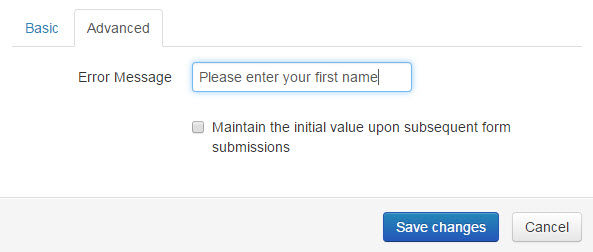
Optionally, you can add custom error message text under the advanced tab
Create the form HTML
Now that the form handler is created, the form HTML needs to be created to embed it on your website. In this tutorial, I will be going over basic markup. Feel free to add your own styling/structure that matches your website.
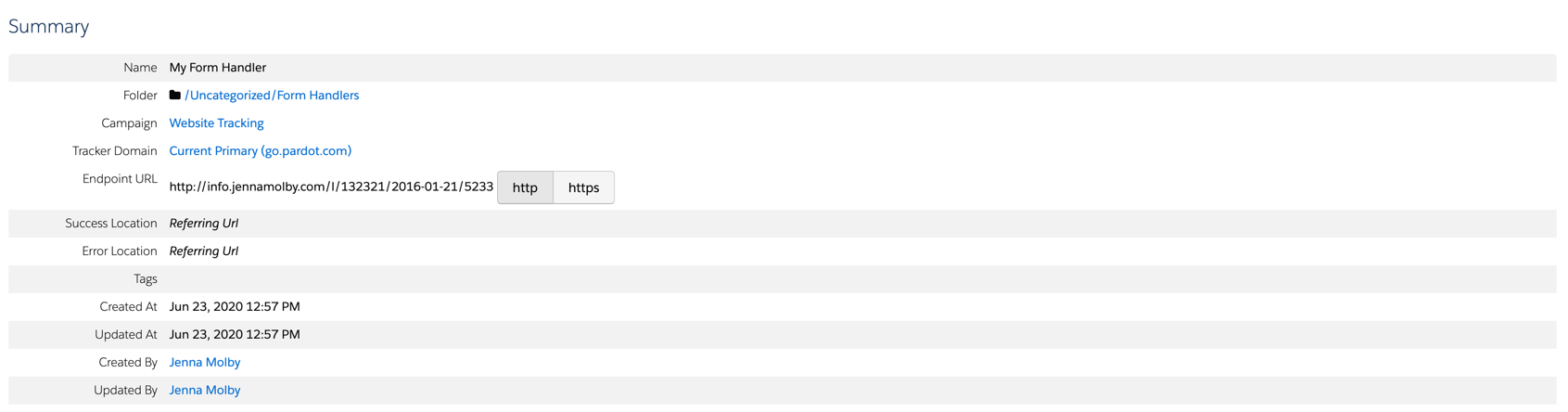
Copy the endpoint URL
Navigate to your Pardot form handler summary page and copy the endpoint URL.
Basic HTML structure
Here’s the basic structure to create a Pardot form using a Pardot form handler.
- Action: Must be the endpoint url for your Pardot form handler.
- Method: Must = POST
- Input: Add all the form fields you mapped while creating you Pardot form handler.
- Name: Must equal the external field name you specified when you created the Pardot form handler.
- Type: Specify the type (text, email, etc) to help with field validation.
Add Field Validation (Optional)
Optionally, you can add some front-end validation to your form. If you marked the fields as “required” when creating your form handler, Pardot would create some form validation to direct a user to another page. If you don’t want the prospect to leave the page, follow these instructions.
Add required=”required” to each of your required form fields. These should match what you specified in Pardot to avoid confusion.
Troubleshooting tips
Is your data not making its way into Pardot? Here are some troubleshooting tips to help you diagnose the issue.
- Try submitting the form with just email address required. If the prospect is created in Pardot without any issues, you might have a field type or a field mapping incorrect within your form handler.
- Check Enable data forwarding to the success location. Try checking or unchecking the option for “Enable data forwarding to the success location” within your Pardot form handler settings. Depending on how you are connecting your form handler to your web form, this may or may not need to be enabled.
- Double-check your field names are correct. The external field name you set within your form handler needs to be the EXACT SAME as what is in your HTML. Double-check that the HTML for your form fields is using the right name and remember, the name is different than an ID or CLASS.
- Use the HTTPS endpoint if your website is HTTPS. Using an HTTP endpoint for your form handler when your website is HTTPS will cause the browser to give security warnings. Update the form handler endpoint to HTTPS to resolve the issue.
Pardot Form Handlers + WordPress
There are many different ways to use Pardot Form Handlers with WordPress. Here are some resources to help you get started with using Pardot Form Handlers with WordPress:
- How to Integrate Gravity Forms With Pardot
- 5 Ways to Include Pardot Forms on Your WordPress Website
- How to Integrate Your Blog With Pardot: Tips, Tricks & Tools
Questions?
Send me a tweet @jennamolby, leave a comment below, or book a Peer Chat.

76 Comments
Hi Jenna,
Creating a form handler can you only use Standard and Custom prospect fields in the form handler, or can you bring in fields from custom object.
Also have you worked with the Formstack Product in relation to form handlers?
Any help would be great.
Hi Trevor, Unfortunately, you cannot bring in fields from a custom object. Pardot can only write to standard objects. No, I have not worked with Formstack with form handlers. Cheers, Jenna
Hi Jenna, this was great! I’m having trouble using Pardot Form Handlers – the data is not being forwarded to the form handler. I have other form handlers in use that are working, but can’t seem to figure out what I’m doing wrong with this one form. Very frustrating! Would the fact that I have Pardot iframe forms on the same page as this third-party form?
Hi Carolyn, Having a form handler and an embedded form on your page should not cause that issue. I recommend checking the mappings for your form handler and also ensuring the field types match. Cheers, Jenna
Hi Jenna, thank you for your blog which has helped me countless times with Pardot. I was wondering what would be the best way to use a form handler with a form that includes check boxes to allow a user to select which list they will like to be subscribe to. Thank you.
Hi Henry, So happy you find my blog helpful. To do this, you would need to create a new field in Pardot. You could call it “subscriptions” or something similar. Add that field to your form and add the names of the lists. Then, create an automation rule that would add the prospects to a list. Cheers, Jenna
Hi Jenna,
Thanks for the informative post but i was wondering how can i map Date type field with Pardot form handler?
Do you have any idea because i don’t see Date type when i created a field on form handler?
cheers
Saurabh
Hi Saurabh, I would recommend keeping the data type as TEXT in Pardot for the date fields within your form handler. Cheers, Jenna
Hello Jenny,
How do I get a report for Visitor input, who have filled up my form which is being captured, through Form Handler. I want to get tabular summary of a contest that we are running, Manually looking for each entry would be too tedious. I know that for Prospects which already exists in CRM I can achieve this through Contact Reports in Sales Cloud, but any solution for first time Visitors Report including the ‘Comments’ field?
Regards,
Aamod Jadkar.