

Learn how to build a net promoter score (NPS) survey directly in Pardot. I will show you how to create an NPS survey that asks the recipient to give you a score from 1 – 10 using an in-email rating that directs them to a Pardot landing page to collect more information.
What is a net promoter score (NPS)?
A net promoter score is a rating from 0-10 that answers the question ‘how likely are you to recommend us to a friend or colleague?’. This question is followed by ‘Why would you give us this score?’. Anyone who answers 10-9 is considered a ‘promoter’, this means they are satisfied with your product or service enough that they would gladly be willing to promote your company given you provide an easy platform for such promotion. A rating of 8-7 is considered ‘passive’, these users are likely not to go out of their way to promote you but will still use your product. Users who choose 6-0 are considered “detractors”. This subset has not had a great experience with your product or service. Though a rating of 0-6 is never ideal, it can help identify problems with your product or service, promoting positive evolution, and providing an incentive for changing detractors and passives to promoters.
The concept
An NPS survey email will be sent out from Pardot that asks the receipient to rate you on a scale from 1 to 10.
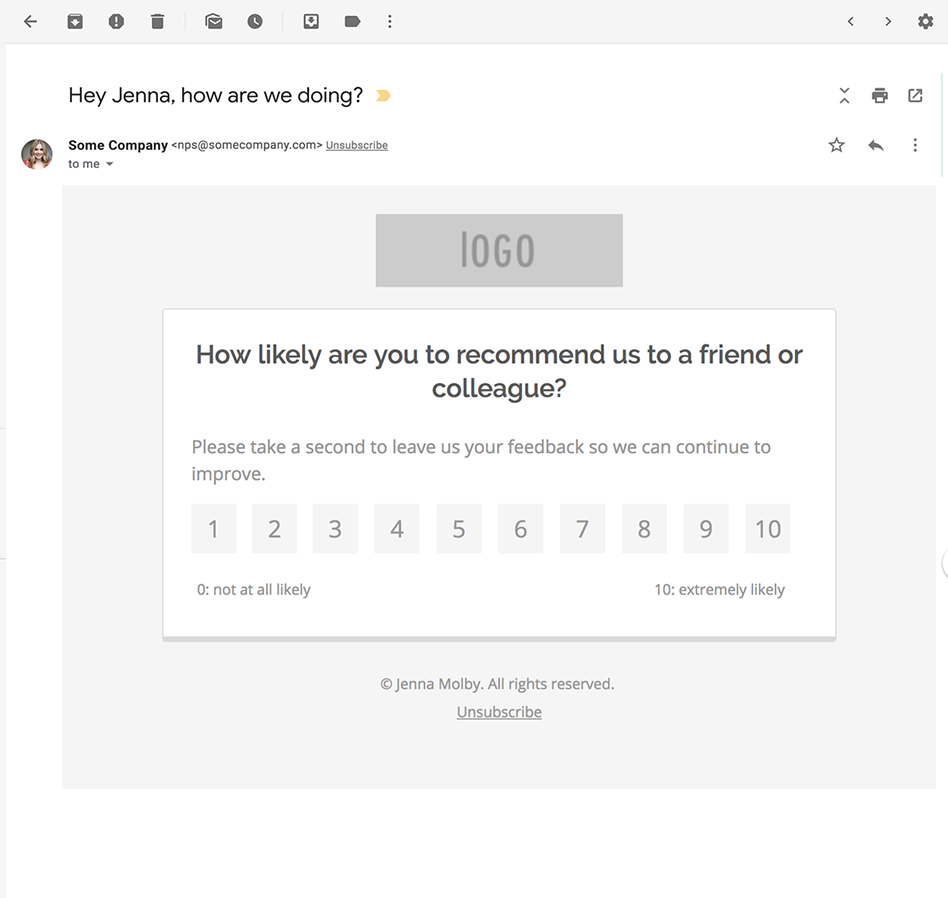
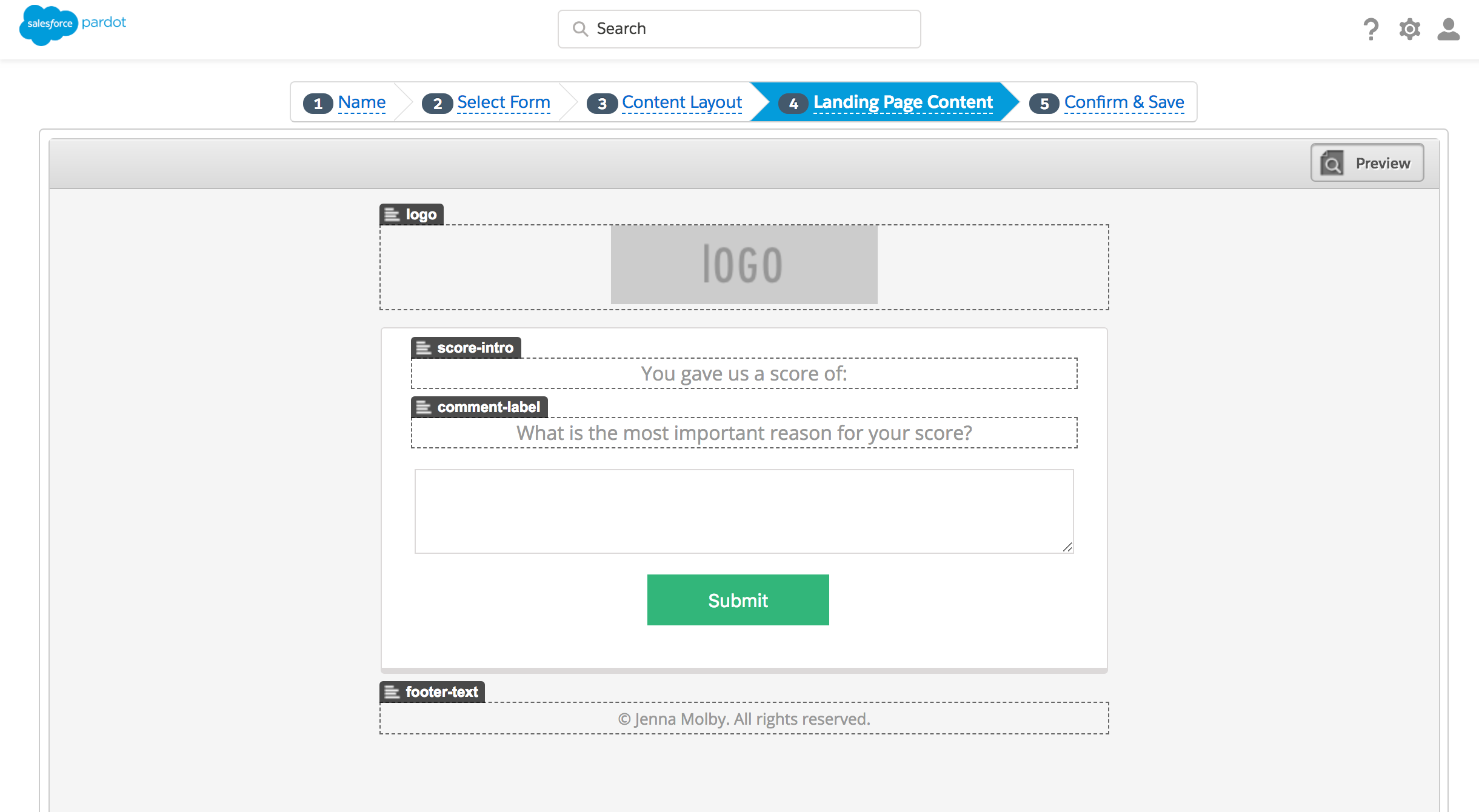
The recipient clicks on a rating and is directed to a landing page where they can fill out more information on why they gave you that rating.
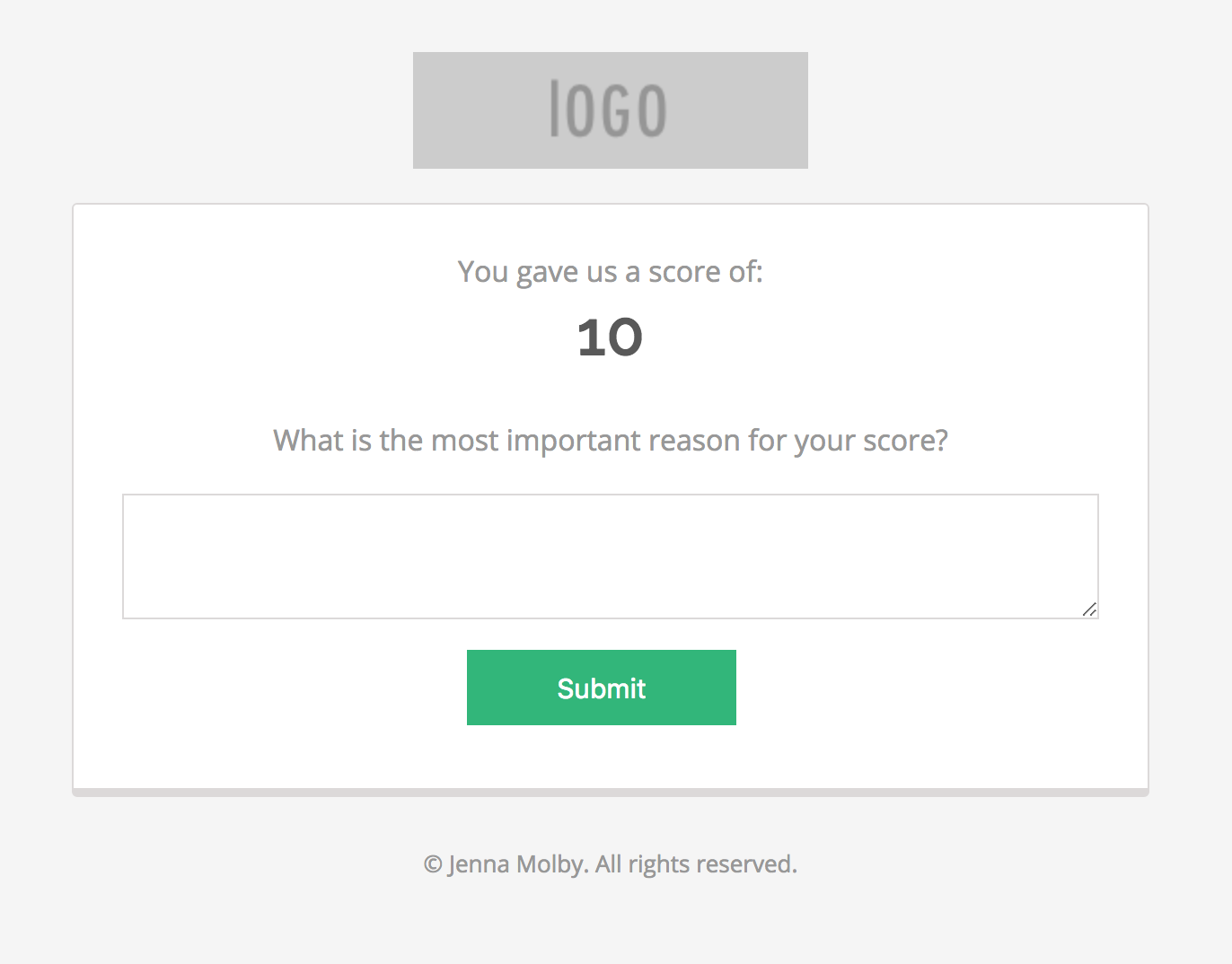
The rating the recipient selected from the email is automatically displayed on the landing page and passed to a hidden field in the form to capture in the Pardot database.
1. Create new fields
Create new fields in Salesforce and Pardot to capture the NPS results. In this example, I will be using a field named NPS Score and NPS Comments.
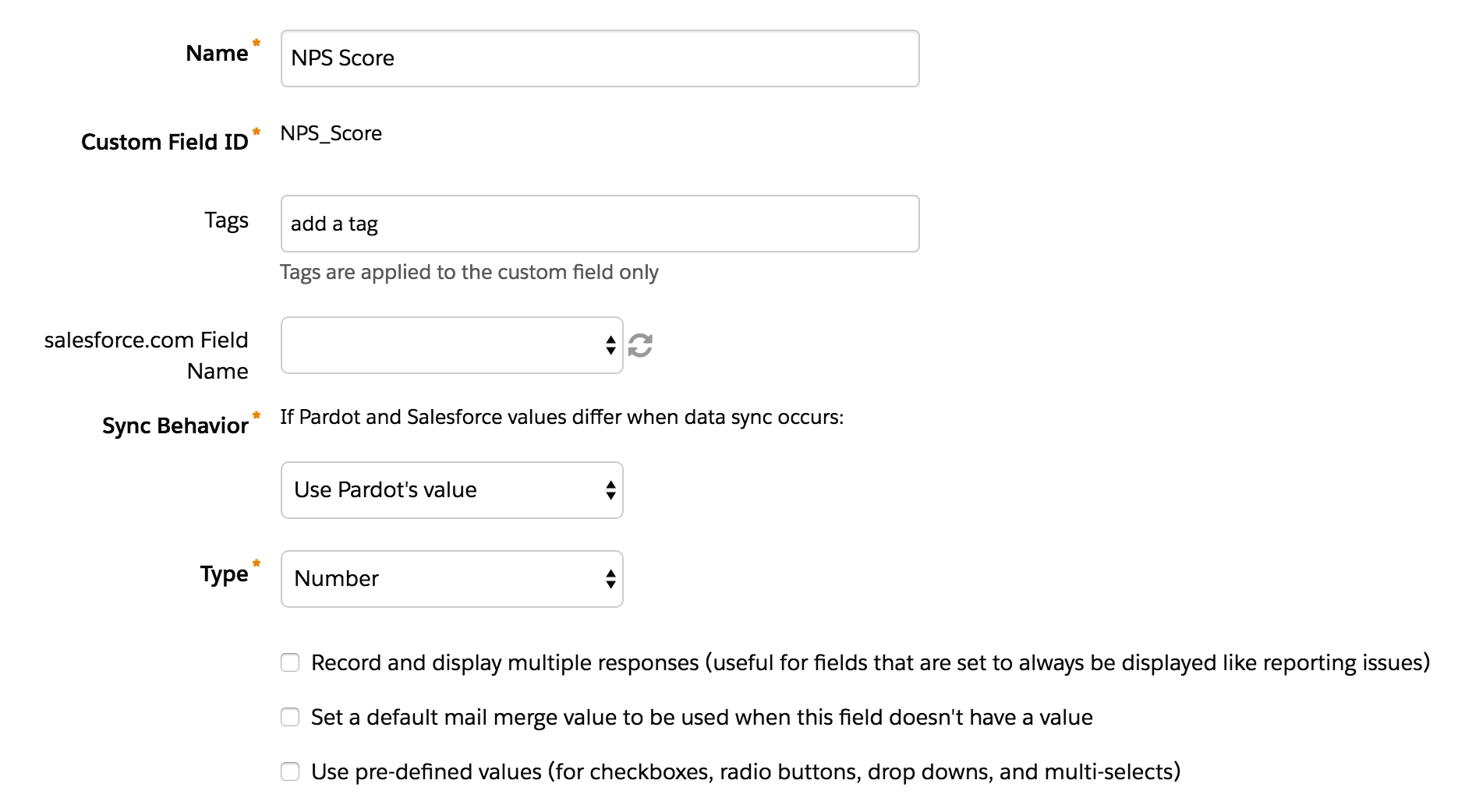
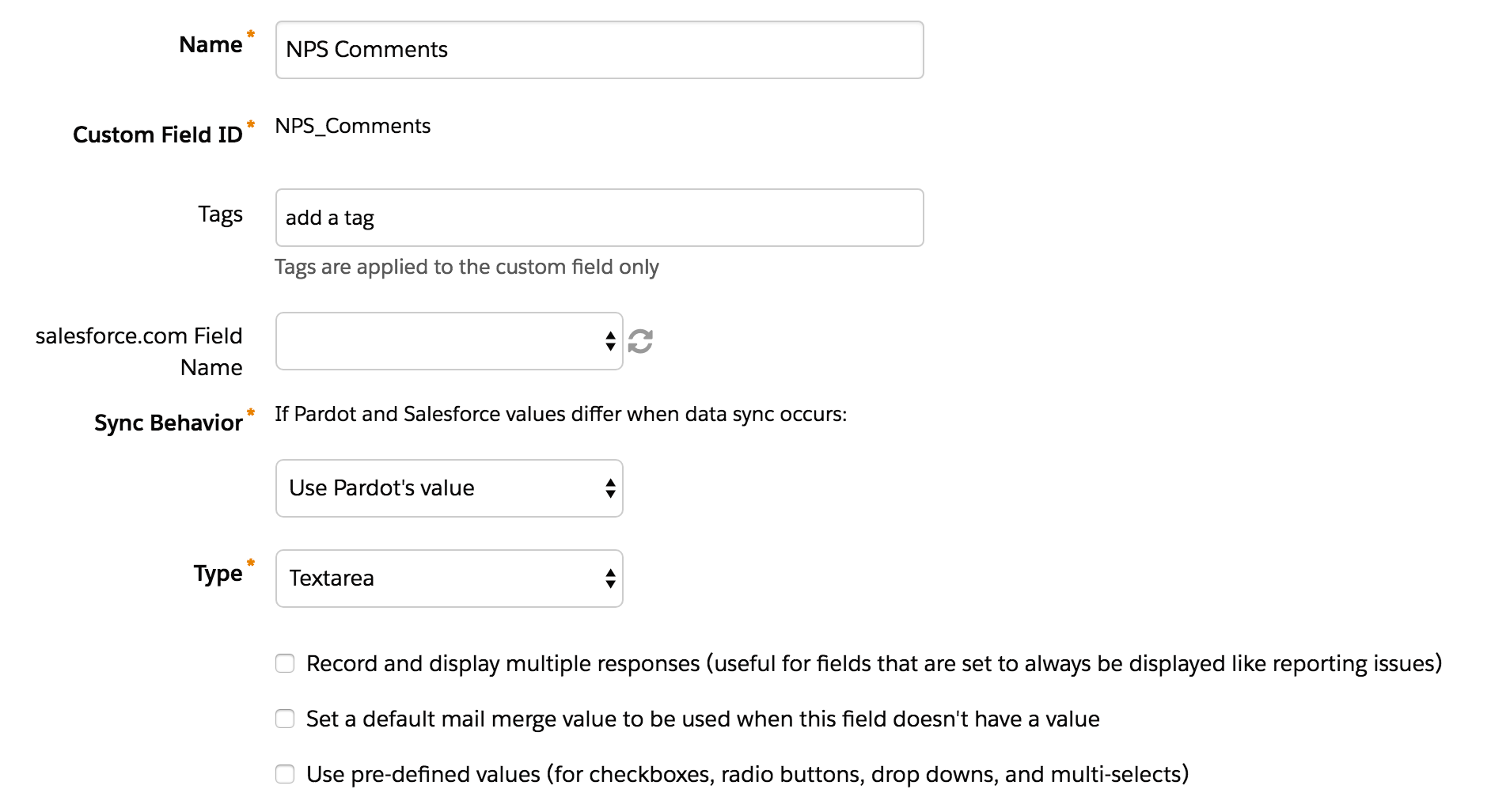
2. Create a form
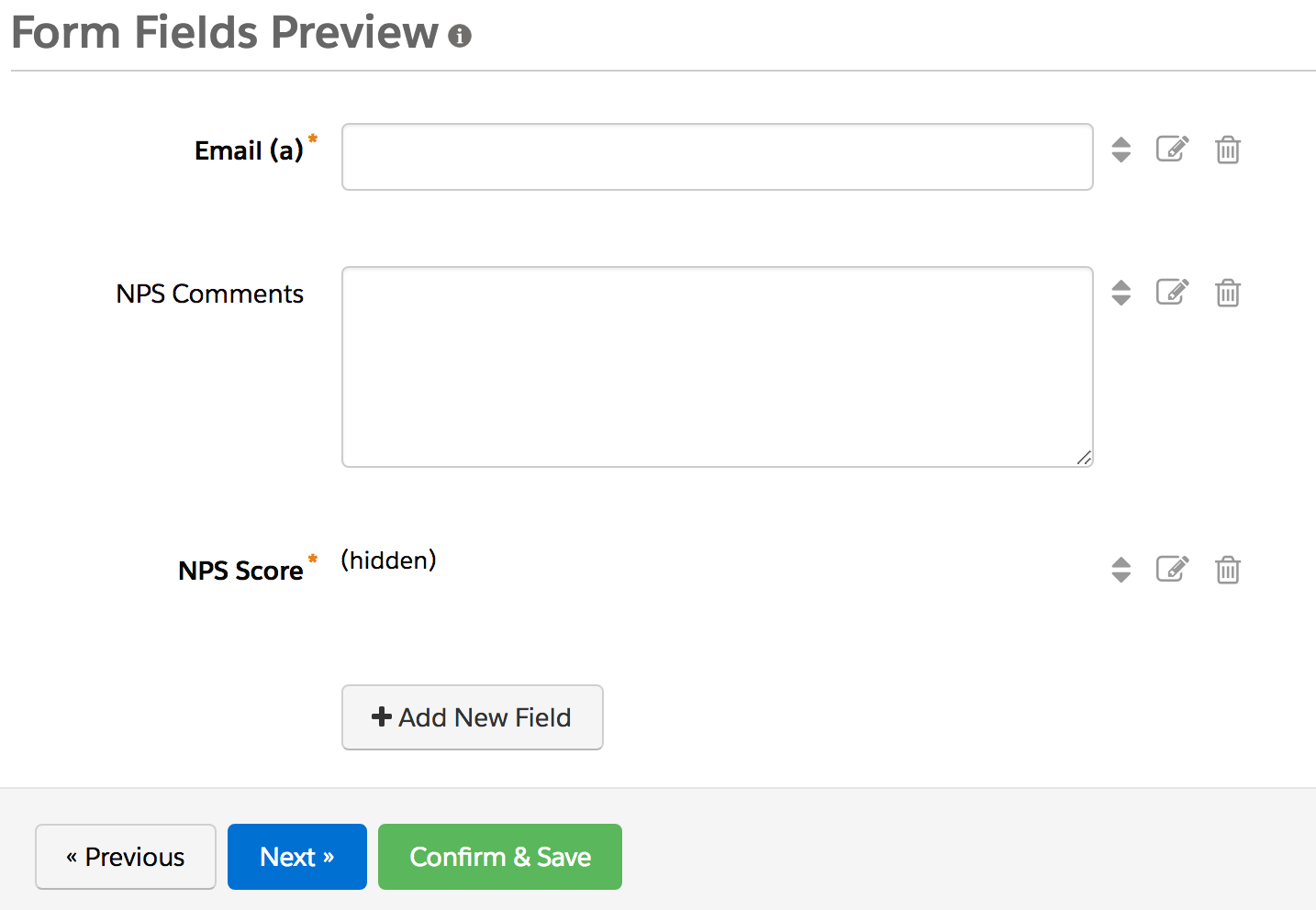
Create a new form named NPS Form in Pardot. Add these three fields to the form:
- NPS Comments – select textarea as the type and leave it optional.
- NPS Score – select hidden as the type and mark it has required.
3. Create a layout template
A new layout template will need to be created in order to create the landing page. Here’s the code I used for my layout template.
%%title%%
|
||||||||||
|

You can use my code to create your own layout template, or you can create your own. If you create your own you will need to add some CSS and JavaScript to make the form work correctly.
The JavaScript
JavaScript is used to take the nps score the recepient selects from the email and pass it to the hidden field within the form. It also is used to grab the receipient’s email address from the URL and pass it into the email field within the form. Here’s what the script looks like:
Note: The jQuery library will need to be loaded in order for this to work.
The CSS
The only piece of required CSS is to hide the email field since we will be auto-populating it through the URL.
   p.email {
   	display: none !important;
   }
4. Create the landing page
Once your layout template is set up, use it to create a new landing page.
5. Set up the email
Lastly, create an email that includes the option to select a rating, which directs the recipient to the landing page you just created. Here’s what my email HTML looks like:
|
|||||||||||||||||||||||||||||||
|
I used tables within the email to create the rating buttons. Here’s what the HTML for that section looks like:
|
|
|
|
|
|
|
|
|
|
Each link to the landing page should pass two paramters through the URL:
- NPS – The score of the of the clicked link
- Email – The email of the receipent, using a varaible tag.
Here’s an example of what one of the links looks like:
https://pi.pardot.com/my-landing-page.html?nps=10&email=%%email%%
Questions?
Send me a tweet @jennamolby, leave a comment below, or book a Peer Chat.

33 Comments
Hi Jenna,
This is great. I’m wondering if it would it be possible and take this a step further to auto-submit the selection–essentially a one-click solution. To do that, you’d remove the comment field. Would that be possible?
Hi Ellen, in that case, I would probably set up 1 custom landing page without a form that says “thanks for submitting your score” and then create custom redirects in Pardot for each score with completion actions to update the NPS score field in Pardot.
Hello Jenna,
Thanks a lot ! This helped us out so much. However we are running into some issues. When sending the mail to certain types of devices ( like Android) the rating buttoms are all stuck together. On Iphone, it works just fine ! Do you have any code to solve this ?
Thanks in advance !
Hi Lara, You’re welcome! DM me a screenshot of what you’re seeing and I can take a look.
Thanks Jenna! This is awesome. I saw someone else had a similar problem that I was having so wanted to share the solution. If you are collecting an NPS Score multiple times form the same email address over time, there is an important step in order to have the newest NPS Score save and overwrite the old. In your form, go to the NPS field and make sure in Advanced you’ve checked the box “Always display even if previously completed”. If this is not checked, the NPS Score will save the first time it’s submitted, but not thereafter.
Hi Dave, thanks so much for sharing!
Hi Jenna! Thanks for posting this guide. It’s so helpful! I am running into some issues with my form not pulling the %%content%%. I tried clearing my cache and cookies and checking the box to always show the text area. Do you have any suggestions for where the issue could be? Thanks!
Hi Emily, You’re welcome! I recommend checking the FORM tab for your layout template and ensuring it has content in there.
Hi,
We are having issues with populating the NPS score field. Everything works fine on the side of setting up the LP, email etc. however when you click to score the prospects profile doesn’t populate the score they selected.
We tried using custom re-direct links to populate the field, however still no luck. Strange thing is when you complete the “Comments” box on the LPs then the NPS score populates in the profile of the prospect on Pardot.
Any suggestions?
Thanks,
Niya
Hi Niya, DM me with the link to your page and I can take a look.