

Can my Pardot email be responsive? Why doesn’t my background image appear in Outlook? Can Pardot emails be drag & drop? I get asked these questions a lot from Pardot users and see them posted frequently in the Trailblazer Community. Let’s dive into these questions as well as other common Pardot email template questions.
Does Pardot allow responsive email design?
Yes, Pardot emails can be responsive, but you have to set up your template with the correct code. This means that you have to have media queries within your email or use one of the scalable or fluid methods.
If you’re new to email development or responsive email development, here are some resources to get started.
- How to Code a Responsive Email From Scratch
- Creating a Simple Responsive HTML Email
- Responsive Email Patterns: A collection of patterns & modules for responsive emails
How do I create editable sections that can be dupliated, deleted and reordered?
By default all sections of your email template are editable. This isn’t ideal for a couple of reasons:
- It allows the users of the template to modify everything, including the logo, footer, copyright, etc.
- It can cause part of the HTML to be stripped out or break within the email editor
With that in mind, I always try to “lock down” elements that don’t need to be modified.
An editable section can be created by adding this tag to your DIV, TD, TABLE or TR elements.
pardot-region="my-text"
A section that can be duplicated, removed or reordered can be created by adding this tag to your DIV, TD, TR, or TABLE elements.
pardot-region="my-section"
How do I make my background image appear in Outlook?
The standard CSS for background images does not work in some email clients including Outlook 2000 – 2003, Outlook 2007 – 2016 and others listed here. Luckily there’s a workaround to get your background images working in all email clients by using this Bulletproof Background Image Generator.
How do I create a button?
Use my Bulletproof Pardot Button Generator to create beautiful buttons for your Pardot emails, without VML. Simply select your button colors, fonts, font sizes, padding, etc and copy and paste the generated HTML into your Pardot email or Pardot email template.
How do I use a custom font within my email?
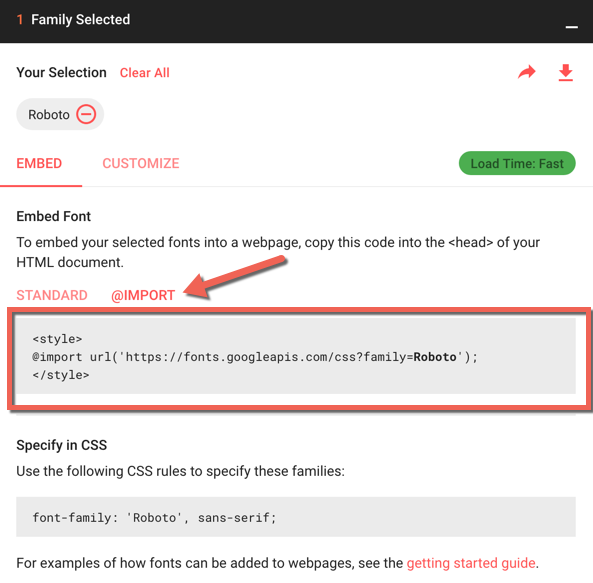
The best way is to select a custom font from the Google Font Library. Once you have selected your fonts, select the @import method, and copy and paste the code provided into your email template.
Recommended resources
- The Ultimate Guide to Web Fonts
- All You Need to Know About Web Fonts in Email
- Use Custom Fonts in Pardot
- Fonts being tracked as email clicks
Can my Pardot email template be “drag & drop”
No, Pardot doesn’t currently have this functionality. There’s an idea in the Success Community for it, go vote!
In the meantime, if you require that functionality, check out BEE Free. A drag & drop email creation tool. No signup required.
Is there a way to customize the text within the preview on mobile or Gmail?
Yes! This is called a email preheader and can be added to your Pardot template by placing this HTML to right after the opening BODY tag.
Can I embed a video within a Pardot email?
Embedding videos within an email, in general, isn’t widely supported. If you’re feeling ambitious you can check out this article from Email on Acid, which dives into the different email clients that will support it and a fallback solution for those that do not.
Otherwise, I recommend taking a screenshot of your video frame, overlaying a play button and making the whole image clickable, which directs to the landing page containing the video.
Why is the plain-text version of my email not formatted correctly?
Sometimes when you click the sync from HTML button the plain-text version populates with a bunch of spacing and indentation. I recommend using this HTML to text converter to generate a clean, formatted version of your plain-text email.
What Pardot email questions do you have?
Send me a tweet @jennamolby, leave a comment below, or book a Peer Chat.

28 Comments
Hi Jenna,
I find your posts to be so helpful! I’m wondering why I can’t move a row down in my pardot email builder.
Hi Jenna, You mention Bee Free and am confused how one is supposed to import that into Pardot once downloaded?
Thank you for this great article!
Hi Jessica, You will have to download the HTML and then copy and paste it into Pardot. Cheers, Jenna
One thing to mention, Pardot doesn’t have the capability to change the background image by setting a “region”. This causes much frustration if the user isn’t not familiar with HTML. Great job with the post!
Hi Jenna,
Can you explain what you mean when you say that Pardot templates are not responsive? Since 2013 Pardot appears to provide several responsive email templates out of the box, marked as such “(Responsive)” is in the template title. Are there different degrees of responsiveness and these templates don’t make the cut? Or do they require the correct code to be added to them, in order to perform responsively?
Last week I took a Salesforce course which also stated that Pardot templates aren’t responsive… so I’m just wondering why I’m seeing that word “responsive” in several of my email templates!
Stefanie
Hi Stefanie, Sorry for the confusion. If the template title says it’s responsive, then it’s indeed responsive. I was referring to custom email templates companies create themselves. Cheers, Jenna
Aha! Thank you Jenna, and great blog!
Yes yes yes!!!! We will be redesigning our email templates in the new year and this article is going to be my go-to resource. Thank you!!