

Step 1: Create a layout template
By default, the unsubscribe page uses the “Standard” layout template. You can edit the “Standard” template or create a brand new layout template. I recommend creating a brand new layout template that’s only used for the unsubscribe page.
Create a new layout template (Marketing > Landing Page > Layout Templates > New Layout Template). Name the template something descriptive, I’ve named mine “Unsubscribe Template” and paste your HTML into the template. Add the tag %%content%% where you want the unsubscribe text and button to appear.

Here’s what my HTML looks like:
%%title%%  %%Content%%
Step 2: Add CSS styles for the unsusbcribe form
Next, add some CSS to your page to style the unsubscribe form. By default, there’s a 160px margin to the left of the re-subscribe button. To get rid of this you can add this CSS to your layout template:
body form.form p.submit {
    margin-left:0;
}
You might also want to style the button and the text within the unsubscribe page. I’ve added the following styles for the button:
body form.form p.submit input {
    background:#56CFD2;
    color:#FFF;
    border:0;
    padding:10px 35px;
    font-style: normal;
    font-weight: 800;
    text-transform: uppercase;
    line-height: 1.6923em;
    letter-spacing: 2px;
    cursor:pointer;
}
body form.form p.submit input:hover {
    background: #4ebfc2;
}
And finally, you can add some CSS to modify the rest of the text on the page
body form.form {
    line-height: 1.6923em;
    font-size:14px;
    color:#868686;
}
My full HTML and CSS looks like this:
%%title%%
%%Content%%
Step 3: Edit the unsubscribe page
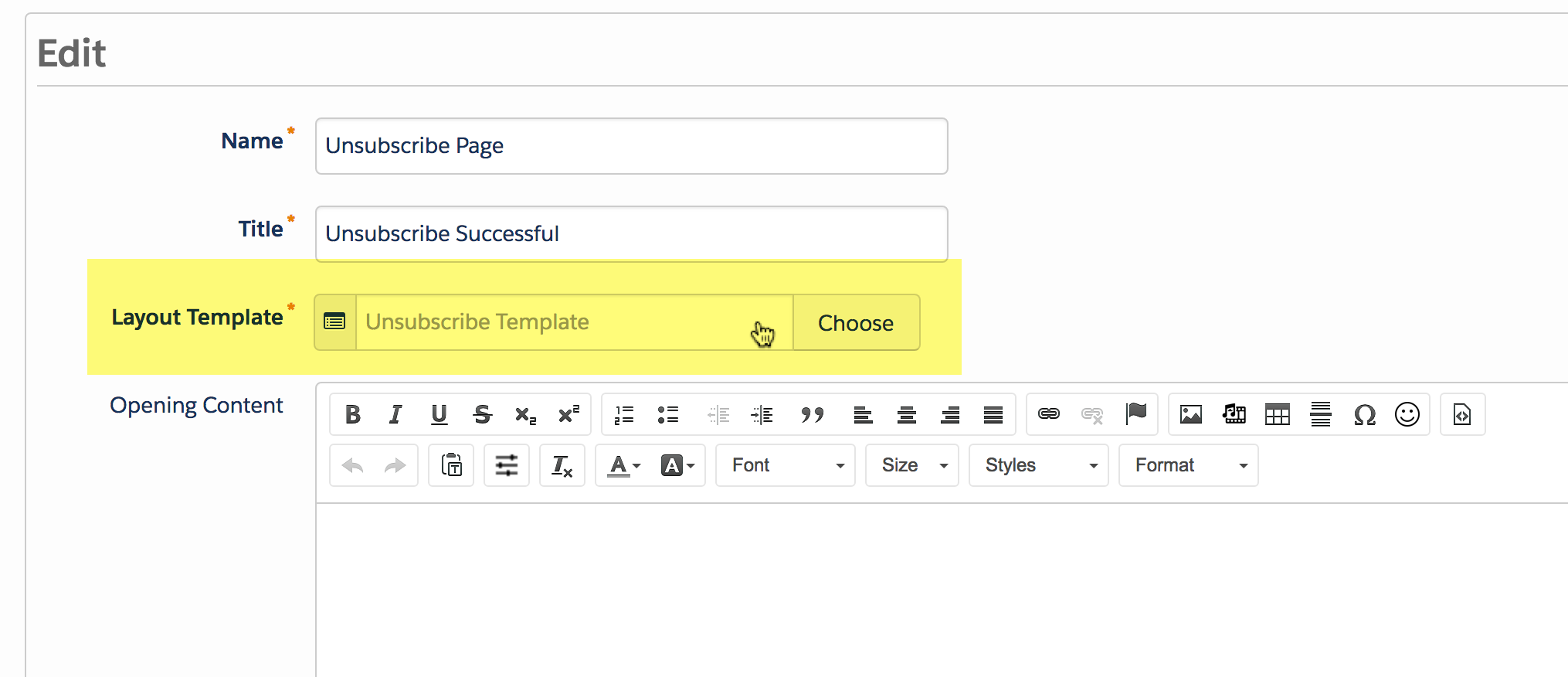
Once your page layout is ready, edit the unsubscribe page to push it live. To do this, navigate to Marketing > Emails > Unsubscribe Page, click edit and update the layout template.
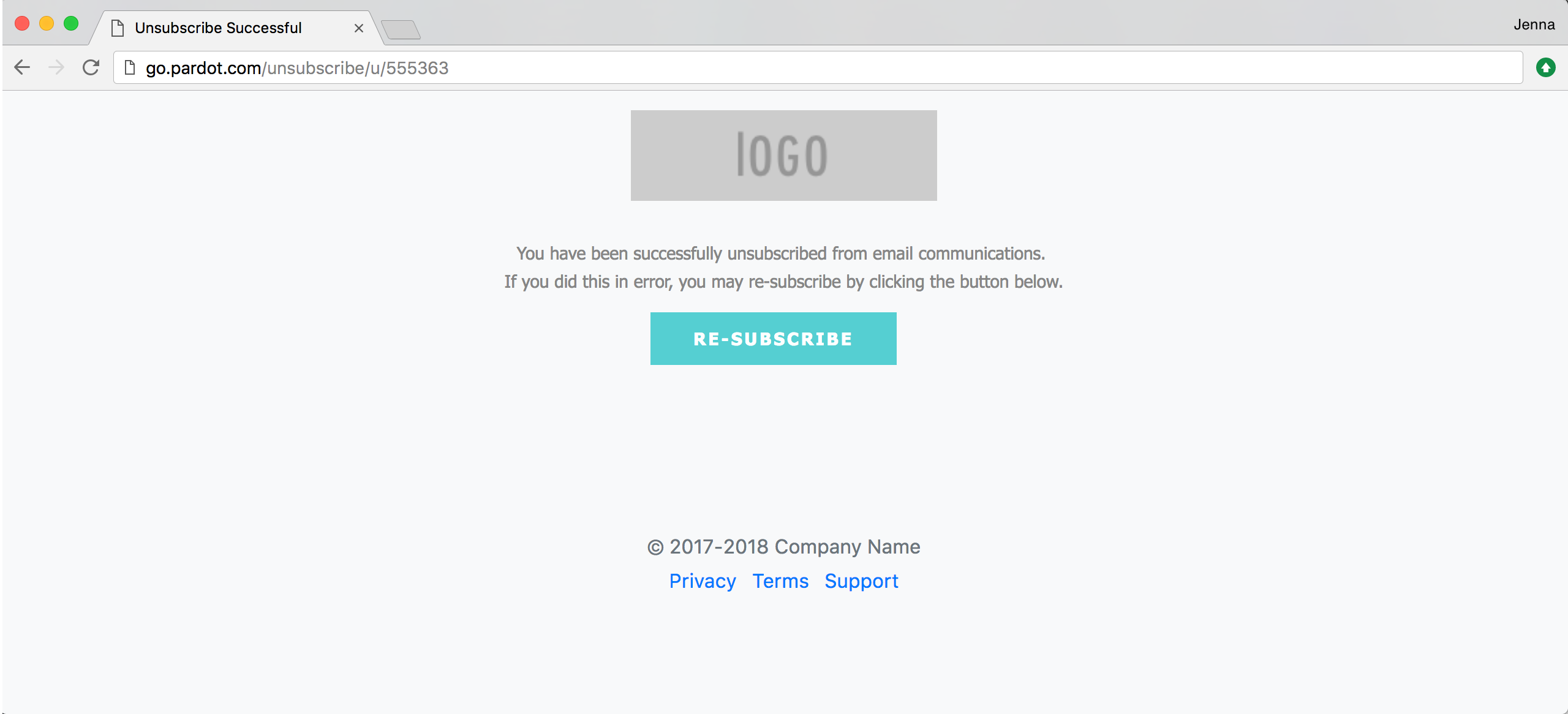
Here’s what my finished unsubscribe page looks like.
Optional: Add your own copy
Optionally, you can update the copy for the unsubscribe text. This can be updated in the layout template under the form tab.
To update the message from “You have been successfully unsubscribed from email communications. If you did this in error, you may re-subscribe by clicking the button below.” to your custom message, replace %%form-before-form-content%% with your custom text.
To update this message “You have successfully resubscribed to email communications.” to your custom message, replace %%form-thank-you-content%% with your custom text.
Questions?
Send me a tweet @jennamolby, leave a comment below, or book a Peer Chat.

31 Comments
Hi Jenna,
I am struggling to find a way to stylize/ change the appearance of the “Unsubscribe Link Text” that populates at the bottom of the form. Am I missing something or there a separate way to address this specific text?
Hi Kevin, This CSS should do the trick
#pardot-form a {
color:#000 !important;
}
Hi Jenna,
Thanks for all of your great posts, I refer to your work often. 🙂
I have a question about this part: To update this message “You have successfully resubscribed to email communications.” to your custom message, replace %%form-thank-you-content%% with your custom text.
Do you have an example of how this looks like in the layout template under the form tab? I tried to update text as you stated; however it’s pulling what I put in the unsubscribe settings, under the unsubscribe confirmation page. I’m enabling the resubscribe feature on forms, and thus the confirmation email with the {{Resubscribe}} link states the unsubscribe text – not resubscribe confirmation text that I’d like to pull.
Do you have any advice?
Thank you, Tiffany
This was incredibly helpful! Thanks a ton!
Hey, would you know if there’s a way to set-up an experience to let the users choose what kind of communications they would want to opt-out of? We do weekly, monthly and other freebies on email and a lot of our users may want to opt-out of the weekly emails but would like to continue to get the freebies.
How can that be handled?
Hi Shekhar, I would probably use a preference center to opt-in/out of weekly, monthly lists.
Hi Jenna. Thank you for your help. You are the real deal when it comes to helping admins with Pardot. I use Gravity Forms on my WP website and would like to use GF to ask some questions prior to a prospect unsubscribing. I can’t seem to figure out how to do this. GF forms can’t be placed outside of WP and I can’t figure out how to redirect the Pardot unsubscribe page to my WP unsubscribe page.
Hi Eric, Thanks so much! I wouldn’t recommend asking a prospect to fill out questions prior to unsubscribing. It should be easy for them to unsubscribe. Instead, I recommend asking follow-up questions AFTER the prospect unsubscribes. I wrote a blog post recently on how to do this: https://jennamolby.com/how-to-add-unsubscribe-reason-to-a-pardot-unsubscribe-page/. If you want to direct to a Gravity Form, you can look into using Javascript to redirect to a page: https://love2dev.com/blog/ways-to-use-javascript-redirect-to-another-page/. You would embed the script on the standard Pardot unsubscribe page to redirect to the page where your Gravity Form is.