

A couple months ago I wrote a tutorial on how to use UTM parameters to capture lead source. The tutorial is an in-depth overview of how to capture URL parameters when a lead visits a landing page directly but if a lead visits a different page then fills out the form, those URL parameters won’t be captured. To fix this issue, you can store cookies in the lead’s browser and configure the form fields to pull from the cookie values instead of the URL parameter.
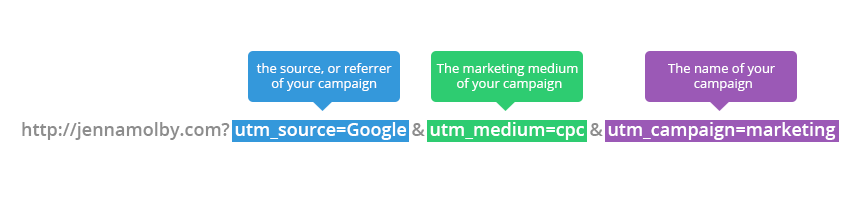
In this example, we will be setting 3 different cookies.
- utm_source
- utm_medium
- utm_campaign
Parse the URL
The URL parameters need to be parsed so the cookie values can be set. This can be done using javascript.
// Parse the URL
function getParameterByName(name) {
    name = name.replace(/[\[]/, "\\[").replace(/[\]]/, "\\]");
    var regex = new RegExp("[\\?&]" + name + "=([^&#]*)"),
        results = regex.exec(location.search);
    return results === null ? "" : decodeURIComponent(results[1].replace(/\+/g, " "));
}
// Give the URL parameters variable names
var source = getParameterByName('utm_source');
var medium = getParameterByName('utm_medium');
var campaign = getParameterByName('utm_campaign');
Setting the Cookie Values
In order to set the cookie values, jQuery and the jQuery Cookie Plugin must be on the page.
The syntax for creating a cookie using the jQuery plugin is very simple.
$.cookie('name', 'value');
Using the variables defined in the first step, the cookie values can be set.
// Set the cookies
if($.cookie('utm_source') == null || $.cookie('utm_source') == "") {
$.cookie('utm_source', source);
}
if($.cookie('utm_medium') == null || $.cookie('utm_medium') == "") {
$.cookie('utm_medium', medium);
}
if($.cookie('utm_campaign') == null || $.cookie('utm_campaign') == "") {
$.cookie('utm_campaign', campaign);
}
Testing
To ensure the cookie values are being stored in the browser correctly, open up Chrome -> Developer Tools and click on the Resources tab.
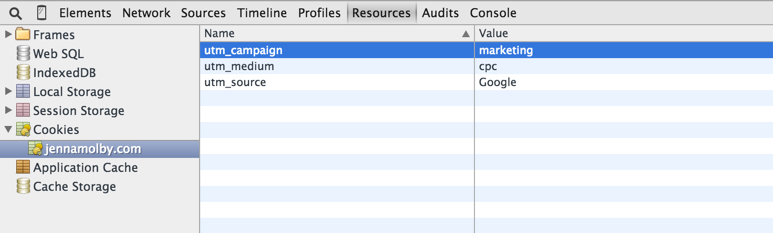
The cookies utm_source, utm_medium and utm_campaign should be visible in the console.
Setting the Form Field Values
Now that all the UTM parameters are being stored in the lead’s browser, the forms need to be configured to grab the cookie value.
$(document).ready(function(){
 $('input[name=utm_source').val(utm_source);
 $('input[name=utm_medium').val(utm_medium);
 $('input[name=utm_campaign').val(utm_campaign);
});
Putting it All Together
The Code on your page should look similar to this.
// Parse the URL
function getParameterByName(name) {
	name = name.replace(/[\[]/, "\\[").replace(/[\]]/, "\\]");
	var regex = new RegExp("[\\?&]" + name + "=([^&#]*)"),
		results = regex.exec(location.search);
	return results === null ? "" : decodeURIComponent(results[1].replace(/\+/g, " "));
}
// Give the URL parameters variable names
var source = getParameterByName('utm_source');
var medium = getParameterByName('utm_medium');
var campaign = getParameterByName('utm_campaign');

// Set the cookies
if($.cookie('utm_source') == null || $.cookie('utm_source') == "") {
$.cookie('utm_source', source);
}
if($.cookie('utm_medium') == null || $.cookie('utm_medium') == "") {
$.cookie('utm_medium', medium);
}
if($.cookie('utm_campaign') == null || $.cookie('utm_campaign') == "") {
$.cookie('utm_campaign', campaign);
}

// Grab the cookie value and set the form field values
$(document).ready(function(){
	$('input[name=utm_source').val(utm_source);
	$('input[name=utm_medium').val(utm_medium);
	$('input[name=utm_campaign').val(utm_campaign);
});
Questions?
Email me, or send me a tweet @jennamolby.

10 Comments
You should place this in github – it’s really useful code!
How do you pass the value? Im able to see cookie name but it doesn’t submit the value.
Great tutorial BTW!!
Thank you for this well-written tutorial. It was much easier to follow than the other examples I found. I was easily able to also incorporate the referring url.
For your information though: the jQuery Cookie Plugin is no longer supported and the new plugin is at https://github.com/js-cookie. The code has to be updated to Cookies.set instead of $.cookie
Also, I was unable to get the following code to work:
function getParameterByName(name) {
name = name.replace(/[[]/, “\[“).replace(/[]]/, “\]”);
var regex = new RegExp(“[\?&]” + name + “=([^&#]*)”),
results = regex.exec(location.search);
return results === null ? “” : decodeURIComponent(results[1].replace(/+/g, ” “));
}
So I replaced it with code I found from a similar tutorial:
function getParameterByName(name)
{
var query = window.location.search.substring(1);
var vars = query.split(“&”);
for (var i=0;i
You are a lifesaver! Thank you!!
Pingback: 4 Ways to Capture Lead Source in Marketo