


Refreshed and republished on April 3, 2021
This post was originally published on December 11, 2018 and has been revamped and updated for accuracy and comprehensiveness.Your Pardot forms don’t have to be boring. With a little extra CSS you can create beautiful Pardot forms with customized checkboxes and radio buttons. In this tutorial, I’ll show you how you can style checkboxes and radio buttons within Pardot forms with minimal coding.
Before we begin…
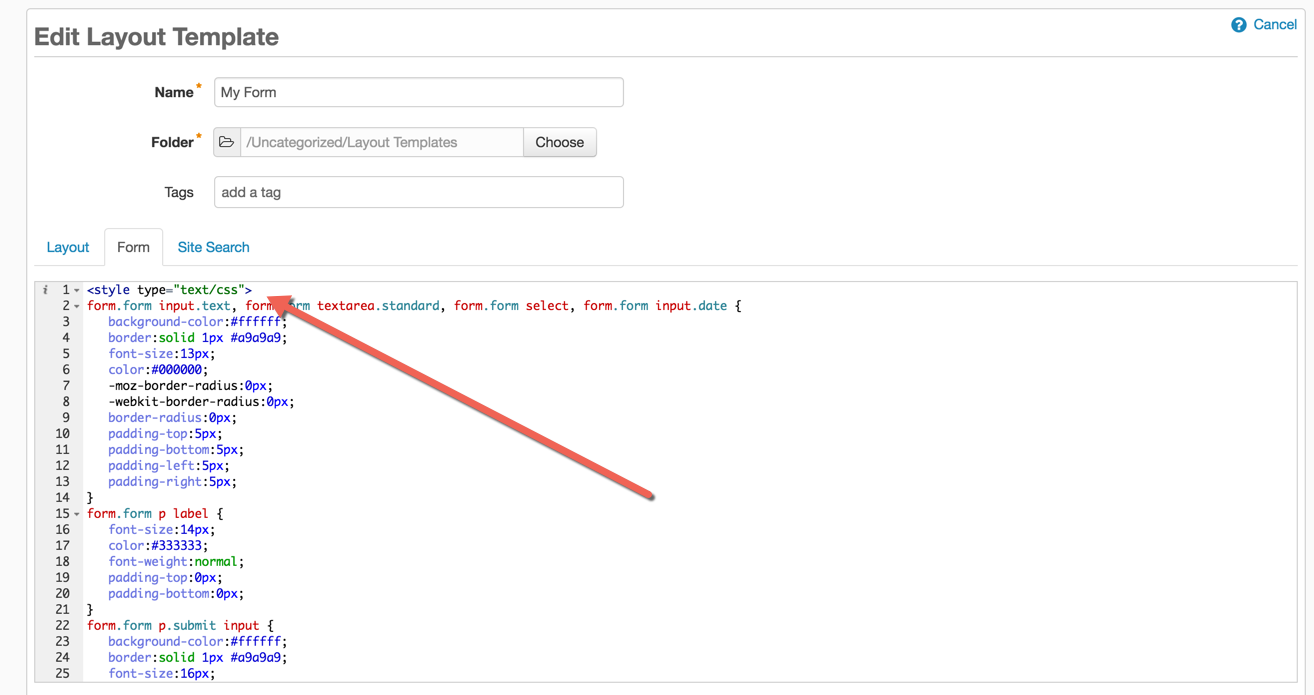
Let’s refresh on how to add custom CSS to your Pardot forms.
Navigate to Marketing > Forms > Layout Templates and select the layout to add the form styles to. Paste the CSS right above the existing code of the Form tab and save.
Styling Checkboxes
One of the downsides of using Pardot forms is the inability to modify the HTML structure of the form, so I will be leveraging the standard Pardot HTML to style the checkboxes.
The HTML
The standard HTML for a checkbox in a Pardot form looks like this:
Notice how the all the checkboxes are wrapped in a paragraph tag with the class pd-checkbox? This is how we will target the checkbox input and the checkbox label within the CSS.
The CSS
For the CSS, the default checkbox will be hidden and the ::before selector will be used to style the new checkbox.
The Result
The styled checkboxes will look like this once the CSS has been added to the Pardot form.
See the Pen Pardot Customized Checkboxes Using CSS (option 1) by Jenna Molby (@jennamolby) on CodePen.
Styling Radio Buttons
Styling radio buttons are pretty similar to the checkboxes, but with a bit of extra CSS to make them look like a radio button. Just like the checkboxes, we will leverage the HTML that Pardot provides, so all you have to do is add some CSS.
The HTML
All radio buttons in the Pardot form are wrapped in a paragraph tag with the class pd-radio. This is how we will target the radio input and the radio label within the CSS.
The CSS
Just like the CSS for the checkboxes, the default radio button will be hidden.
The Result
See the Pen Pardot Customized Radio Buttons Using CSS (option 1) by Jenna Molby (@jennamolby) on CodePen.
Questions?
Send me a tweet @jennamolby, leave a comment below, or book a Peer Chat.

37 Comments
Hi Jenna, thanks for this – the checkboxes worked brilliantly but now the checks are appearing as missing characters (i.e. the empty rectangles). Any ideas why and how to fix this?
Hi Hanna, Try loading font awesome a different way. Add this to your landing page between the HEAD tags.
<link rel="stylesheet" type="text/css" href="//cdnjs.cloudflare.com/ajax/libs/font-awesome/5.10.2/css/fontawesome.min.css"> Cheers, Jenna
Hi Jenna, thanks for your response but it doesn’t seem to have worked! Have dropped you an email with the link to our landing page if you don’t mind having a closer looks.
Thanks
Hi Jenna – I’m having the same issue Hanna described “the checkboxes worked brilliantly but now the checks are appearing as missing characters (i.e. the empty rectangles). Any ideas why and how to fix this?”
Did you figure out a fix for her that I could try? TY in advance!
Hi Chelsea, The icons are displayed using the FontAwesome library (https://fontawesome.com/) it might be that the library is no longer linked properly on the page. Double-check that it’s loading on the page and if not, you might have to re-link it. Hope that helps! Cheers, Jenna
Hello Jenna,
Thank you for the helpful article! I am having a similar issue as Amanda listed in a previous comment. My checkboxes have an unusual amount of padding to the left and I can’t see anywhere in the form layout template to make the checkboxes aligned left. Any suggestions?
Hi Greg, It’s difficult for me to troubleshoot without taking a look at your form. Please email [email protected] with a link to your landing page and I will take a look. Cheers, Jenna
Hi! I I’m working on a Pardot form with check boxes and am wondering do you have any suggestions for aligning the check boxes to the left? For reference my form can be viewed on https://www.boydcorp.com/sealing/adhesive-bonding-systems.html. I’m looking to align the check boxes with the labels of the fields above. Basically I’m looking to have the text after the check box be on one line.
Hi Jenna, The check boxes in my form do not have any labels and I am trying to align them with the rest of the form labels so the text is only on one line. Basically I need to move them left. Do you have any suggestions on how to do this? The form can be viewed https://www.boydcorp.com/sealing/adhesive-bonding-systems.html. Thank you!
Is there a way to style each specific checkbox separately?
Looking to stylize an email preference center that has a bunch of checkboxes – this would make it look A LOT nicer.
Hi Chad, Yes, you could style each checkbox separately by using the :nth-child selector https://css-tricks.com/almanac/selectors/n/nth-child. Here’s an example
.pd-checkbox:nth-child(3) input + label:before {
content: ”;
background: #000;
border: 2px solid #ddd;
display: inline-block;
vertical-align: middle;
width: 18px;
height:18px;
padding: 5px;
margin-right: 10px;
text-align: center;
font-size:15px;
line-height:18px;
}
/* style the checked checkbox */
.pd-checkbox:nth-child(3) input:checked + label:before {
content: “\f00c”;
font-family: ‘FontAwesome’;
background: #cccccc;
color: #fff;
border-color:#3eb9bc;
} Cheers, Jenna