

In this tutorial, I will show you how to create a pop-up form that can be placed on a Pardot landing page. I will go over 2 methods, opening the pop-up form when a link is clicked and opening the pop-up on page load.
Getting Started
Before you get started, make sure you have a form and a landing page created.
Get the pages and files ready
We will be using Magnific Pop-up jQuery Plugin to create the pop-up in Pardot.
Step 1: Download the Files
Download the Javascript File and the CSS file by pressing CTRL + S on your keyboard and saving it to your desktop.
Step 2: Upload files to Pardot
Now you will need to upload the 2 files you just downloaded to Pardot under Content > Files.
Copy and paste the URLs of the uploaded files into a word or text document. You will need these in step 3.
Step 3: Add the files to your layout template
Add the CSS file
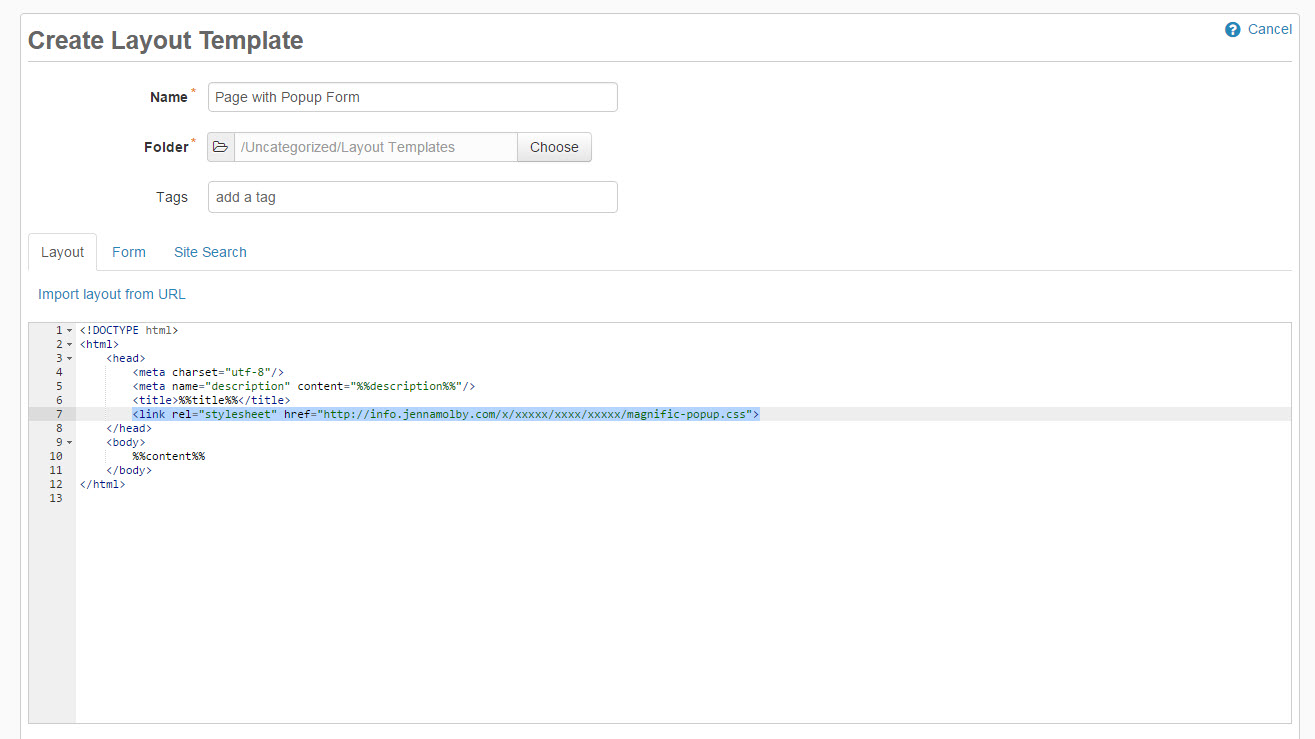
At the top of the page, somewhere within the <head> </head> tags, link the CSS file.
Make sure you change the pop-up CSS URL to the Pardot content URL.
Add the JavaScript Files
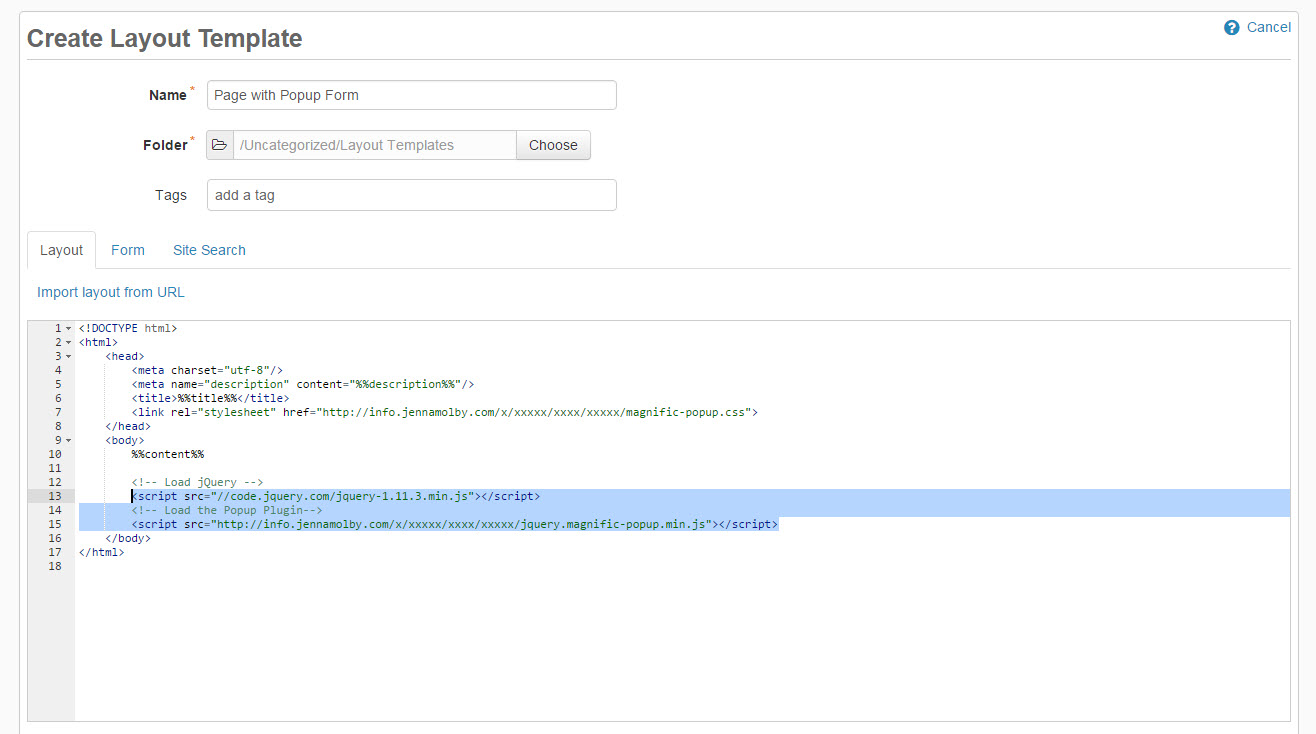
Open up your layout template, scroll down to the bottom of the page and add the following script right before the closing </body> tag.
Make sure you change the pop-up plugin URL to the Pardot content URL.
Open The Pop-up on Click
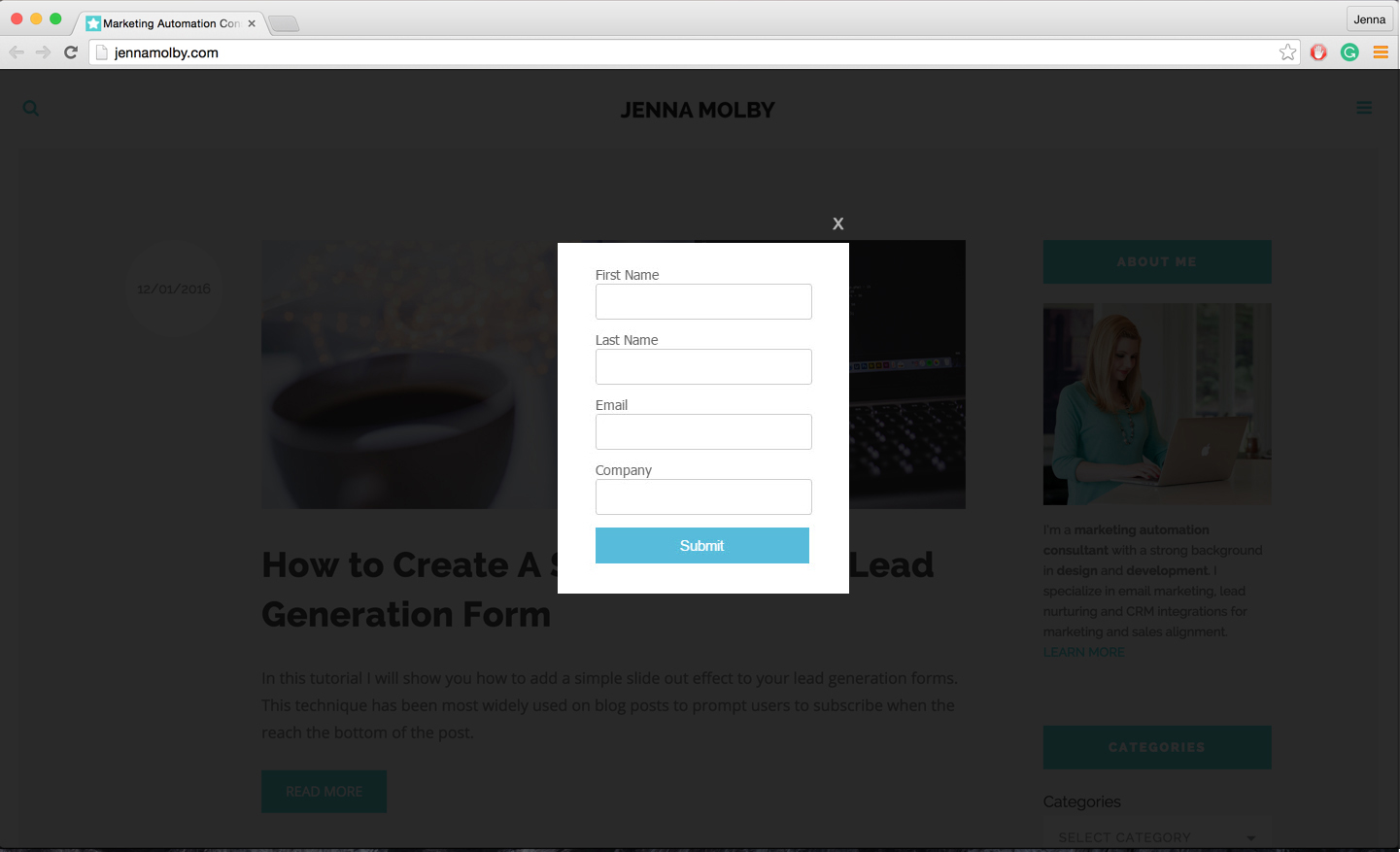
To open the pop-up form on click add this piece of code where you want the link or button to appear.
Open form
Add this javascript code right before the closing </body> tag.
$(document).ready(function() {
	$('.popup-with-form').magnificPopup({
		type: 'inline',
	});
});
Open The Pop-up on Page Load
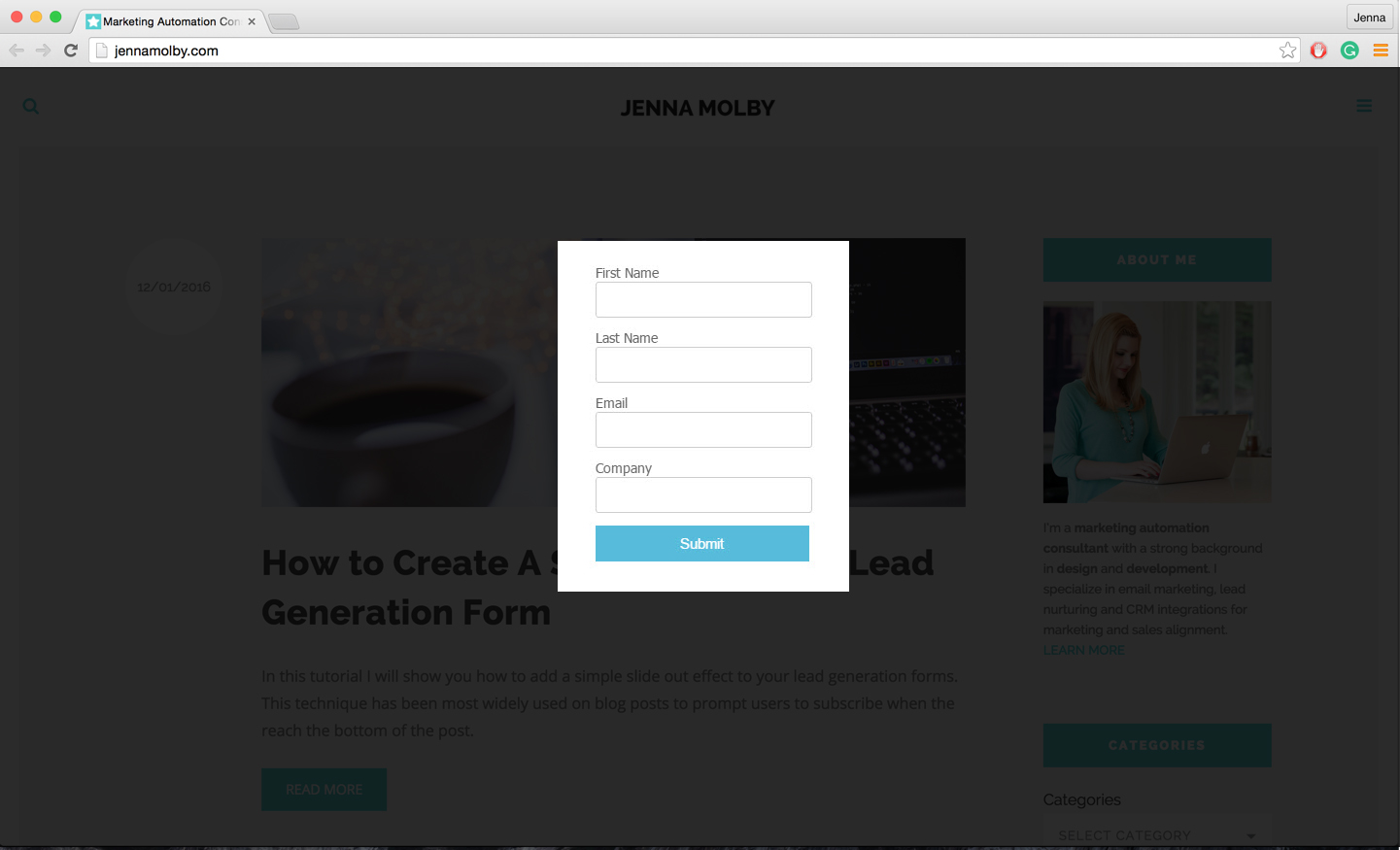
To open the pop-up form when the page loads add this HTML anywhere in the body of your page.
add this javascript code right before the closing </body> tag.
$(document).ready(function() {
     $.magnificPopup.open({items: {src: '#my-form'},type: 'inline'}, 0);
});
You can remove the ability to close the pop-up, so the user has to input their information to continue, by adding modal:true to the JavaScript.
$(document).ready(function() {
    $.magnificPopup.open({items: {src: '#my-form'},type: 'inline', modal:true}, 0);
});

33 Comments
The Magnific Pop-up jQuery Plugin link you provided 404’s but I don’t see in the instructions where this is actually used. Could you clarify? Is it needed?
Hi Alec, thanks for letting me know, I’ve updated the link. Yes, the plugin is used step 3 “Add the files to your layout template”. Cheers, Jenna
HI Jenna,
Your blog is incredible and has become invaluable as my company has recently switched to pardot.
I am having a little trouble with this tutorial,specifically for the last bit where you add the javascript before the closing body tag. Basically it won’t recognize the javascript and tries to recognize it as html script and as text on the actual LP. Am I doing something wrong?
Hi Nick, Are you wrapping your javascript in SCRIPT tags? If you’re still having trouble feel free to email me at [email protected] with a link to your landing page and I can help you troubleshoot. Cheers, Jenna
That was the problem…*face palm*
Thanks so much!!
Hi Jenna, Were you able to address the issue Geoffrey was having? I am able to do something similar using a Bootstrap modal but if the form is completed with errors, Pardot refreshes the page and the user doesn’t have a change to see the message to complete the required fields. Would the workaround be to insert an iframe form in the modal instead?
Hi Jenna. Great article, thanks. We’ve set up the form and popup and it’s working great but I can see multiple form views for some prospects who have completed the form previously. How can we prevent this popup from showing up? Or would it be cookies related?
Hi Inna, So glad you found it helpful. Yes, to prevent the form from being loaded again, you would need to set some cookies.
Hey Jenna, thanks for the info. I came across an issue that I’m not sure how to fix.
How do I keep the pop-up form from closing if the user submits without filling out a required field? I submitted the form without filling out the fields; the modal instantly closes upon submission and I have to click the button to re-open the form pop-up in order to see my form errors.
Is there anyway to keep the modal window open if there’s a field error upon submitting?
Thanks again.
Hi Geoffrey, Are you using a Pardot form or a Pardot form Handler? Feel free to email me with the link to your landing page and I can help you troubleshoot [[email protected]].
Hello Jenna, I’m having a similar issue to the one Geoffrey described. I know it was more than a year ago by do you by chance remember how to fix this? Thanks in advance!
I’d also be interested in a solution to this. Great resource, by the way.
Great article, super easy to follow along! I’m also having the same issue where the form can be closed, and needs to be reopened to see any error messages if required fields are not entered. Is there a solution to this?