
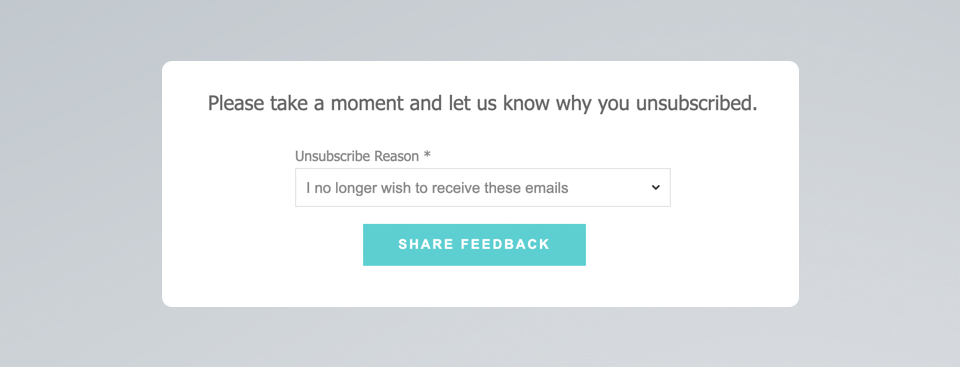
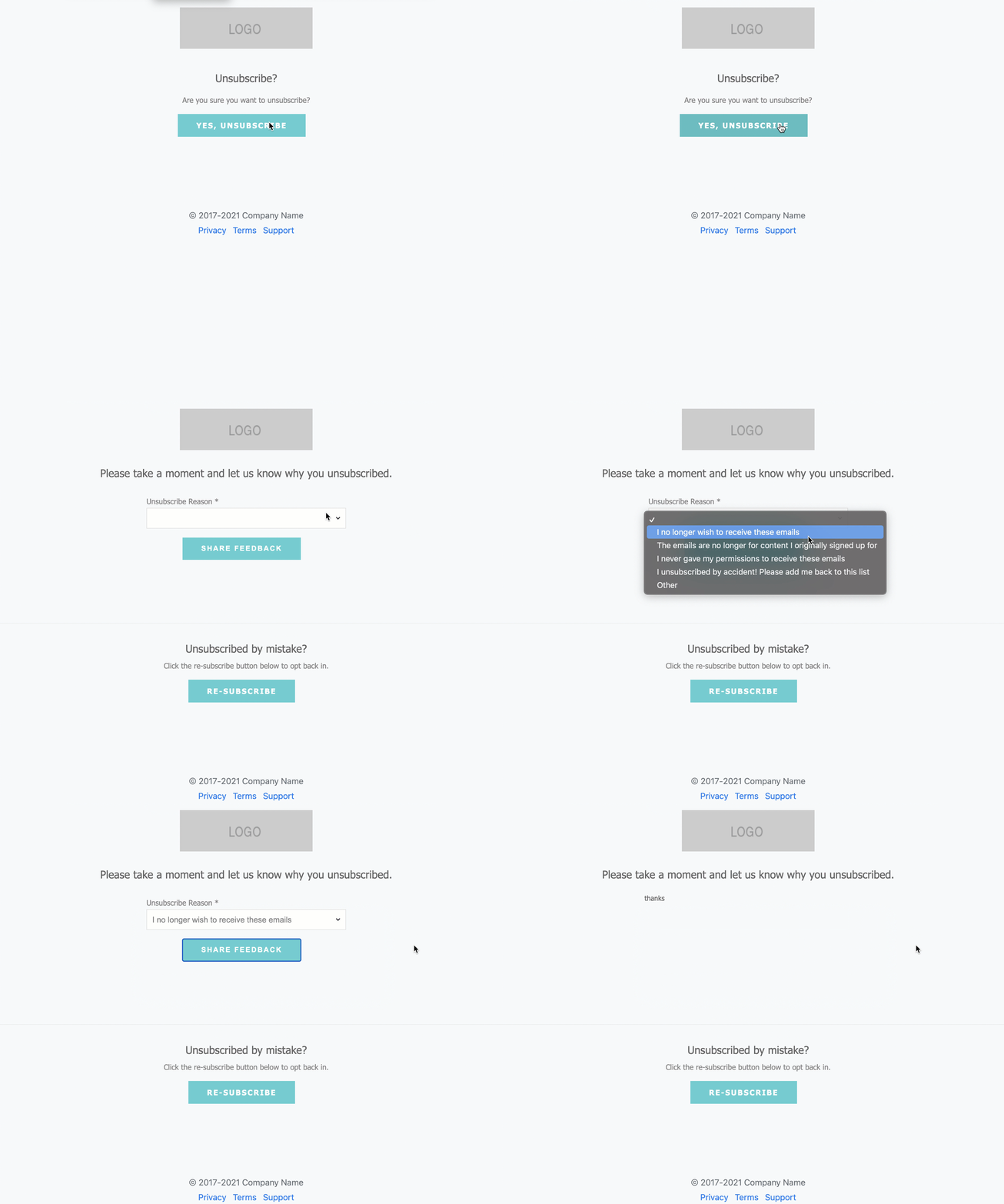
In this post, I’ll show you how to create a page that asks for feedback as to why the prospect is unsubscribing. The goal is to use the standard Pardot unsubscribe page and ask them why they have unsubscribed on the confirmation page. This gives the prospect the option to complete this information, but it’s not required for them to be unsubscribed from emails.
Page preview
Here’s what the completed page looks like.
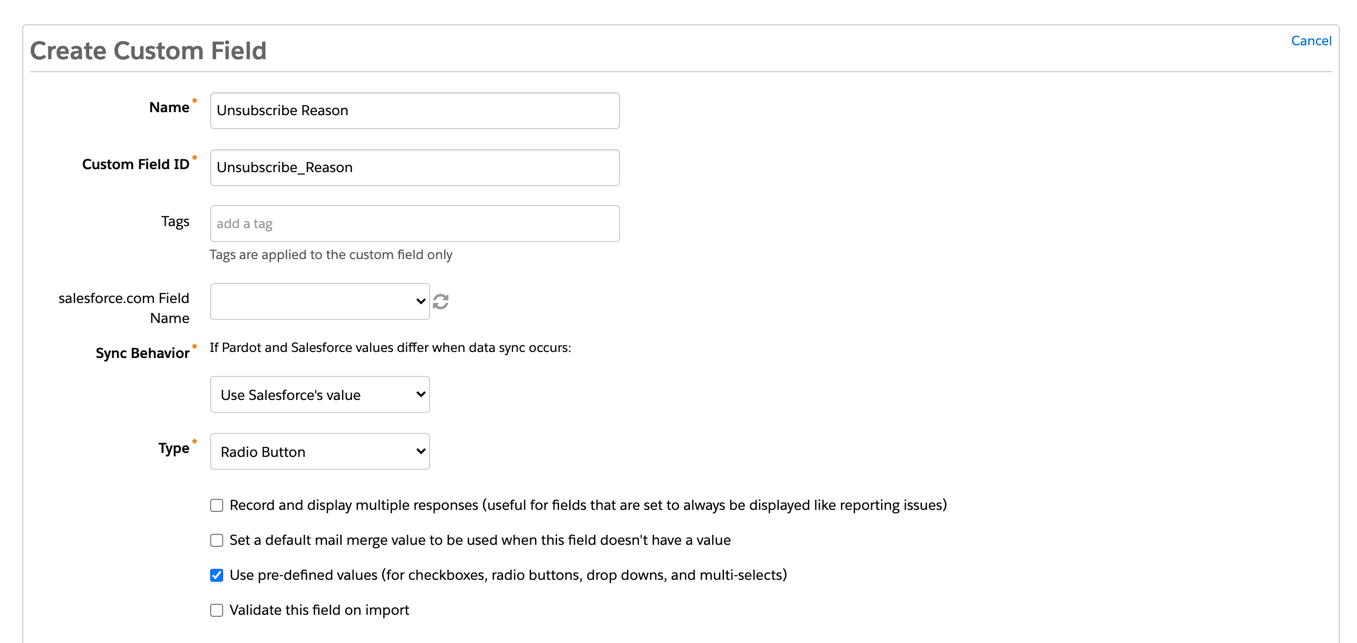
Step 1: Create the custom field(s)
First, create a field in Pardot that will be used to capture the unsubscribe reason.
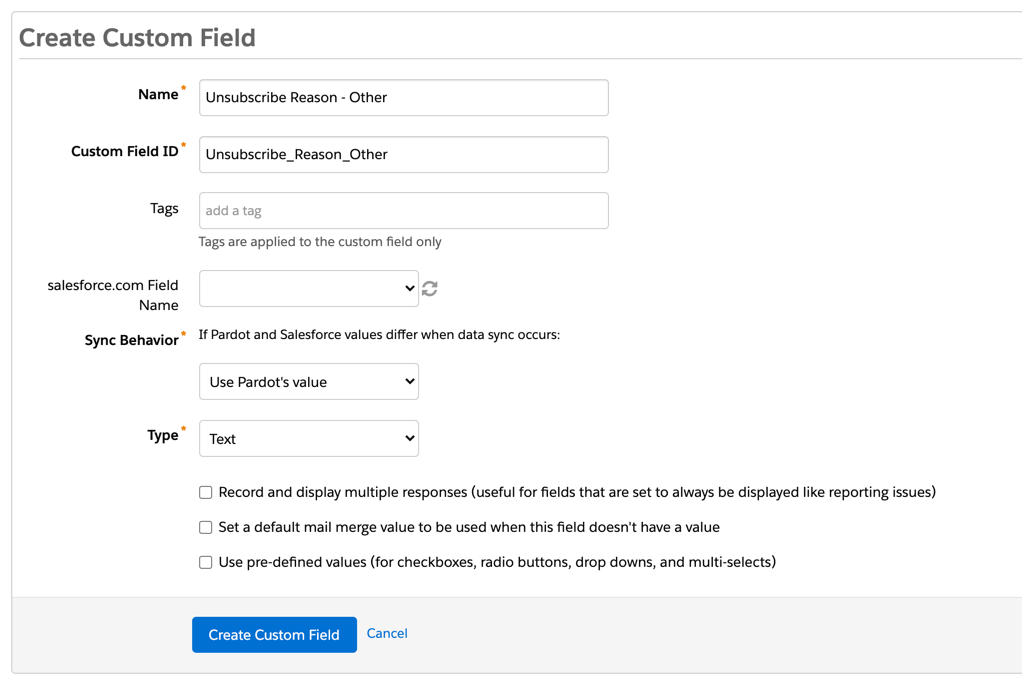
Optionally, you can create an additional field to capture the reason if “other” is selected in the form.
Step 2: Create the unsubscribe reason form
Create a new form and add your new fields.
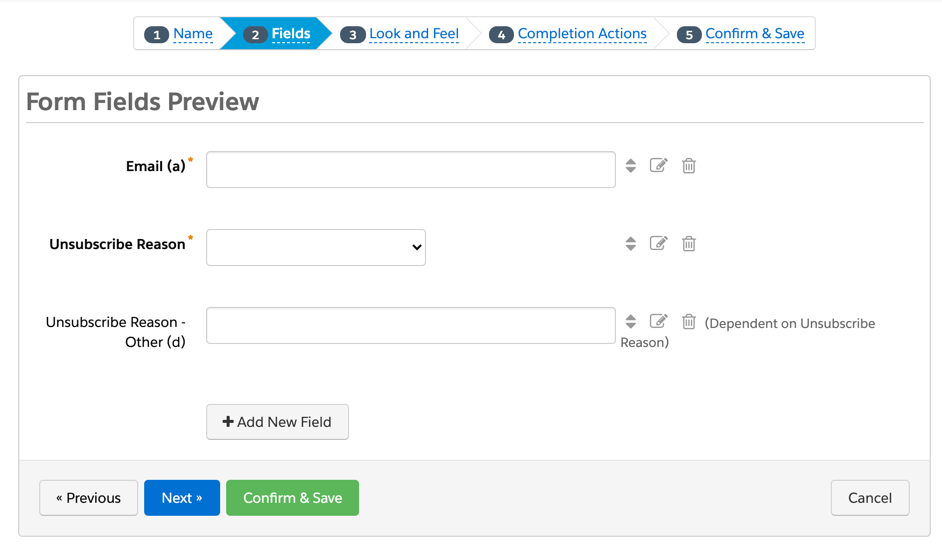

Step 3: Style the unsubscribe reason form
Add some CSS to the unsubscribe form in the above form section.
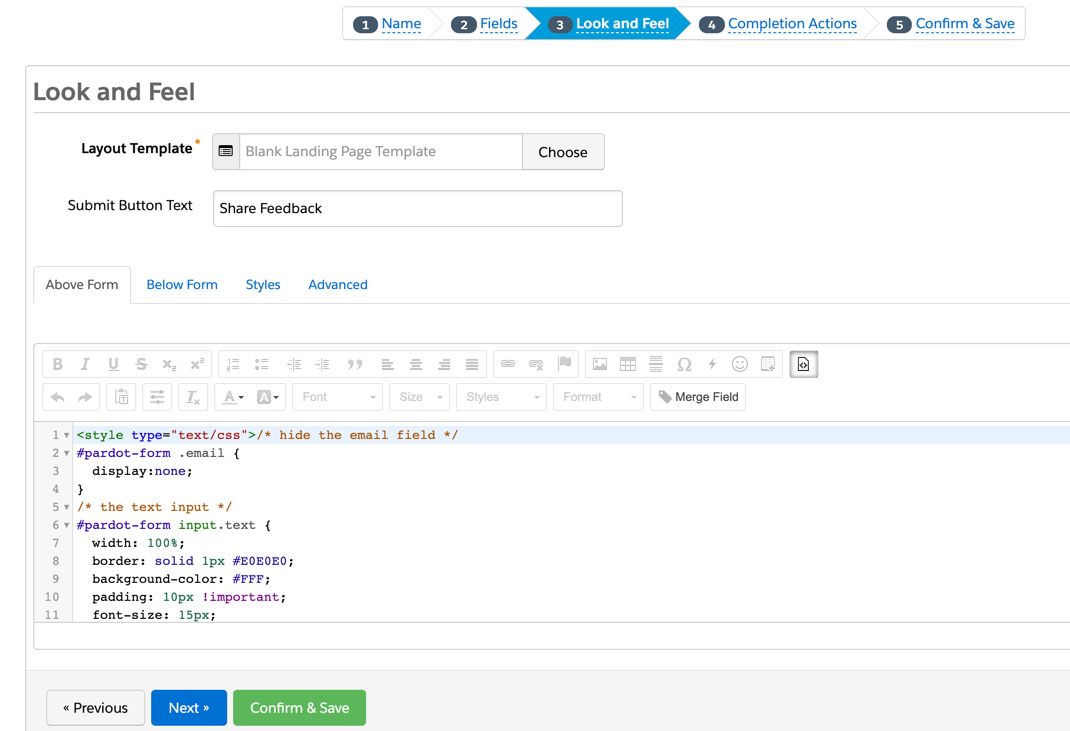
Since the only way to get to the unsubscribe reason page will be from an email, I highly recommend hiding the email address field from the form by adding this CSS:
#pardot-form .email {
  display:none;
}
Here’s what my full CSS looks like for my form:
Step 4: Edit or create a layout template
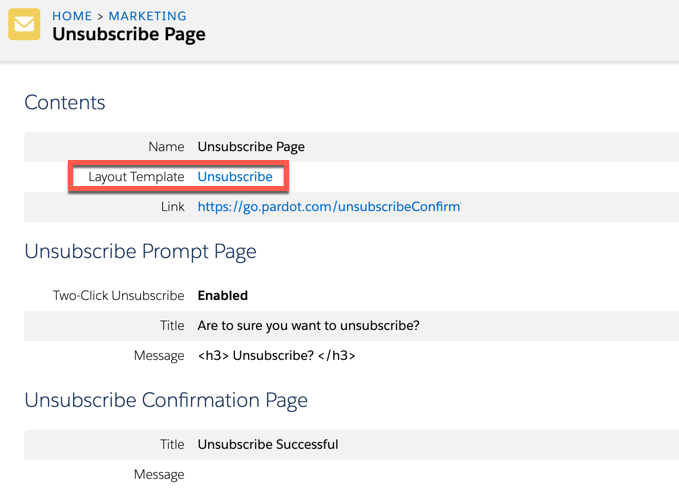
If your unsubscribe page does not have a dedicated layout template, create a new layout template to use for the unsubscribe page. You can find the layout template name on the settings page for your unsubscribe page.
Navigate to your layout template and click on the Form tab. Find the %%form-before-form-content%% tag within the HTML and replace it with the iFramed version of your unsubscribe reason form. Also, add any text you want to include before or after the embedded form.
Here’s the HTML I replaced the %%form-before-form-content%% tag with.
Please take a moment and let us know why you unsubscribed.


Unsubscribed by mistake?
Click the re-subscribe button below to opt back in.
and here’s what the full HTML looks like in the form tab of the layout template:
Lastly, here’s my HTML for the entire layout tab of my layout template.
%%title%%
 %%Content%%
Issues with email address populating
There have been some reported issues with the email address not populating in the unsubscribe reason form. This is because the form depends on cookies in order to populate the email address. The prospect might have a browser setting enabled or they are in Incognito Mode. There are two workarounds to solve this…
Workaround #1: Show the email address field if it’s not populated automatically.
The first workaround is to show the email address field if the email field is not populated automatically. To do this, navigate to your unsubscribe reason form, go to the look and feel tab and paste this jQuery code in the below form section.
Workaround #1: Hide the unsubscribe reason form if the email address is not populated automatically.
The second workaround is to hide the form altogether if the email address is not populated automatically. To do this, navigate to your unsubscribe reason form, go to the look and feel tab and paste this jQuery code in the below form section. Update the jQuery with your own messages.
Lastly, remove the header from your unsubscribe layout template since the header is placed within the form instead.
Testing
To test the unsubscribe reason page, you must send yourself a REAL email. The page will not show up if you are using one of the email test features.
Questions?
Send me a tweet @jennamolby, or leave a comment below.

17 Comments
Hi Jenna,
I followed your steps above and when I click the unsubscribe link now in my email, it takes me to the landing page but the Reasons for unsubscribing aren’t showing up it’s just blank space underneath my logo and the “Please take a moment to let us know why you unsubscribed. I can see the section below for “Unsubscribed by mistake?” but its just missing the form section. Have a missed a step?
Hi Laurel, hmm that’s strange. DM me with the link to your page and I can take a look.
Hi Jenna! I’m having a problem with my form nesting multiple times within the layout template. Any suggestions?
Hi Linda, Make sure the layout template you are using for the unsubscribe page is not the same layout template you are using for the form.
Hi Jenna Molby,
Thanks a lot for your blog, we really love it and appreciate all the effort and the passion that you put on every single post.
Recently we came across this one, and we’ve tried to replicate the same steps you described above, but on our case Pardot does not fill the Email in the “Unsubscribe Reason” form. We made a little change to the layout template style to make the email field always visible, and indeed if we open the form on a mobile device, or in incognito mode, the email is not automatically filled.
This makes us think that Pardot uses cookies to identify the user, rather than the account_id url parameter that is attached to the unsubscription link. Making the email field invisible and NOT prefilled causes the form to be invalid, as the email is always a mandatory field.
We have tested this with a real email address (no testing lists).
Have you ever faced something similar? Can you help us identify the root cause?
Thanks in advance.
Tommaso
Hi Tommaso, Sorry for the delayed reply. I was finally able to recreate the issue and I have updated the post with two potential workarounds. Check it out in the section titled “Issues with email address populating”.
Hi Jenna,
I tried your solution for my unsubscribe page, but I have a problem.
If I send the email to myself, the unsubscribe reason form in iframe hasn’t the prospect email filled in, and I get the validation message after submit.
How can I solve this issue?
Thank you so much!
Hi Dave, hmm.. I have not had this issue. Are you sending a test email to yourself or a real email? I found the best way to test this is by sending myself a real email NOT a test email.
Hi! I am having the same issue. If I go from the Unsubsribe page to the reason page it does not populate the email. I am using a real email and not a test
Hi Lisa, Sorry you are experiencing issues. I’m working on a follow-up post that will have a workaround. Stay tuned!
Hi Lisa, I updated the post with a couple of workarounds to fix this issue. Check it out in the section titled “Issues with email address populating”.
This is exactly what we’ve been talking about as we’re updating things around our unsub process. Thank you so much for this!