
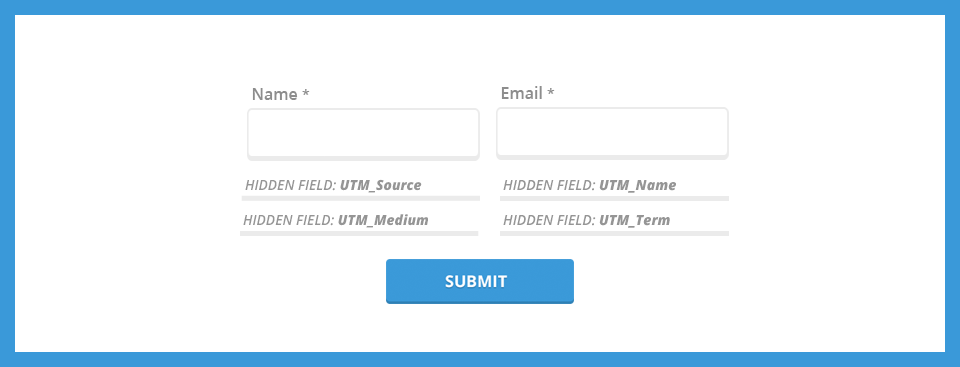
You might already be using UTM parameters to track your marketing campaigns with Google Analytics, but are you capturing that information when a lead comes into your database? Capturing this data is critical in order to assess the value of your marketing campaign and is a lead management best practice.
What are UTM Parameters?
UTM parameters are tags you add to a URL. Marketers use this to be able to track the traffic from a variety of sources such as email, social media, banner ads, etc. The tags can be sent back to Google Analytics and tracked which can be used to gauge the effectiveness of campaigns and identify the best ways to drive more visitors to your website.
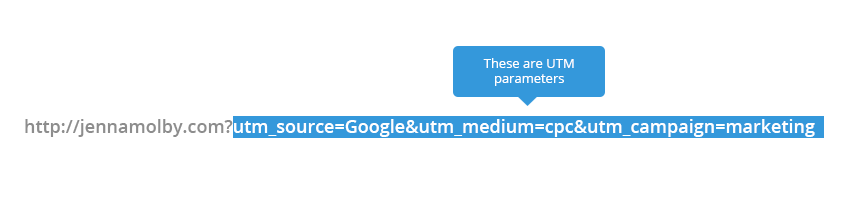
Create New Fields
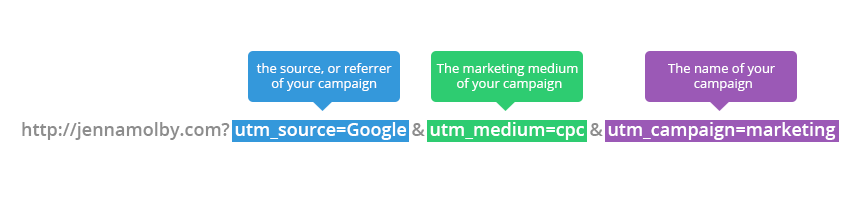
The first thing you need to do is create 3 new fields in your Marketing database.
- utm_source
- utm_medium
- utm_campaign
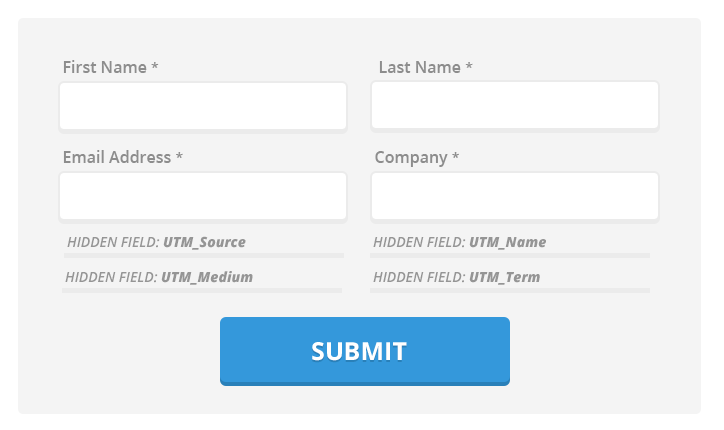
Add The New Fields to Lead Capture Form
Next, add these new fields to your lead capture form(s). Make sure they are marked as hidden fields
Add Some Code to Your Landing Page
Some javascript code will need to be added to your landing page.
// Parse the URL
function getParameterByName(name) {
    name = name.replace(/[\[]/, "\\[").replace(/[\]]/, "\\]");
    var regex = new RegExp("[\\?&]" + name + "=([^&#]*)"),
        results = regex.exec(location.search);
    return results === null ? "" : decodeURIComponent(results[1].replace(/\+/g, " "));
}
// Give the URL parameters variable names
var source = getParameterByName('utm_source');
var medium = getParameterByName('utm_medium');
var campaign = getParameterByName('utm_campaign');

// Put the variable names into the hidden fields in the form.
document.getElementsByName("utm_source").value = source;
document.getElementsByName("utm_medium").value = medium;
document.getElementsByName("utm_campaign").value = campaign;
This piece of code will parse the URL parameters and put the values into the hidden fields on your form.
Note: Some Marketing Automation platforms have an option within their form builders set the field value based on a URL parameter. If that’s the case, the javascript code will not need to be added to your landing page.
Create URLs and Test
Now you’re ready to start creating URLs and testing your form. Use this handy URL builder to create your links and then fill out the form to see if the values go into your database.
What if the lead navigates away from the landing page?
If a lead navigates away from the landing page (maybe to the ‘About’ page) and then returns to the landing page to fill out the form, the UTM information will not be captured. To capture that you need to need to use cookies. Check out my tutorial to learn how to use cookies to capture URL parameters.
Questions?
Email me, or send me a tweet @jennamolby.

23 Comments
I figured that you have to use :
document.getElementsByName(“utm_source”)[0].value = source;
*Note – the [0] that has been added before .value
I hope this helps people trying the code, who commented saying it didn’t work for them.
Thanks Jenna, this was very helpful.
I use ActiveCampaign for email marketing and have a WordPress website. I’ve taken the full code from the ActiveCampaign form and put it onto a page, but where should the javascript be placed?
I’ve got a plugin that allows me to insert it wherever, and could place it inside the form code where the
Hi Nate, I would place it towards the bottom of the page, right before the closing </BODY> tag.
Hey Jenna, Just wanted to give a big thanks for this blog., it was so helpful and very easy to follow.
🙂
Sandy
Great Post.
Hi,
I am trying to do this with Pardot forms embed in WordPress pages, and I have no luck what so ever.