
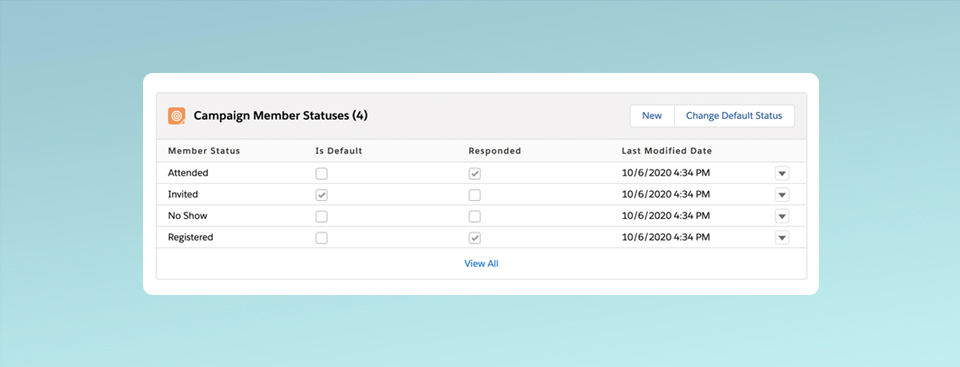
New campaigns in Salesforce have two default member status values: “Sent” and “Responded”. To customize the values, you can create them manually, set up “campaign templates” to copy the status values or bulk create the values using Data Loader. Now, thanks to one of the Summer ’20 updates, you can easily automate this process using only Salesforce Flow. In this post, I’ll show you how to use Salesforce Flow to create campaign member statuses automatically based on campaign type.
The example
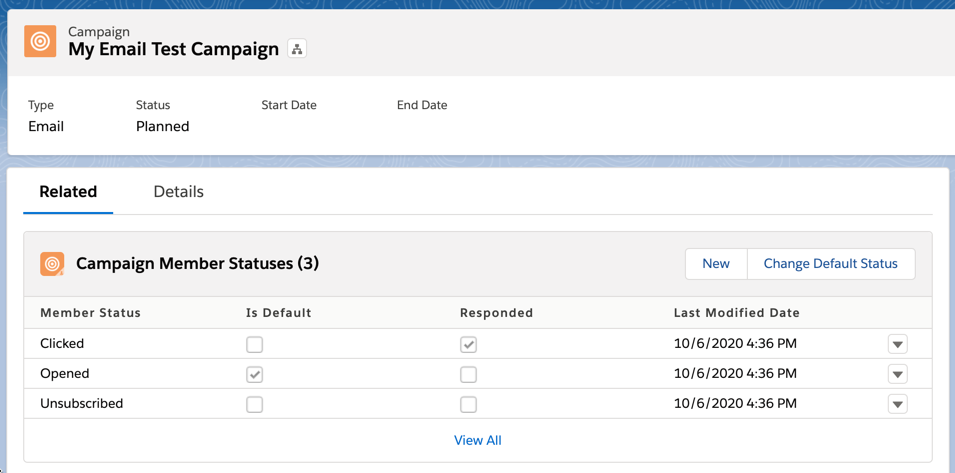
In this post, I’ll be using Salesforce Flow to create the following statuses based on campaign type.
| Campaign Type | Campaign Member Status |
|---|---|
| Online Advertising |
|
| |
| Webinar |
|
Prerequisites
I recommend you map out what status values you want to use for each campaign type as well as which statuses should be marked as default and responded before creating your flow.
Create the flow
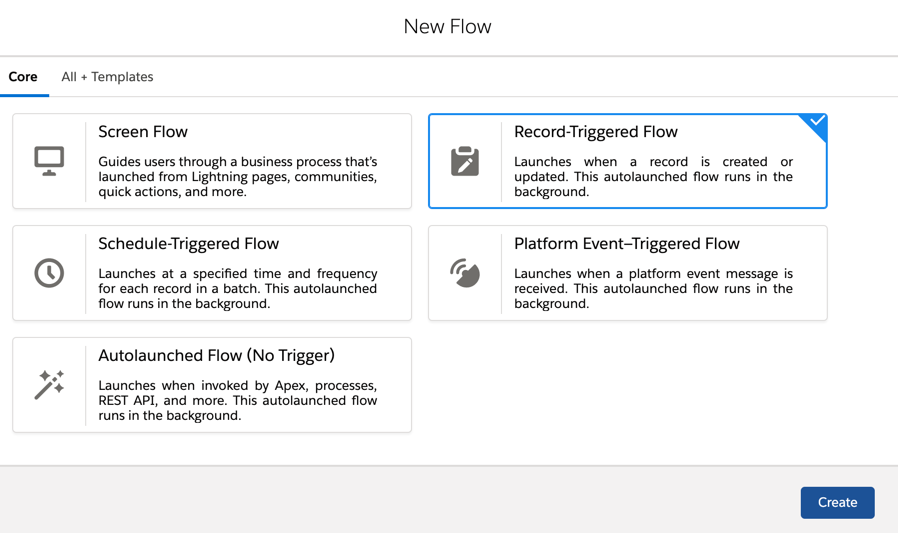
Navigate to Setup > Process Automation > Flows and select new flow. Select Record-Triggered Flow from the wizard.
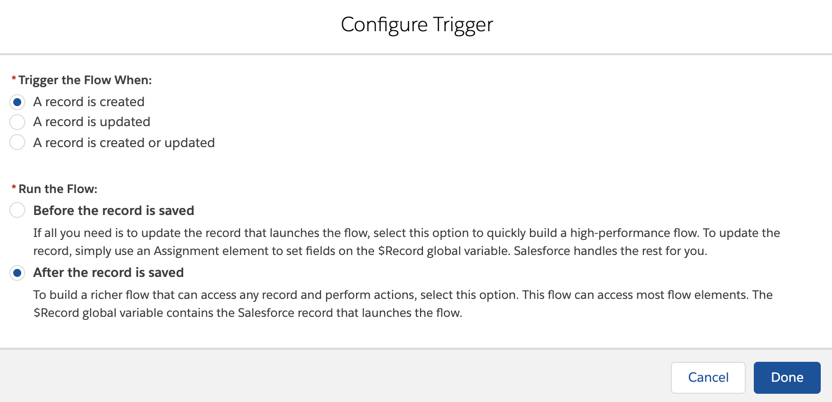
Configure the Trigger to occur when a record is created, and after the record is saved.
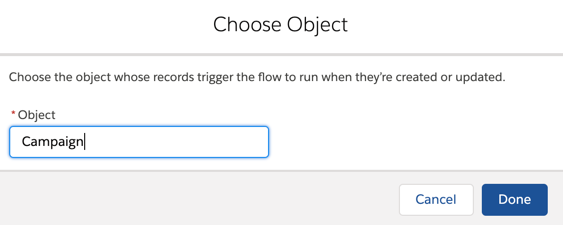
Select Campaign as the trigger object.
Add a Decision element to the flow
Drag and drop a decision element onto the page. This is where we will set up the logic to determine what campaign statuses to create for each campaign type.
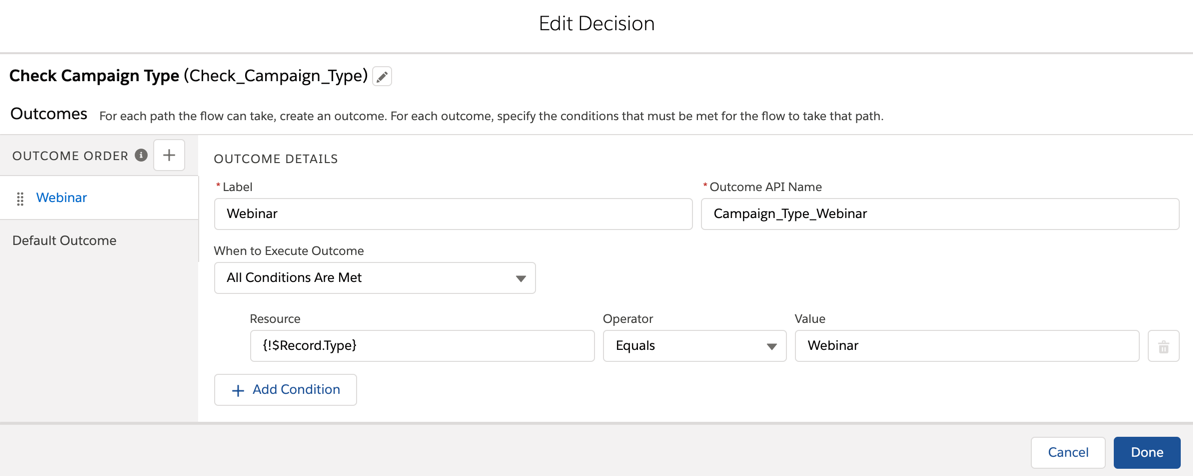
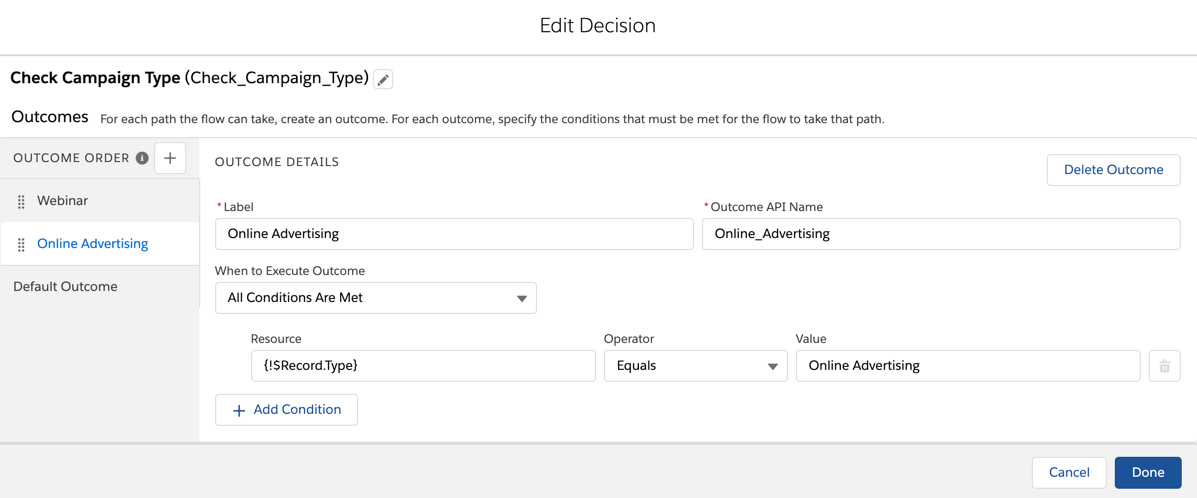
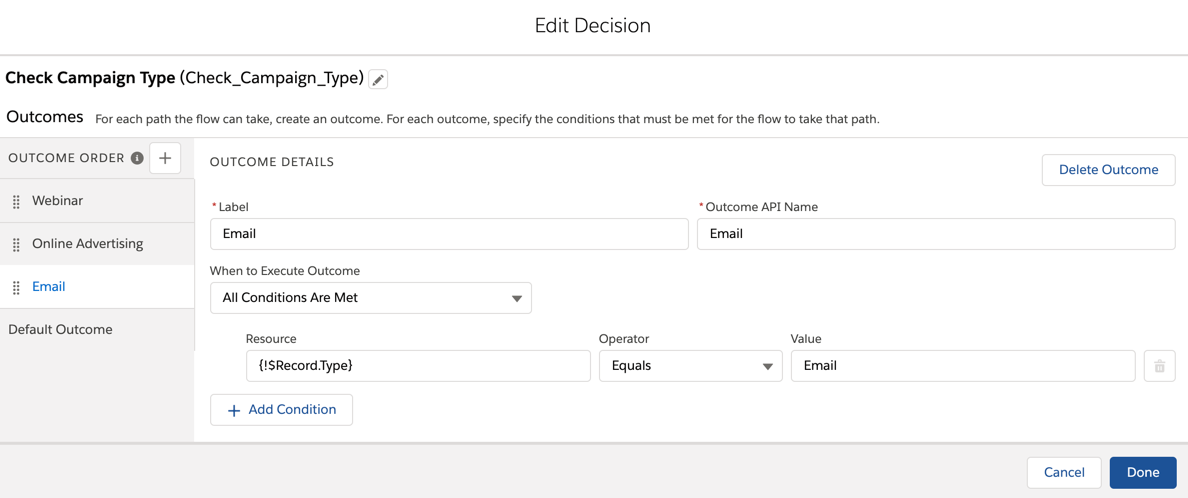
In this example, I will be creating three outcomes:
- Campaign type = Webinar
- Campaign type = Online Advertising
- Campaign type = Email
Each outcome will use the {!$Record.Type} resource and use the value of the campaign type.
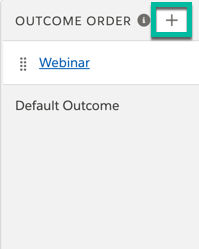
Click the plus sign to add each outcome.
Example: Campaign type = Webinar
Example: Campaign type = Online Advertising
Example: Campaign type = Email
Add create record elements to the flow
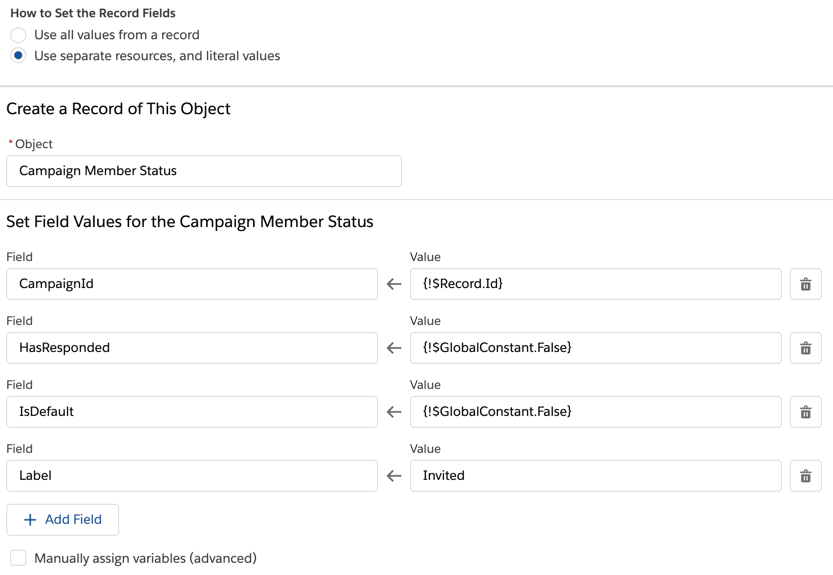
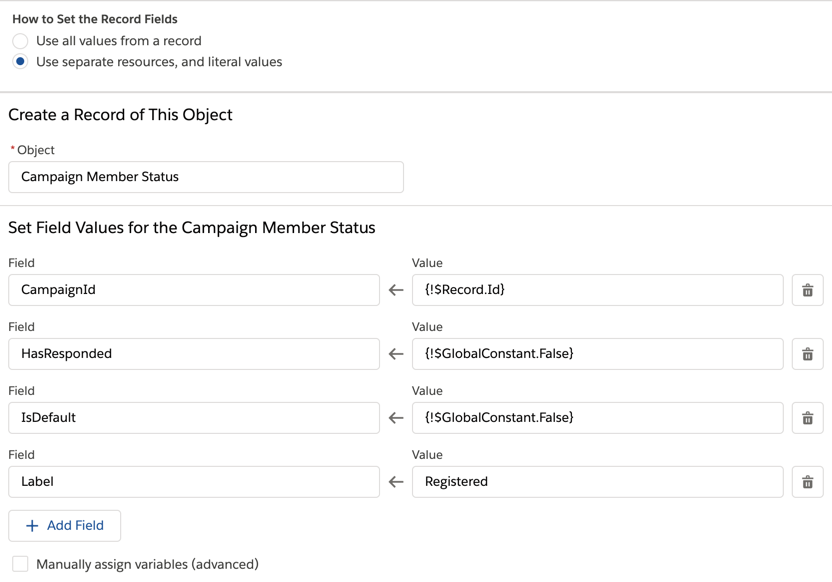
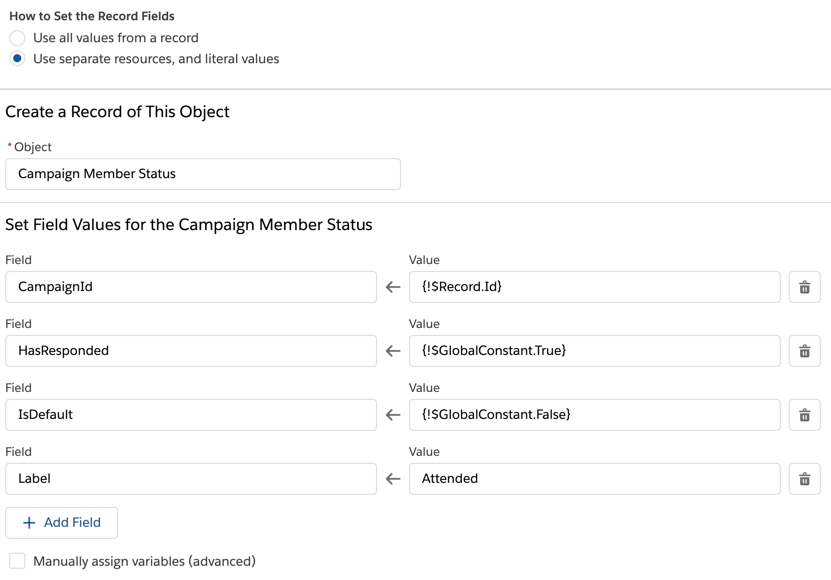
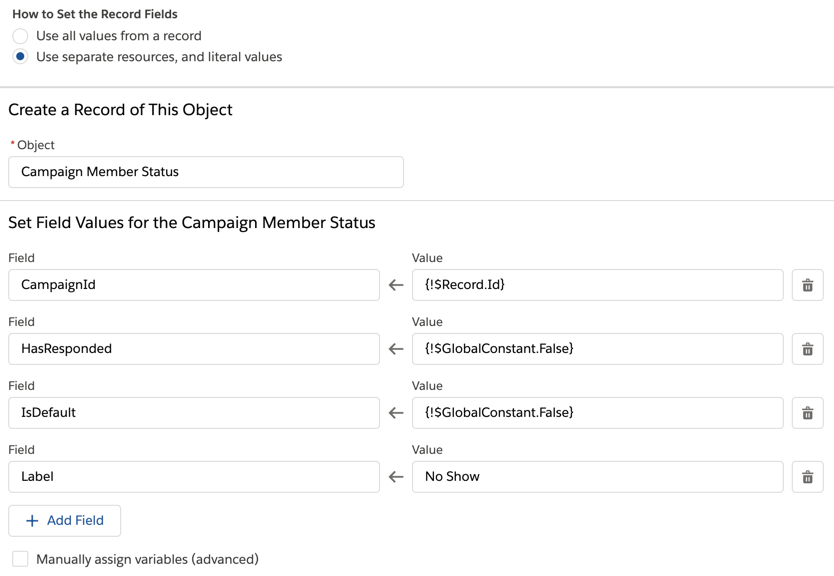
Once your decision outcomes have been created, you can add actions to create each campaign member status. Each status for the campaign will use a Create Records element. For example, if you want to create four campaign member statuses for webinars, you will need add four Create Record elements to the flow.
Each create records element will set the following values:
- Create one record
- Use separate resources, and literal values
- Set the value for CampaignId to {!$Record.Id}
- Set a field label
Setting these values are optional:
- HasResponded: I highly recommend setting this as it is helpful for reporting
- IsDefault: There can only be one default campaign status.
- SortOrder: I recommend not setting this value. If your campaign already has values, it can sometimes cause a flow error.
Using my webinar campaign type as an example, here is what my create record steps look like.
Example: Create a campaign member status for invited
Example: Create a campaign member status for registered
Example: Create a campaign member status for attended
Example: Create a campaign member status for no show
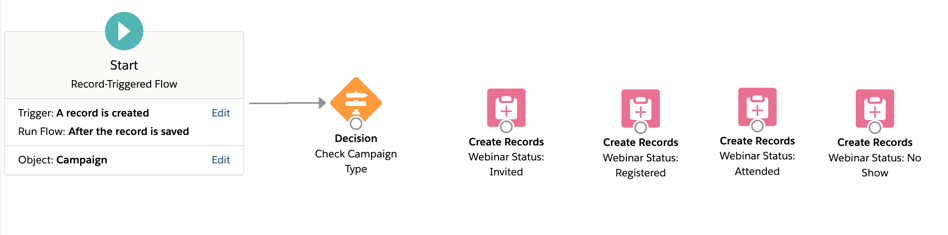
Example: All webinar statuses
Here’s what my flow looks like once all my webinar statuses have been added.
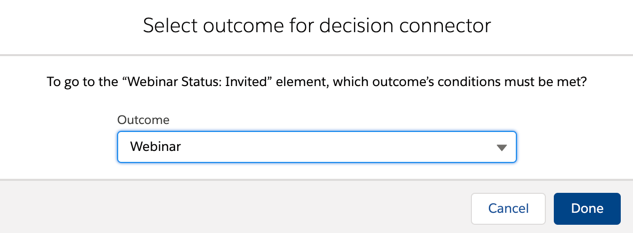
Connect the decision element
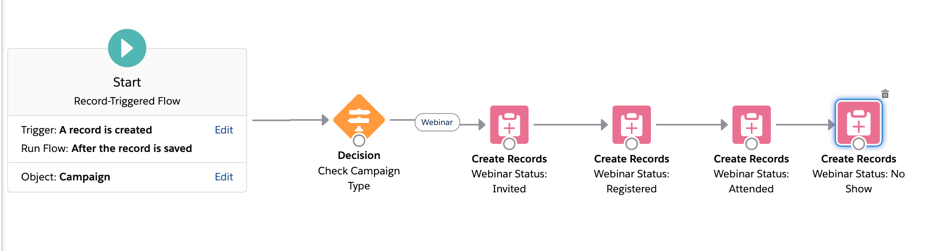
Connect the decision element to the first create record element and select webinar as the outcome.
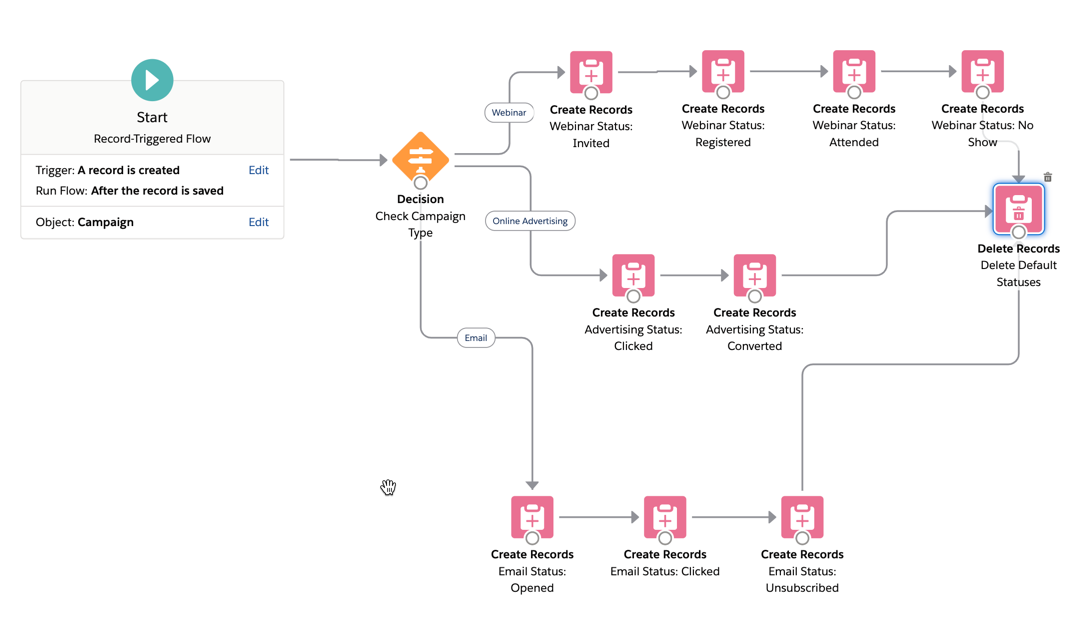
Connect the rest of your elements. Now, we are left with a flow that looks like this.
Repeat for the rest of your campaign statuses
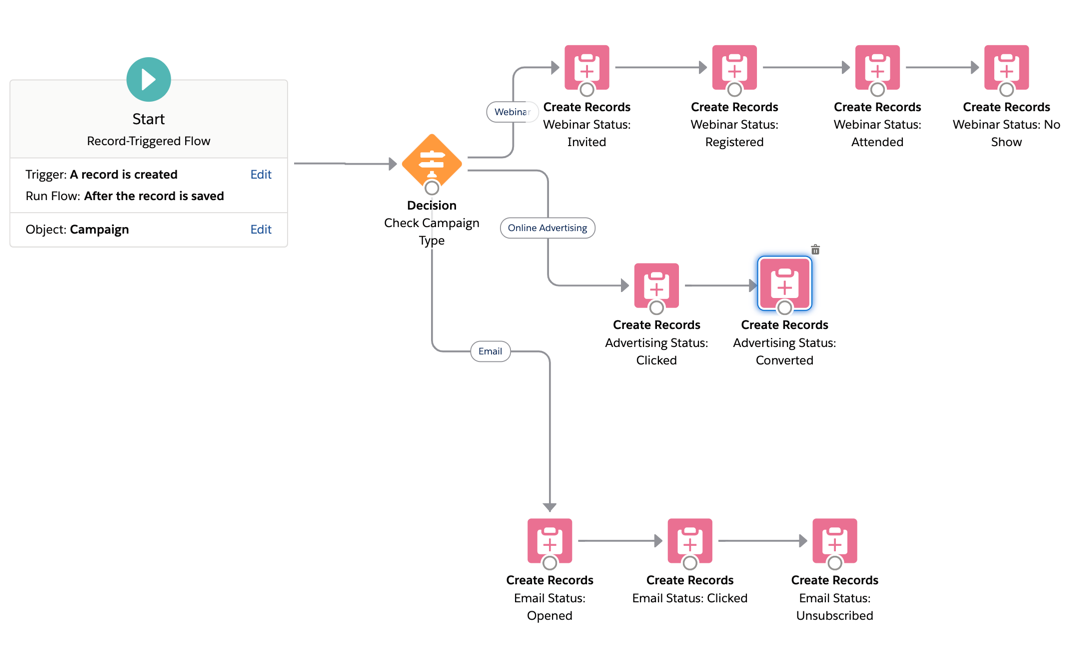
Repeat the process above by adding more create record elements to your flow for the rest of your campaign types.
Here’s what my flow looks like once I added the Online Advertising and the Email statuses.
Optional: Delete the default status values
Optionally, you can delete the two default status values (sent and responded) from campaigns automatically by adding a delete record action to your flow.
Drag and drop the delete records element to your flow, select the Campaign Member Status object, and add the criteria.
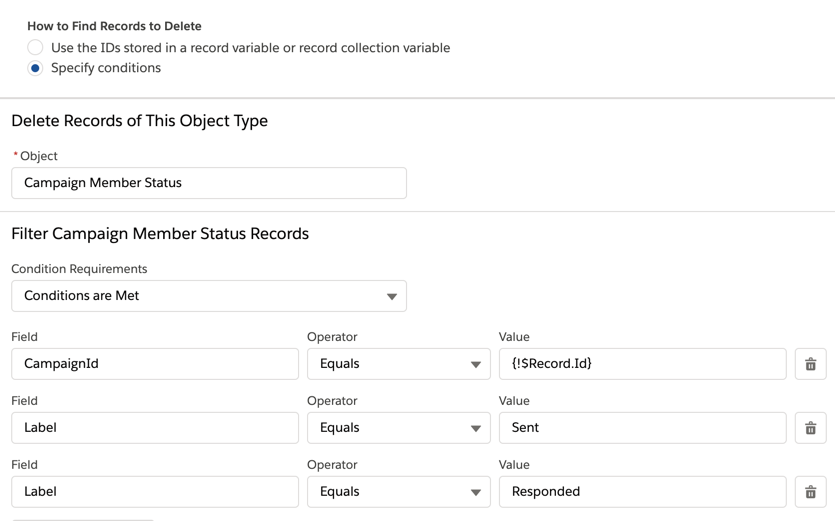
Connect the delete records element to the last element of each of the flow steps.
Note: Use caution when deleting these statuses. Campaigns must have one status set to responded and one status set to default. If you remove the ‘Sent’ and ‘Responded’ statuses from campaigns you must set these values for one of your custom custom statuses.
Test, test, test
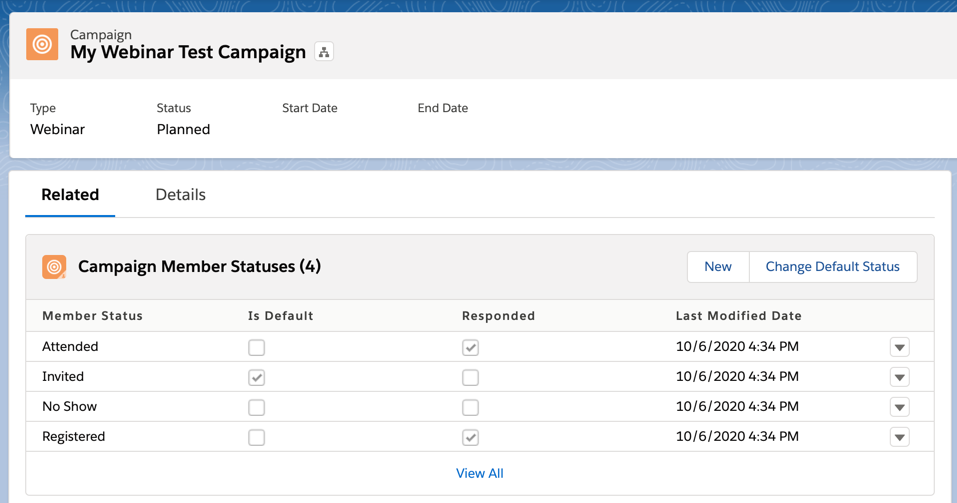
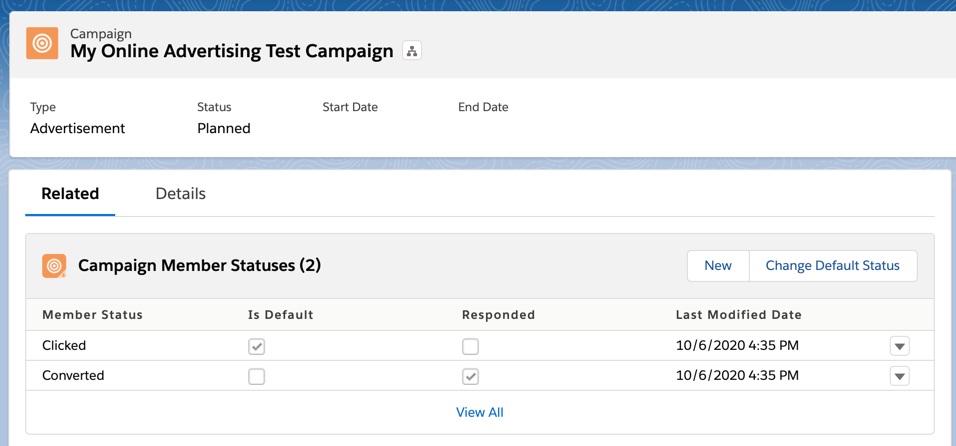
Save and activate your flow. Create new campaigns for each of the campaign types to ensure the statuses are correct.
Questions?
Send me a tweet @jennamolby, leave a comment below, or book a Peer Chat.

28 Comments
Hi Jenna!
I was trying to re-create your flow, but when I try to test it I get an error. Maybe, you could help?
“We can’t save this record because the “Campaign Member Status Flow” process failed. Give your Salesforce admin these details. This error occurred when the flow tried to create records: REQUIRED_FIELD_MISSING: Required fields are missing: [Label]. You can look up ExceptionCode values in the SOAP API Developer Guide. Error ID: 1593922678-114208 (-3439123)”
Hi Kate, Based on that error message, one or more of your labels are not being set. Feel free to DM me with a screenshot of your flow and I can take a look.
Jenna,
How do you deploy this from the sandbox orgs to other orgs? I get an error of The object “CampaignMemberStatus” can’t be created through a flow. when I deploy.
I am getting the same error while deploying the Flow from org to another org.
Error Message is “I get an error of The object “CampaignMemberStatus” can’t be created through a flow”.
Can anyone please help me to resolve this error?
were you able to resolve this issue?
Hi,
Were you able to resolve this issue? I am having the same issue
Hey Jenna, despite having checked everything twice, with a default and responded selected, the flow still errors out at the delete element. Any tricks or elements I may be missing.
The Error flow is:
Error element Delete_Send_and_Responded (FlowRecordDelete).
No records in Salesforce match your delete criteria.
DELETE RECORDS: Delete_Send_and_Responded
Delete all CampaignMemberStatus records where:
CampaignId Equals {!$Record.Id} (7013F000000S4akQAC)
AND Label Contains Sent
AND Label Contains Responded
Result
Failed to delete records that meet the filter criteria.
AND
DELETE RECORDS: Delete_Sent_and_Responded
Delete all CampaignMemberStatus records where:
CampaignId Equals {!$Record.Id} (7013F000000S4a1QAC)
AND Label Equals Sent
AND Label Equals Responded
Result
Failed to delete records that meet the filter criteria.
Almost as if the flow is happening before creation occurs, therefore there is no record to delete because it does not exist. The start element is set to Record Created and After Saved.
Any thoughts here?
Hi Chris,
Hmmm that’s strange. Can you send me a screenshot of your flow and I can review the steps?
I am having the same issue with not being able to delete the default member statuses. My screen during the “Delete Records” flow does not give the same exact options as the one shown in your screenshot. Any ideas?
I figured this out! Wanted to update. my logic options in flow were different than the one in your screenshot, it requires my condition to include AND statement. So grouping “sent” + “responded” into 1 delete block was not possible, because the label is not both of them together. I had to simply drag 2 delete blocks out. 1 for “sent” and 1 for “responded” – and that worked!!
Hi Kerry, So happy you got it sorted and thanks for commenting with your solution!
For some reasons, I couldn’t find the Campaign Member Status in the Object list. I do have admin access. If I would be able to do this, it would be such a life/time saver.
Hi Gwen, Only users with the Marketing User checkbox selected on their user record can create, edit, or delete campaigns. Does you user have this permission?
Amazing Jenna! What a great use of flows for marketers. It feels like there are so many different scenarios that marketers can use flows to create low or no-code automation and I look forward to the community digging in and leveraging this very powerful tool.
Thank you! Yes, there are so many great use-cases for using Flow, especially for marketers.