
This is a follow up post to
‘How to Setup Lead to Account Matching in Salesforce Using Process Builder and Flow’
There have been new features and capabilities added to Salesforce Flow since the original post was published on May 26, 2020. You can now achieve lead to account matching in Salesforce using Flow only.Establishing a connection between leads and accounts can give you insight into what customers are coming in as leads and tighten sales and marketing alignment. Salesforce Flow can be used to automatically match leads to existing accounts based on different criteria. In this post, I’ll show you how to match leads to accounts based on domain a well as company/account name.
The lead to account matching process
The goal is to populate a related list on the accounts with the matched leads.
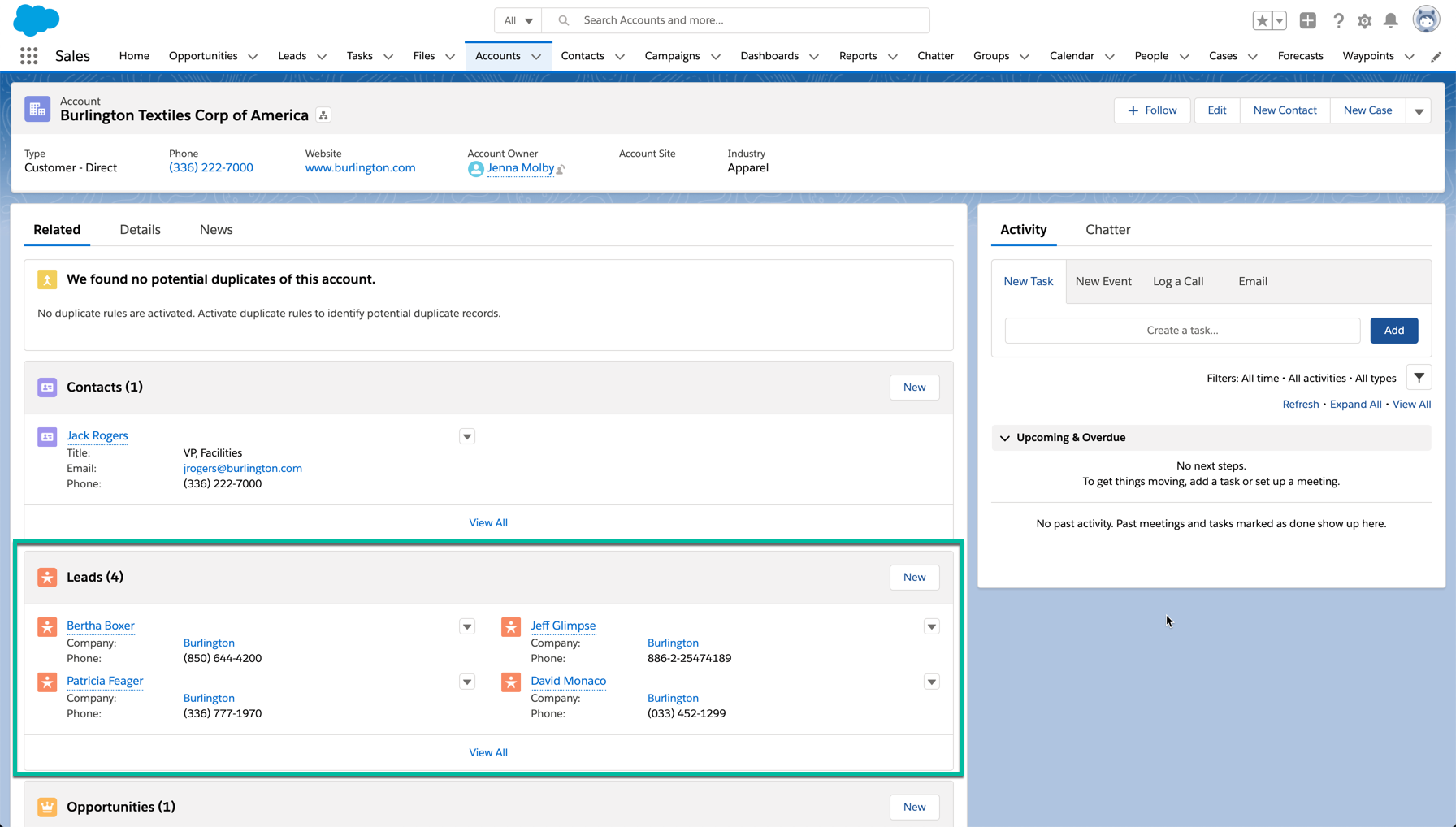
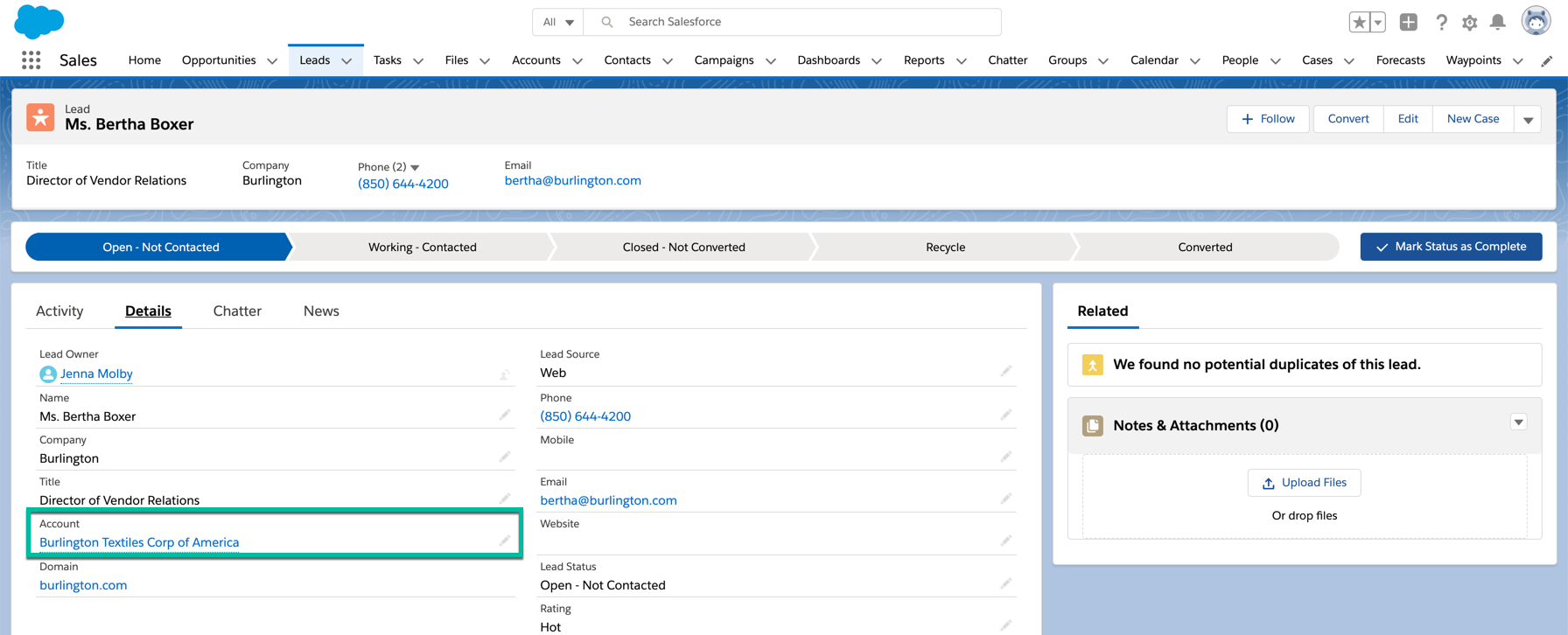
The matched account will also be shown as a lookup field on the lead.
Here’s a high-level look at what needs to happen to setup lead to account matching:
- Lead is matched to an account based on email domain.
- If the lead email domain does not match an account email domain, the match will be based on lead company = account name.
- A Flow is used to identfy the matched leads and update them accordingly.
Create lead fields
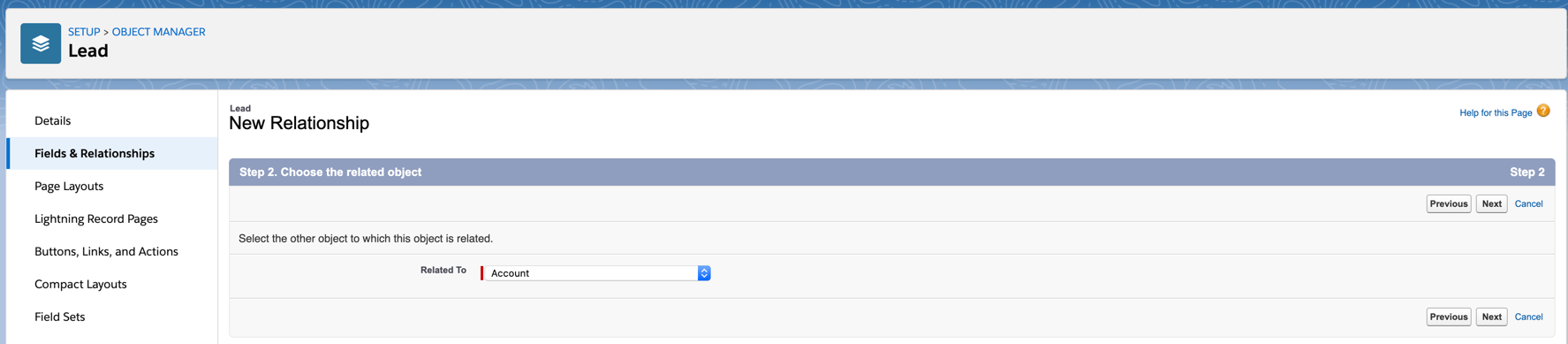
Create a new lookup field on the lead to the account called “Account”.
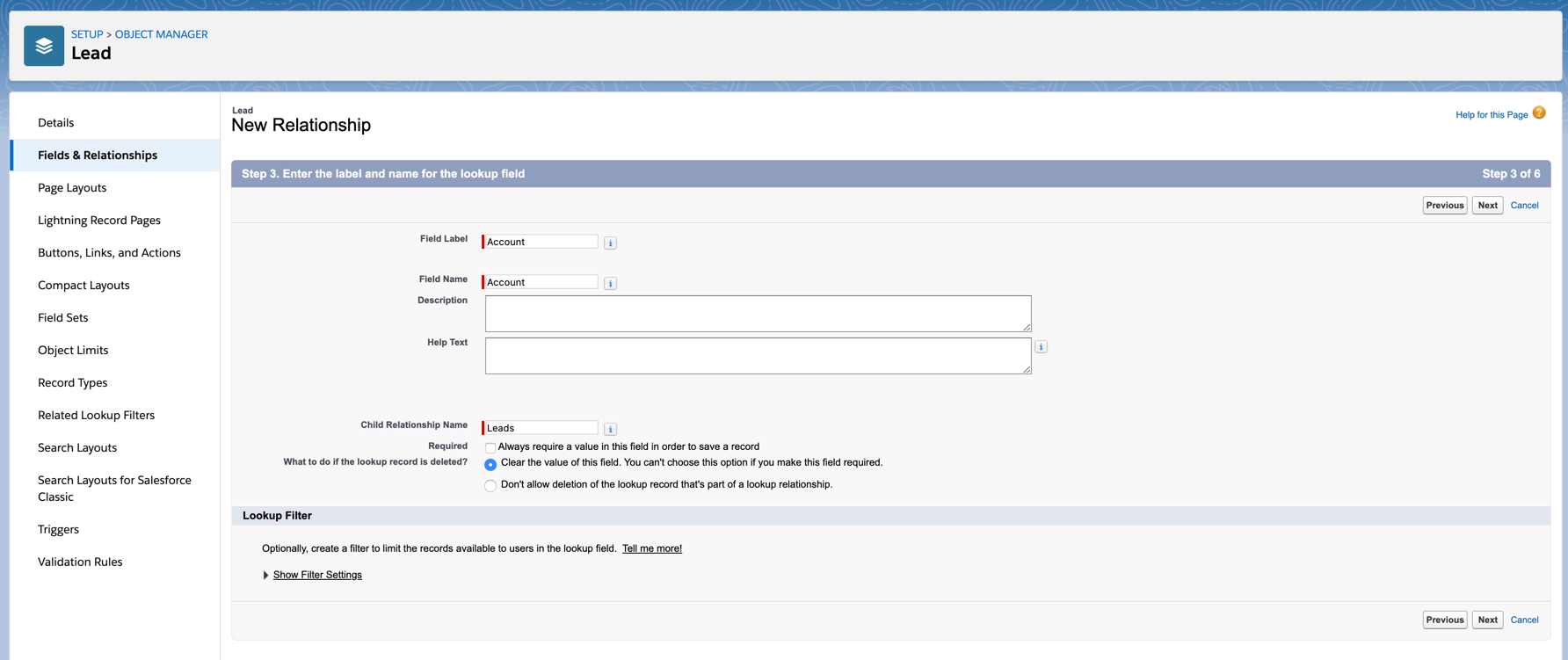
Create a new formula field on the lead called “domain”, using the following formula:
SUBSTITUTE(Email, LEFT(Email, FIND("@", Email)), NULL)

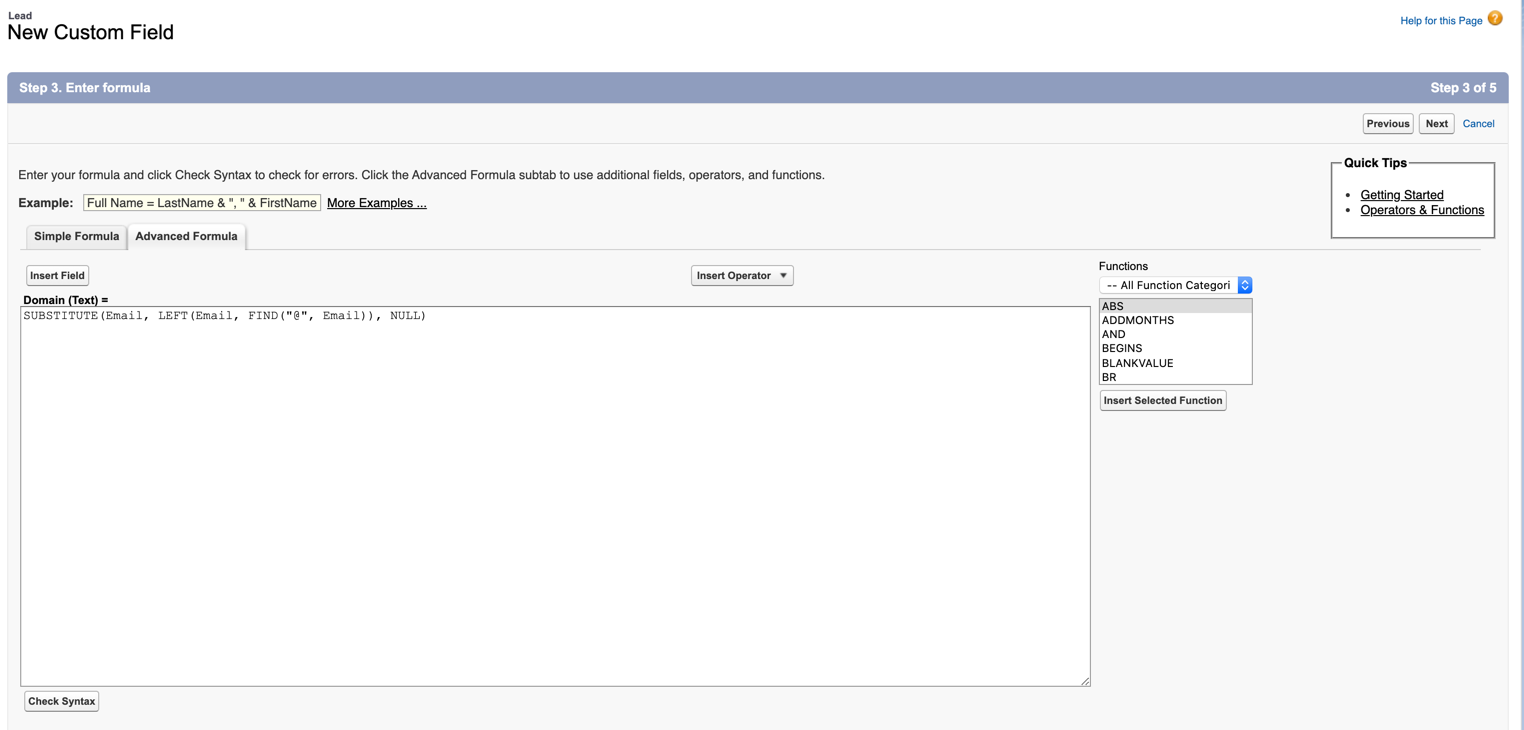
Create account field
Create a text field on the account called “domain”. This is the field we will use to match the account domain to the lead domain. You will need to populate the account with the domain. This tutorial will not cover how to populate the domain on the account level.
Create the flow
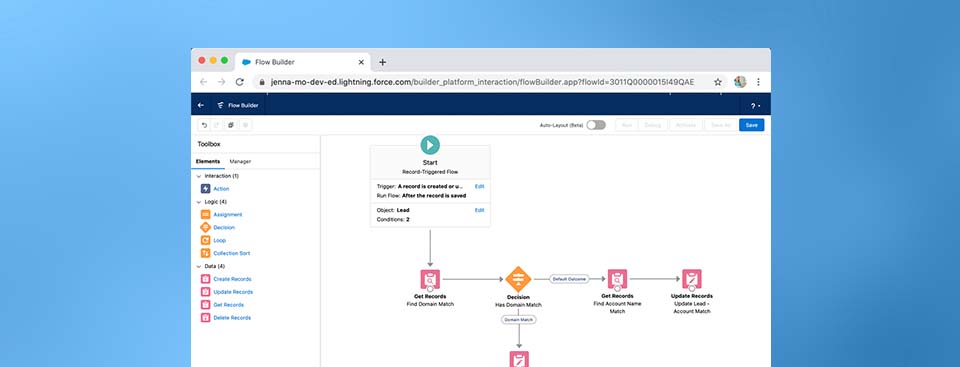
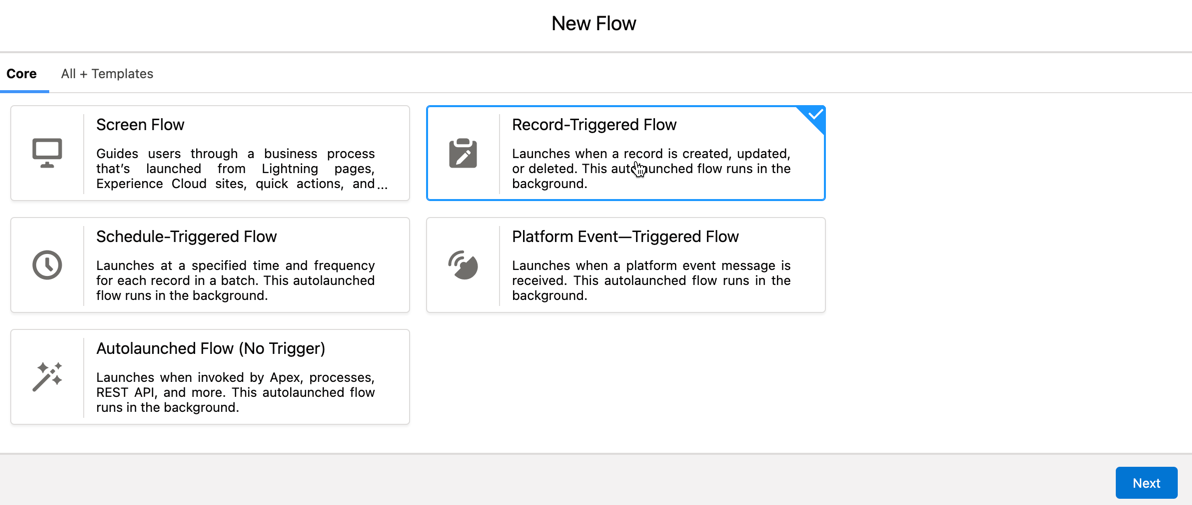
Navigate to Setup > Process Automation > Flows and select new flow. Select Record-Triggered Flow from the wizard.
Create variables
Create a variable called AccountId
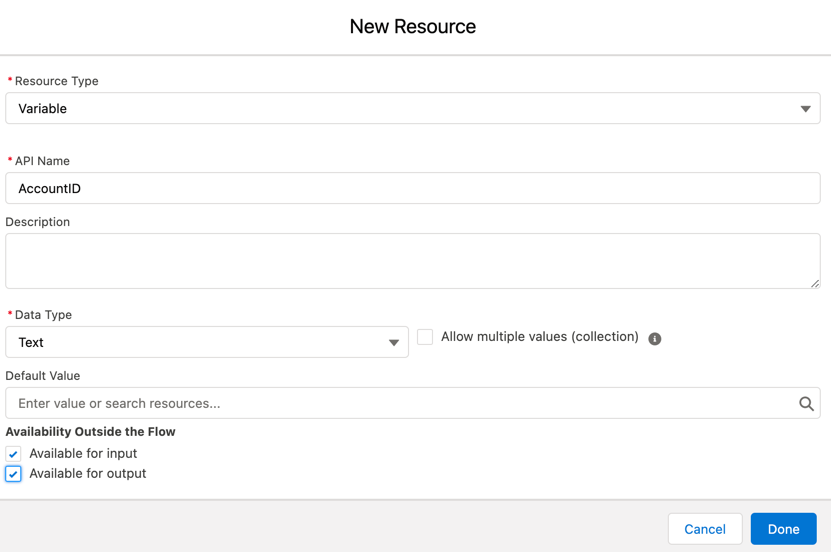
Configure the trigger
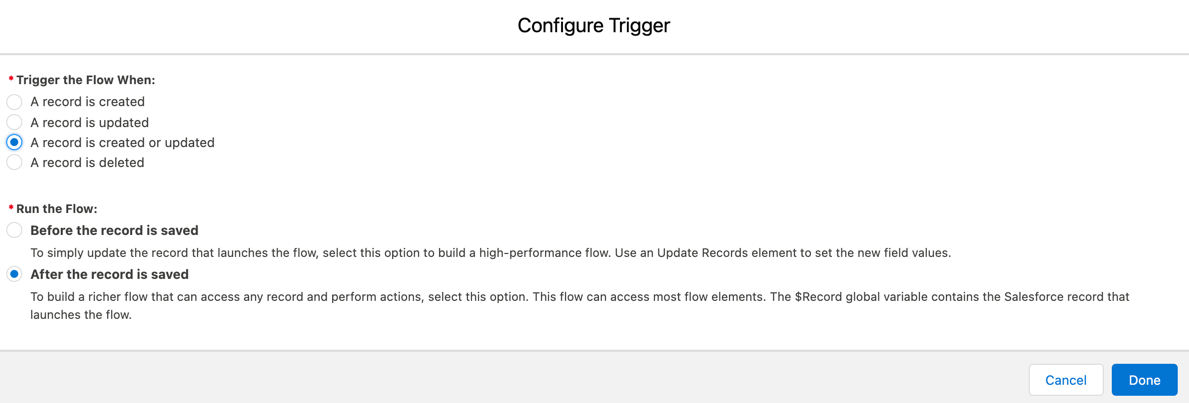
Configure the trigger to occur when a record is created or updated and run after the record is saved.
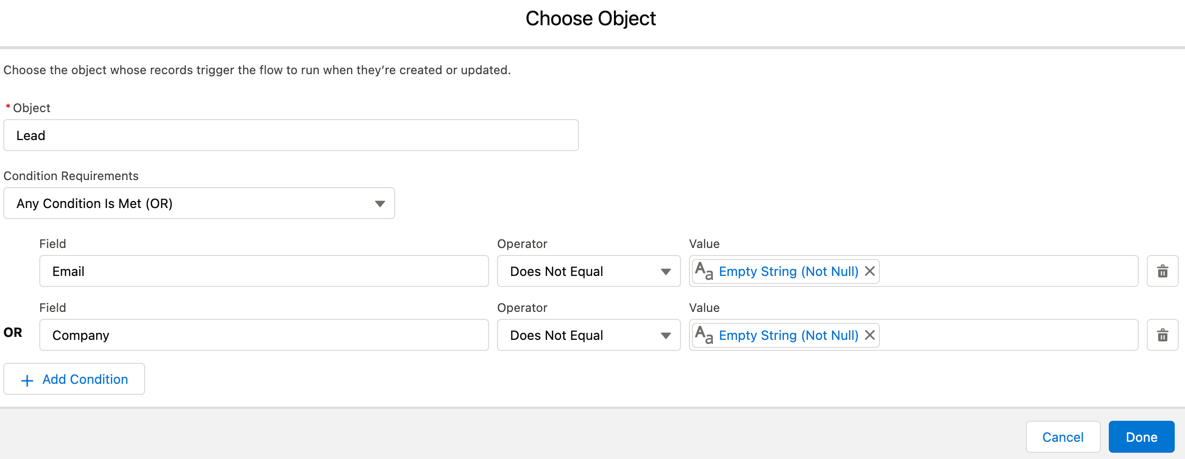
Set the trigger to run on the lead object if email is not empty or if company name is not empty.
Add a Get Records element to the flow
Drag and drop a Get Records element to the page. This element will look for a domain match based on the domain on the account and the domain on the lead.
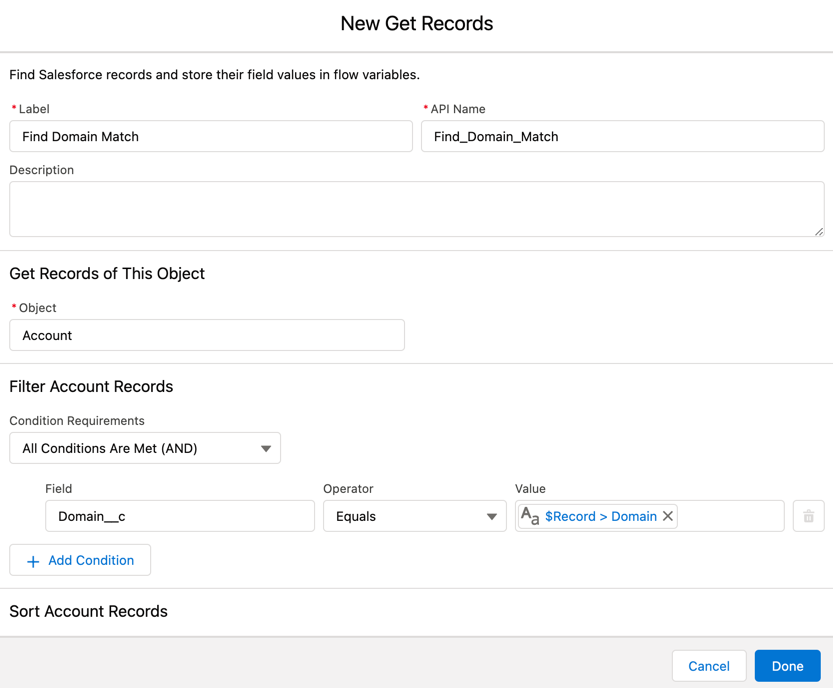
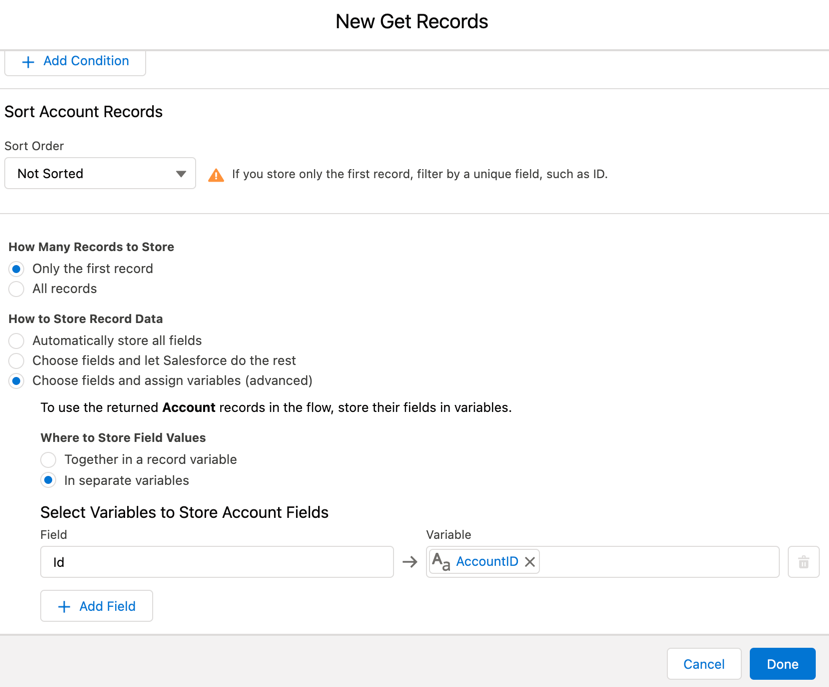
Connect the start of the flow to the new element.

Add a Decision element to the flow
Drag and drop a decision element on to the page. This will check to see if there is a domain match or not.
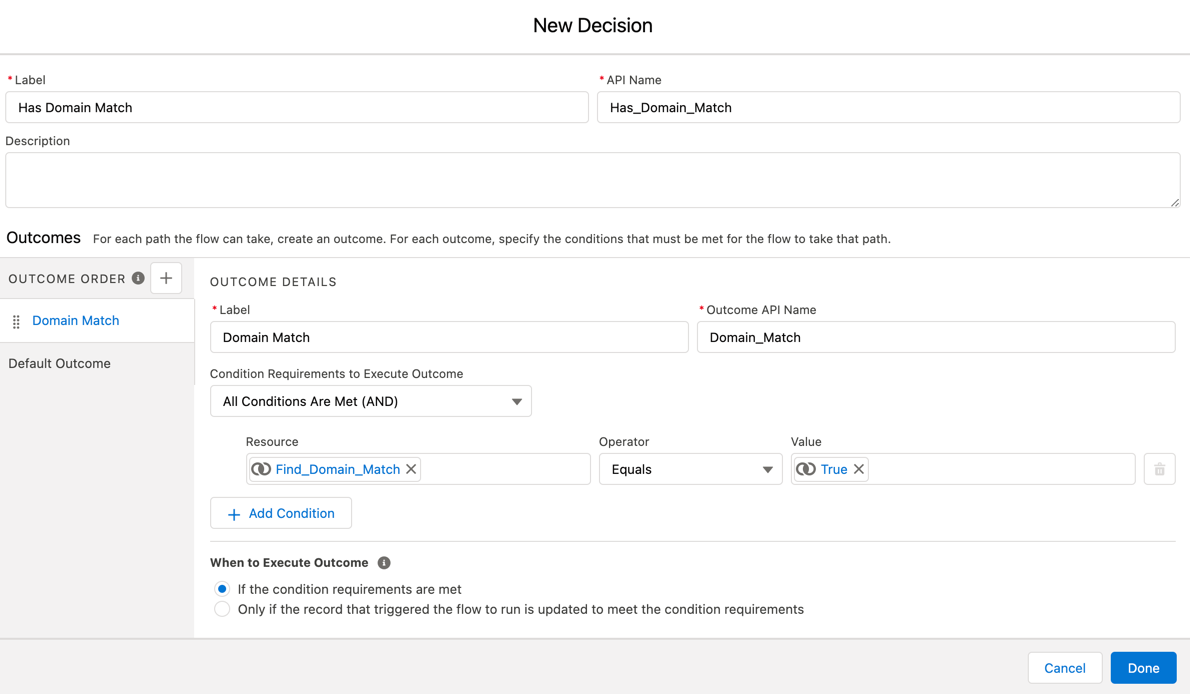
The default outcome should just be left empty.
Save and connect the get records element to the decision element.

Add a Update Records element to the flow
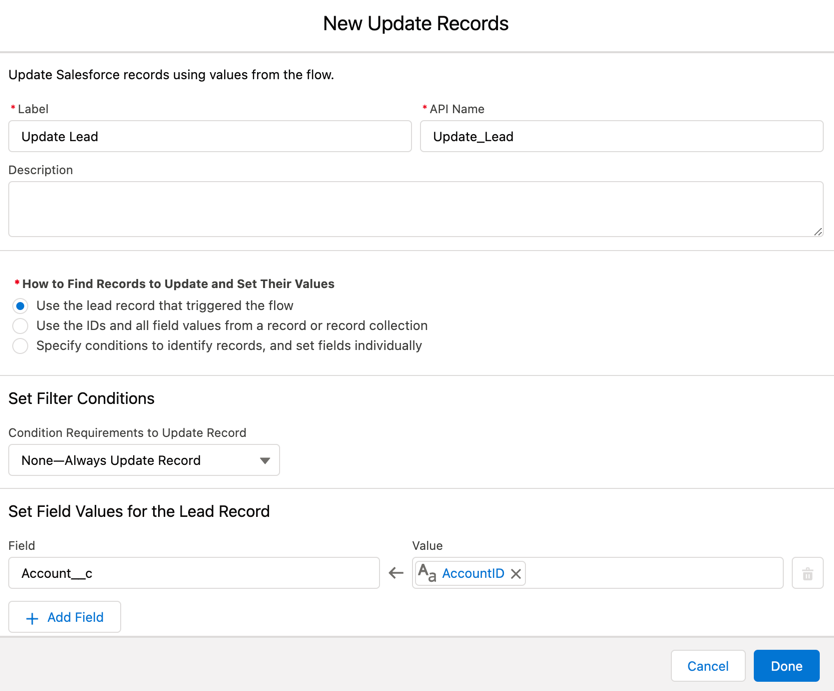
Now add an update records element to the flow. This will update the matched Account lookup on the lead if there is a domain match.
Add a Get Records element to the flow
Next, add another get records element to the flow to check to see if there is a company/account match.
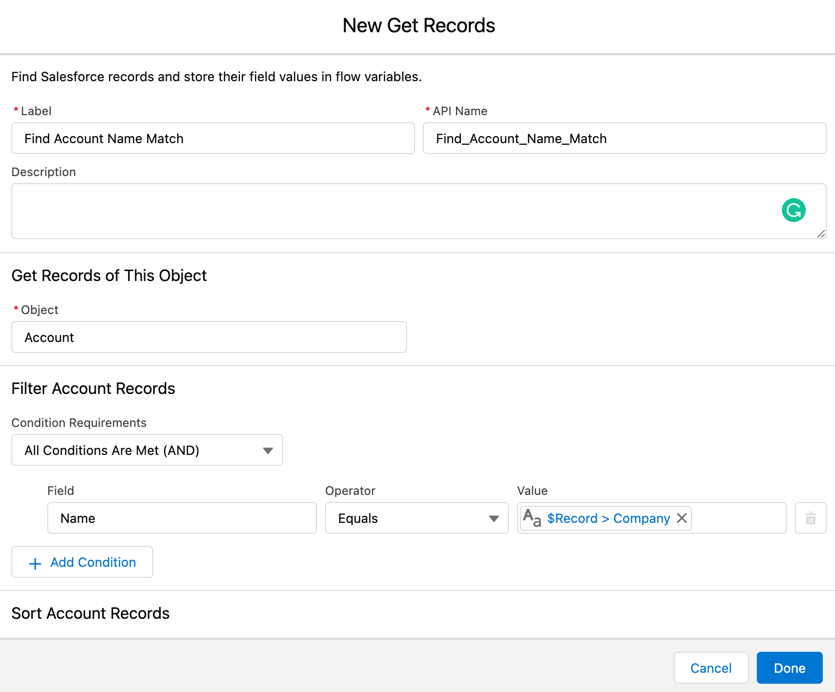

Save and connect the element to the decision element (default outcome).

Add an update records element to the flow
Lastly, add another update records element to the flow to update the account lookup on the lead if there is a company name -> account name match.
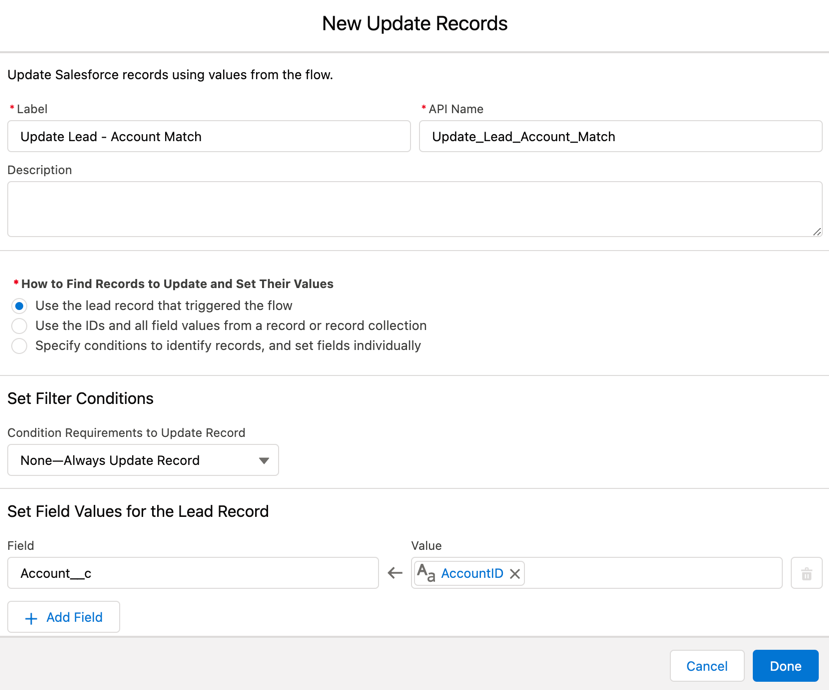
Save and connect the last element to the flow. Your final flow should look something like this:

Activate the flow
Save and activate your flow!
Test, test, test
Make sure you test! Here is what my testing process looks like:
- Make sure all the new fields are added to the page layout (at least for now)
- Find an account to use to test (ex. Burlington Textiles Corp of America)
- Populate the domain field on the account (ex. burlington.com)
- Create a new lead using that domain as part the email address (ex. [email protected])
- Ensure the domain field on the lead is populated with the correct domain from the email address you entered (ex. burlington.com)
- Look at the lead to see if the account lookup is populated with the correct account
- Look at the account to ensure the lead is populating in the related list
- Create a new lead where the company name = the account name from your test account (ex. Burlington Textiles Corp of America). The email address for the lead should use a invalid domain name (ex. [email protected])
- Look at the lead to see if the account lookup is populated with the correct account
- Look at the account to ensure the lead is populating in the related list
If you have it set up so your process will run when a lead is created and updated, repeat the steps to test an updated lead. You will also want to test different lead scenarios based on the filters you specified in your process builder. For example, if you have a filter to exclude all @gmail.com email addresses, try updating or creating a lead with an @gmail.com email address to ensure the lead updates as expected.
Questions?
Send me a tweet @jennamolby, leave a comment below, or book a Peer Chat.

8 Comments
Hi Jenna,
Below is our business scenario, I am curious if using Flow would capture these incoming Leads by searching existing “email domain” or Account Name matches Company Name on the Lead? We want to stop the Lead from being converted and tie it to existing Strategic Account and let the Strategic team handle the follow up.
Business Scenario
Let’s say the manager of a hotel fills out a form online requesting a demo. The contact information and business he/she enters does not match a record in our database. This would flag as a “Hot Prospect” and be sent to the new business team for immediate follow up. It turns out that the hotel is part of a hotel group that the strategic accounts team manages. The matching system would not have flagged this particular hotel. Additionally, because this manager is not affiliated with any other properties within the hotel group, his/her contact record did not exist in our database.
Will Flow be able to query his/her email address domain only?
For Example: [email protected] –> Where Flow would only query all existing Contacts email domain against “@hotelgroup.com” OR Lead – Company Name MATCH “Whatever Hotel by Hotel Group”.
By using Record-Triggered Flow, convert that Lead to Contact only and tie it to existing Strategic Account but don’t create a new Account.
Thanks Jenna!
Great stuff, though this can be a deceptively complex problem to solve in some orgs.
I remember when getting this kind of functionality would cost $25K min for a full product.
If the solution you laid out doesn’t work for people, there are some very solid products out there now that do this for way less. I won’t name the name of the solution I found, as I don’t want to appear as pushing a product, but there is a solution from a company based in the valley. you get a ton more functionality (especially around various ways to match and deal with subsidiaries, etc.) plus a very, very powerful lead-routing engine.
Love this, and working on adding it now. Thank you for sharing your knowledge.
Here is a resource for those needing to get the domain into the account level, from the website. It does a good job of removing the www and http stuff, and anything past the .com.
However, it does not remove subdomians, so it’s not perfect. For copy/paste thought… it will take care of most of your needs.
https://salesforce.stackexchange.com/questions/63180/how-do-we-capture-the-domain-name-from-a-url-field-in-a-formula
Hi Dan, thanks so much!
Thanks for this. What happens if we have more than one account with the same domain name? We work with large businesses and we sometimes have separate accounts for each office location. All the accounts (HQ and Offices) have the same domain.
Hi Susan, When I tested this out, it would match to the account that was most recently updated.
Hi, Jenna.
Would you be able to give me a little more info on this step:
Create account field
Create a text field on the account called “domain”. This is the field we will use to match the account domain to the lead domain. You will need to populate the account with the domain. This tutorial will not cover how to populate the domain on the account level.
If you could direct me to any resources, or if we could exchange some messages online, that would be fantastic.
Thank you!!
-Amanda
Hi Amanda, There are a couple of ways to do this. If you have any enrichment tools ex: Zoominfo or Clearbit they can enrich the account automatically when the account is created. You can also require domain on the account, so it has to be filled manually.