

There are many different ways to assign your prospects within Pardot. You can manually assign prospects or utilize automation rules or completion actions to assign prospects based on their activity or information. In this post, I’ll dive into 6 different ways to manage lead assignment in Pardot and how to determine what the best option is for you.
1. Assign to user
Assign to user assigns a prospect to the specified user when the requirements of the rule are fulfilled.
How to use it
Completion Action
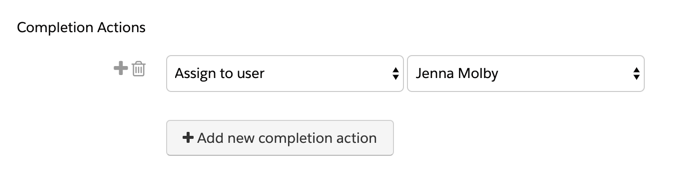
Assign to user can be set up as a completion action for your forms, form handlers, files, custom redirects, emails and page actions, by selecting “Assign to user” and selecting the user’s name from the dropdown
Automation Rule
Assign to user can be set up as an action within an Automation Rule. This is a great way to assign leads if you have criteria the lead needs to be meet before assigning the prospect to Sales. For example, if you want to only assign leads to Sales that meet a certain scoring threshold, use an automation rule.

Engagement Program
Assign to user can also be set up as an action with an Engagment Program, by selecting add element > action > assign to user.

Why this is a good method
|
Things to consider
|
2. Assign via active Salesforce assignment rules
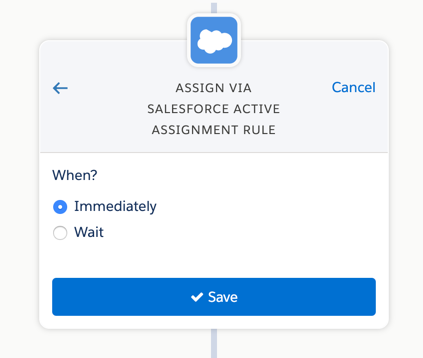
Assign prospect via Salesforce active assignment rule pushes a prospect to your Salesforce active assignment rule when the rule’s criteria is met. The prospect syncs to Salesforce without an owner. The assigned user is synced to Pardot when the active assignment rule determines who to assign it to.
How to use it
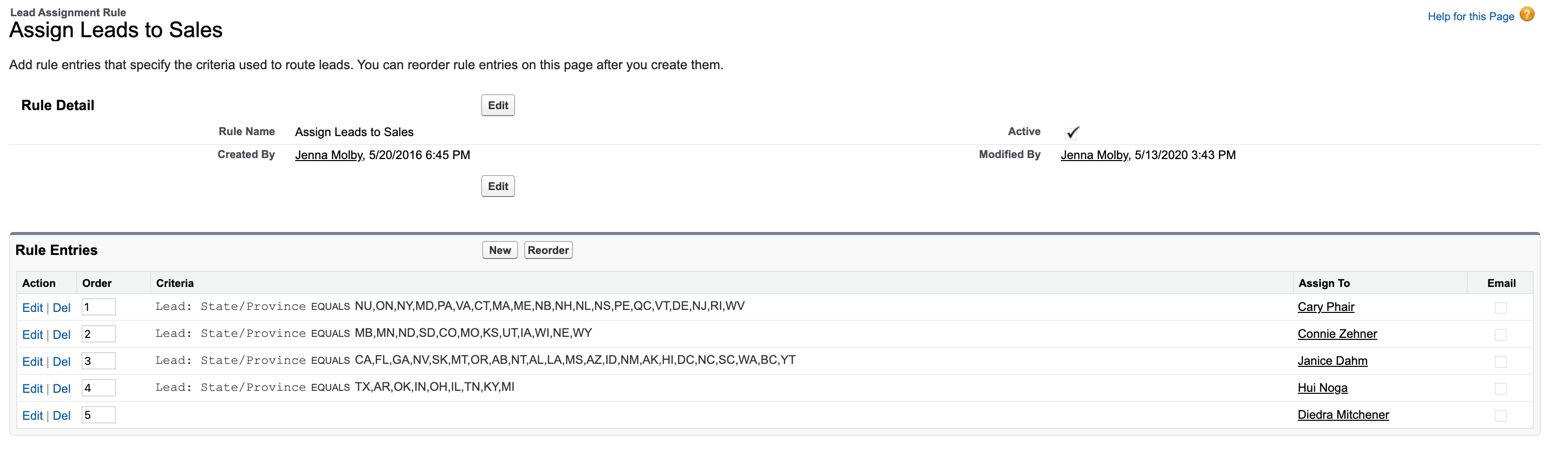
First, you will need an active lead assignment rule set up in Salesforce. This should include all the criteria for your lead assignment as well as a default user to assign the lead to if the lead does not meet any of the criteria.
Completion Action
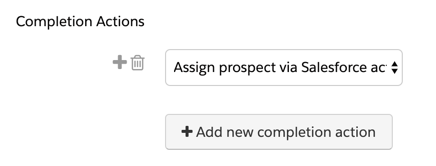
Assign via active Salesforce assignment rules can be set up as a completion action for your forms, form handlers, files, custom redirects, emails and page actions, by selecting “Assign prospect via Salesforce active assignment rule”.
Automation Rule
Assign prospect via Salesforce active assignment rule can be set up as an action within an Automation Rule.
Engagement Program
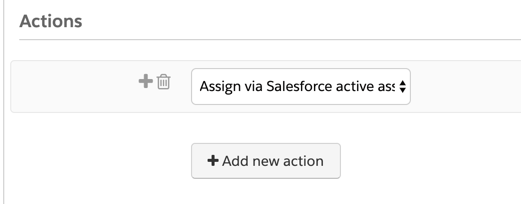
Assign prospect via Salesforce active assignment rule can also be set up as an action with an Engagment Program, by selecting add element > action > assign prospect via Salesforce active assignment rule.
Why this is a good method
|
Things to consider
|
3. Assign to group
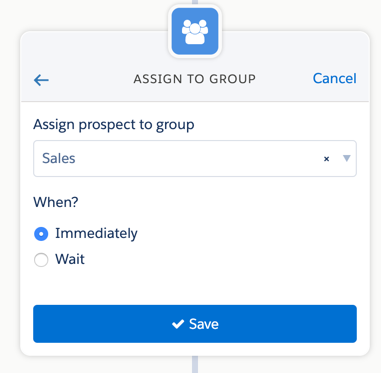
Assign to group, assigns a prospect to a user in a specific group via round-robin lead assignment, when the requirements of the rule are met.
How to use it
First, create a group in Pardot (Admin > User Management > Groups > Add User Group).
Navigate to the user you should belong to the group (Admin > User Management > Users) and click Edit Groups. Select the group to add the user.


Completion Action
Assign to user can be set up as a completion action for your forms, form handlers, files, custom redirects, emails and page actions, by selecting “Assign to group” and selecting the user’s name from the dropdown

Automation Rule
Assign to group can be set up as an action within an Automation Rule.

Engagement Program
Assign to group can also be set up as an action with an Engagment Program, by selecting add element > action > assign to group.
Why this is a good method
|
Things to consider
|
4. Assign via advanced lead assignment rules in Salesforce
If you have more complex business rules, assigning leads via an app on the Salesforce AppExchange might be a good option. Most apps offer a visual way to view lead assignment rules and some advanced functionality, including auto-merging duplicate leads and lead to account matching. I currently use Traction Complete to manage lead assignment for my Global Sales Development Team.
Why this is a good method
|
Things to consider
|
5. Assign to a lead queue in Salesforce
Assign to queue assigns a prospect to the Salesforce lead queue when the rule’s criteria are met. Prospects assigned to a queue are considered assigned to an owner and aren’t reassigned.
How to use it
First, you must have a lead queue set up in Salesforce.

Automation Rule
Assign to queue can be set up as an action within an Automation Rule.

Engagement Program
Assign to a queue can also be set up as an action with an Engagment Program, by selecting add element > action > assign to Salesforce queue.

Why this is a good method
|
Things to consider
|
6. Assignment via Prospect list actions
Prospects can be assigned to a User or Group via prospect list actions.
How to use it
Navigate to the prospect table, select the prospects you want to assign and select one of the options from the drop down menu.

Why this is a good method
|
Things to consider
|
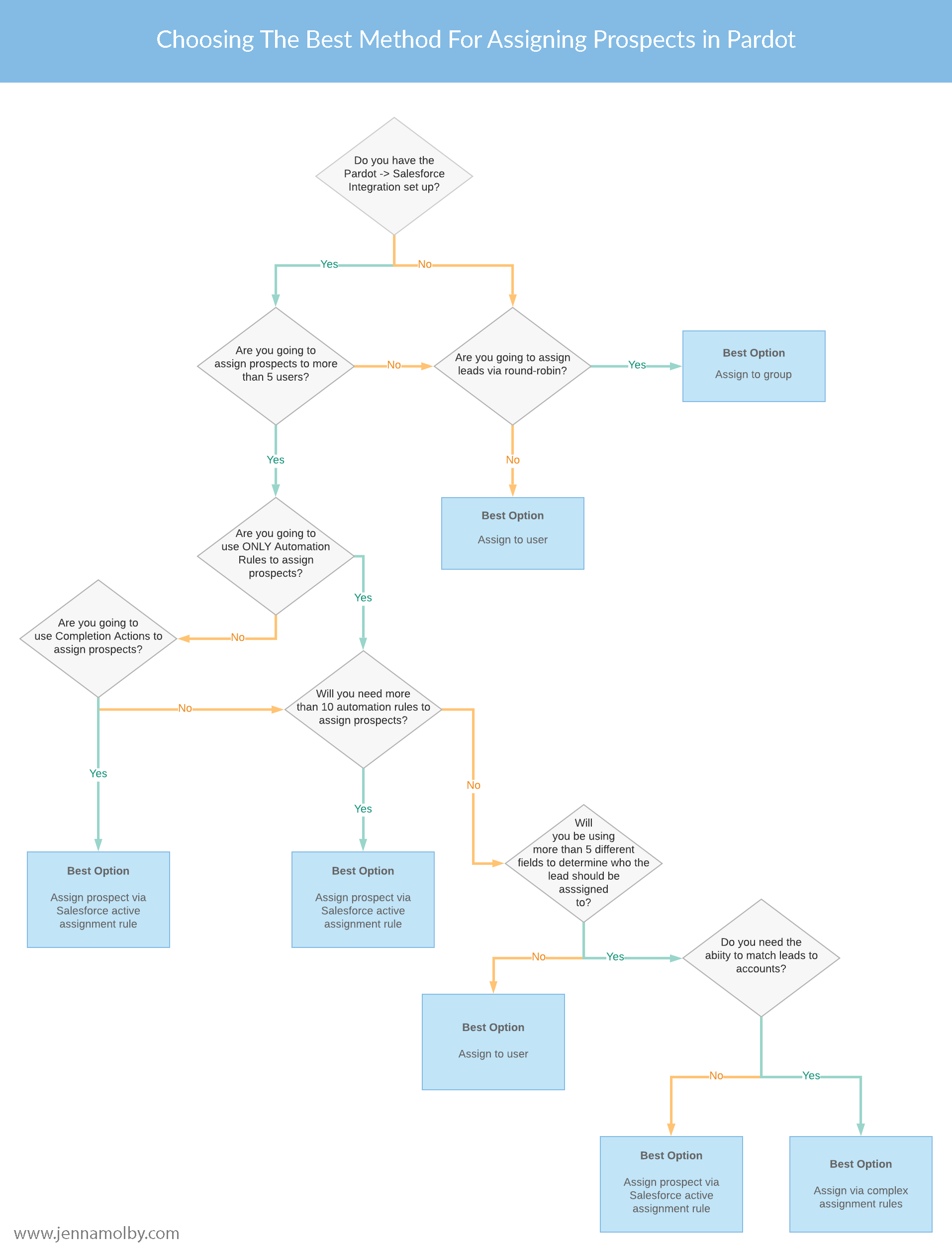
Still not sure what lead assignment method is best?
Run through this flow chart to see what the recommended option is for you.
Questions?
Send me a tweet @jennamolby, leave a comment below, or book a Peer Chat.
